Using the CRM Built into Your AI Calling Agent
In short: Unified CRM is where every lead, call outcome, follow-up and recorded call lives. The list shows each lead's source, consent, groups, pipeline stage and AI lead score, which the calls keep up to date. Filter by stage or group, search, act on many leads at once, or open a lead to see its whole history.
A step-by-step guide for BookAICall, an AI voice agent platform that makes and answers phone calls for businesses in Hindi, English, Hinglish and other Indian languages. Updated .
Steps
Open Unified CRM. The four counters show your leads, confirmed call outcomes (for a property business, Site Visits & Bookings), scheduled activities and tasks, and recorded calls; the names follow your industry. Click a counter, or the tab of the same name, to open that list.
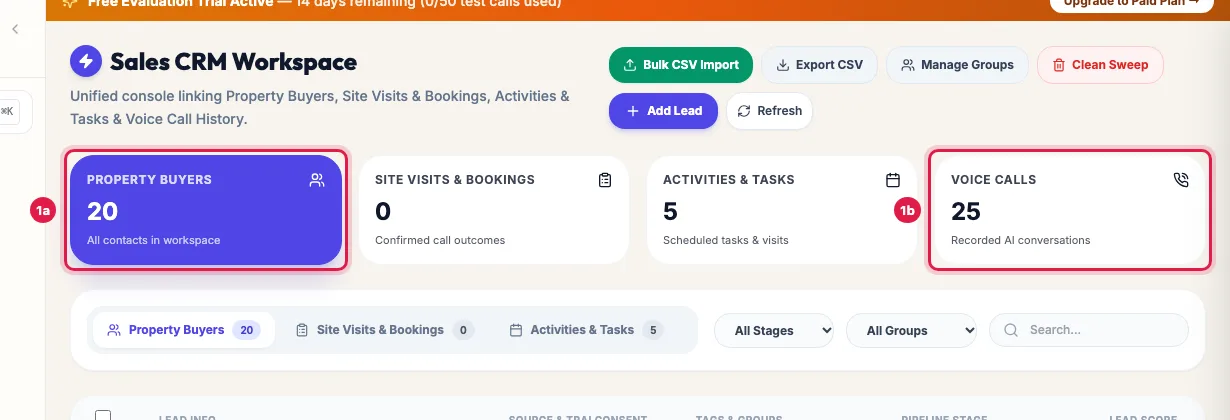
The four counters: your leads, call outcomes, activities and calls In the leads list, narrow it with All Stages and All Groups (Ungrouped Leads shows leads in no group), or type a name, number or email in Search. Fifty leads show per page; First, Previous and Next move between pages.
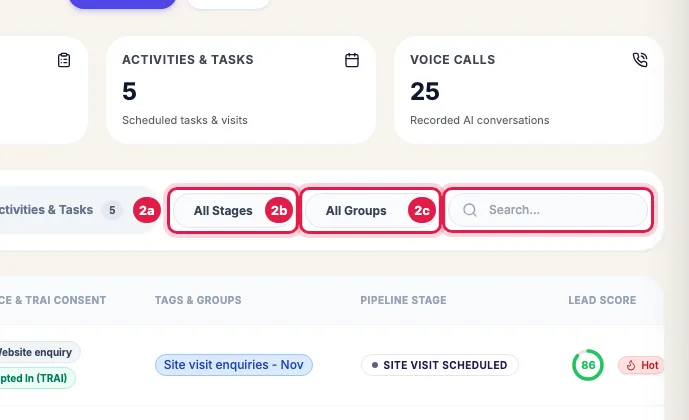
Filter by stage or group, or search by name or number Each row shows the person, the Source & TRAI Consent (Opted In (TRAI) or Opted Out / DND), Tags & Groups, the Pipeline Stage the calls have reached, and the Lead Score: Hot, Warm, Nurture, Cold or Disqualified, or Unscored until a call is analysed. Hover over the score for the reason.
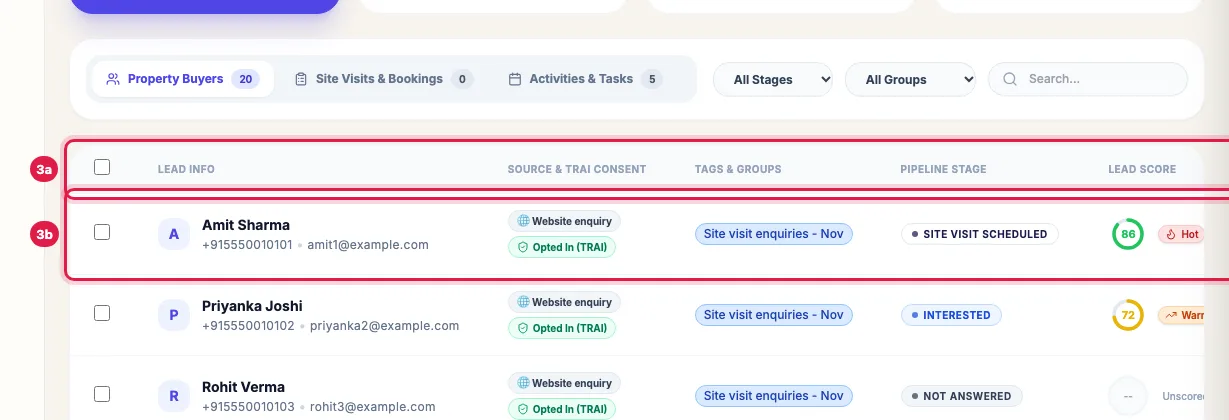
Each row: the person, source, groups, pipeline stage and lead score At the end of a row, Edit changes the contact details and consent, Call AI calls the lead at once with your agent, and 360° Profile opens a side panel with its calls, outcomes, activities and notes. Click anywhere else on the row to open the lead's full page.
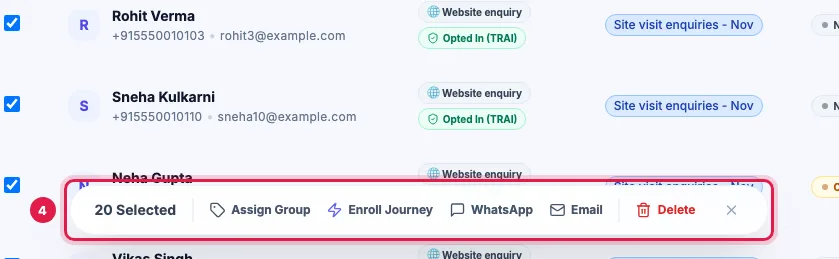
Tick leads to assign a group, enroll them in a journey, or send WhatsApp or email At the top: Add Lead for one person, Bulk CSV Import for a file, Export CSV to download the filtered list, Manage Groups for groups and their automatic calls, Clean Sweep to delete every lead, and Refresh.
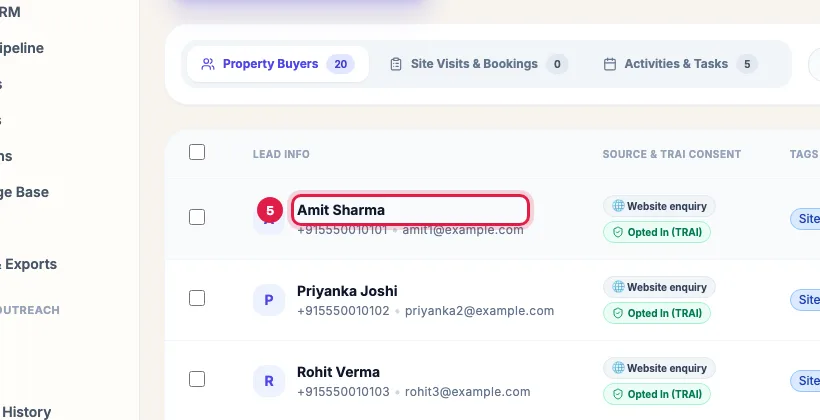
Click a name to open the lead's page Tick leads (or the box at the top for the whole page) to Assign Group, Enroll Journey, send WhatsApp or Email, or Delete them from the bar at the bottom.
The four tabs
- Leads: every person, with the filters above.
- Outcomes (named for your industry, for example Site Visits & Bookings): one record per confirmed result of a call, such as a booking, an order or a callback request, with the details the agent collected. Filter by From and To dates and by outcome (Appointment Booked, Callback Requested, Interested, Not Interested, Converted), and use Export CSV.
- Activities & Tasks: follow-ups, callbacks, visits and meetings the agent or your team scheduled. Filter by dates, status (Scheduled, Completed, Pending, Cancelled) and agent.
- Voice Calls: every call with its direction, number, lead, duration, status, transcript and recording. Filter by dates, status (Completed, No Answer, Busy, Failed, Voicemail), direction and agent; Export All Call Logs CSV downloads them.
What updates by itself
- After each analysed call: the pipeline stage (only forward), the status, the lead score and tier, your industry's fields, a dated note with the key facts, and a callback or appointment if one was agreed.
- A call that ends in interest, a booking or a sale opens a deal in Deals & Pipeline.
- A call to your agent from a new number creates a lead.
Guides for each job
- Bring leads in: "Add leads to the CRM", "Import leads from a CSV or Excel file", "Connect Google Sheets".
- Organise and automate: "Lead groups and automatic calls", "Act on many leads at once", "Automate follow-ups with Journeys".
- Work on one lead: "A lead's page", "Edit a lead", "Add notes to a lead".
- Follow up and sell: "Callbacks", "Deals and pipeline".
- Take data out: "Export leads to Excel or CSV"; for call results in a sheet, "Call results are not written to my Google Sheet".
Example: The morning after a campaign
At 10 AM the Sharma Properties sales manager opens Unified CRM. She filters the list by the stage Site Visit Scheduled to see who is coming this weekend, then by Callback Requested to see who asked to be called back, and opens Amit Sharma's page to read what he asked for. She ticks the five Hot leads from the Vaishali Nagar group and sends them the brochure template on WhatsApp from the bulk bar.
Tips
- The pipeline stage and the score change by themselves after each analysed call; you do not need to update them after every conversation.
- Search matches the name, phone, email or company.
- A Hot lead with High Churn Risk on its page needs a person to call back soon.
Frequently asked questions
CRM me hot leads kaise dekhe?
Look at the Lead Score column: Hot is the highest tier. Filter by a stage such as Interested or Site Visit Scheduled to see who is closest to buying.
Why does a lead say Unscored?
The score appears after the lead's first analysed call. Qualify on the lead's page scores it from its details at once.
Where are the call recordings?
On the Voice Calls tab (Play Recording) and on each lead's page, under its calls.
Why do the tabs have different names in my account?
The CRM uses your industry's words for leads, outcomes and activities, from the industry set in Settings.
What does Clean Sweep do?
It deletes every lead in the workspace after you type DELETE. To delete some leads, tick them and use Delete in the bar.
Can my team see the CRM?
Yes, by role. An Admin chooses on Team who can view, edit, export or delete leads.
Questions this guide answers
- Does an AI calling platform include a CRM?
- How do I see which leads are hot after AI calls?
- What updates in the CRM after each AI call?
- Where can I see all AI call recordings?
Related guides
- How to Add Leads to an AI Calling CRM (One, Bulk or Automatic): Unified CRM → Add Lead adds one person: name, phone, source, stage, group, notes and your industry's fields. For many people at once use…
- How to Import Leads from Excel or CSV for AI Calling: In Unified CRM click Bulk CSV Import, choose a lead group, upload your CSV or Excel file (or paste rows from Excel), check how each column…
- How to Auto-Call Leads from Google Sheets with an AI Agent: Connect your Google account, add the sheet and tab, and say which columns hold the name, phone and email. New rows become leads within…
- How to Call Every New Lead Automatically Within Minutes: A lead group keeps related leads together, so a campaign, a message or a report can use exactly that list. A group can also act on every…
- Bulk Actions: Group, Journey, WhatsApp, Email or Delete Many Leads: Filter Unified CRM, tick the leads (or the top box for the page, then Select all … matching current filters) and a bar appears: Assign…
- How to Edit a Lead or Mark It Opted Out in the AI Calling CRM: Unified CRM → Edit at the end of the lead's row changes the name, phone, email, company, source, pipeline stage and the opt-in. Untick…
- Read a Lead's AI Score, Call Summary and Transcript: A lead's page shows who the person is and whether they agreed to be contacted, the AI score with its reason, your industry's details…
- Lead Notes: Tell the AI Agent What Was Discussed Before: Each lead has Internal Notes for what your team should know: a visit, a preference, a promise. Add them in Add Lead, on the lead's page…
- How AI Agents Book and Make Callbacks Automatically: When a customer says "call me later", the agent books a callback for the time they asked (or the next good slot) and calls them back then…
- Track Deals from AI Calls in a Sales Pipeline: Deals & Pipeline shows your sales opportunities by stage, as a Kanban board or a table, with the value of open deals, won deals and the…
- How to Export Leads to Excel or CSV: Unified CRM's Export CSV downloads every lead that matches the list's filters (stage, group and search) with its contact details, stage…
- Call Results Not Written to Google Sheet? Fix Writeback: Writeback needs a connected Google account that can edit the sheet: a sheet shared by link can be imported but not written to. Then check…