How to Import Leads from Excel or CSV for AI Calling
In short: In Unified CRM click Bulk CSV Import, choose a lead group, upload your CSV or Excel file (or paste rows from Excel), check how each column is matched, preview and click Import. A phone number already in your CRM is not added twice: that lead is updated with the file's details.
A step-by-step guide for BookAICall, an AI voice agent platform that makes and answers phone calls for businesses in Hindi, English, Hinglish and other Indian languages. Updated .
Steps
Open Unified CRM and click Bulk CSV Import.
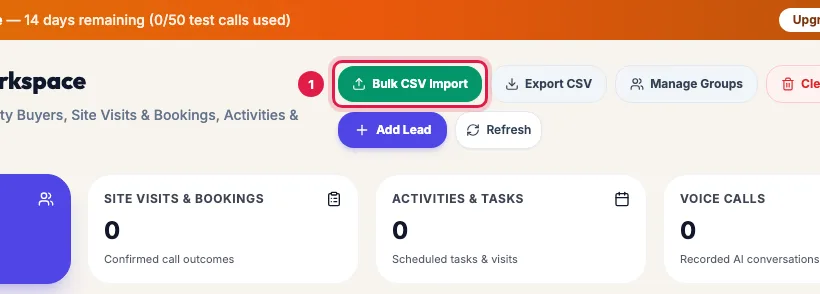
The Bulk CSV Import button at the top of the Unified CRM On Upload File, pick the Target Lead Group (Optional), or click + Create New Group, type a name such as "Site visit enquiries - Nov" and click Save. Then click Choose File and select your .csv, .xlsx or .xls file. No file? Use Paste from Excel, paste the rows with their header row and click Continue to Mapping.
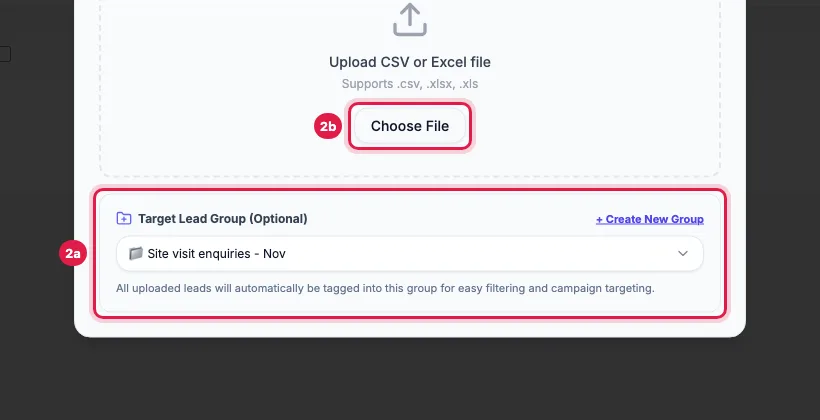
Upload step: the target lead group and the Choose File button Map Fields: check that each column of your file is matched to the right field: Name, Phone, Email, Company, Notes, Source and Lead Group (Column), then your industry's fields. Set a field to — Skip — if your file has no such column. Auto-Map Remaining keeps every other column as a custom field. Click Preview.
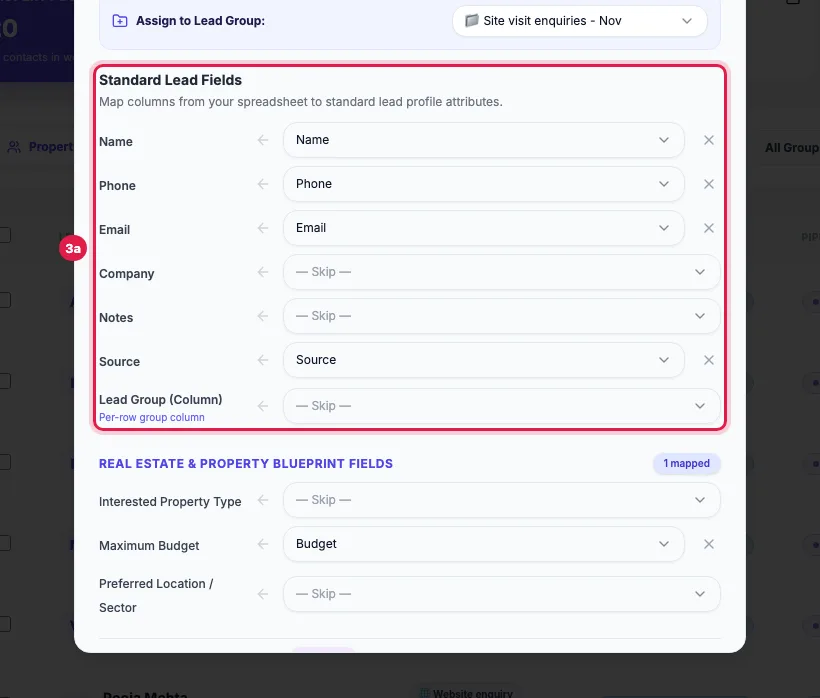
Map Fields step: each column matched to a lead field, and the Preview button Preview: check Ready to import, Will be skipped (a row needs at least a name, phone or email) and the first 20 rows, then click Import … Leads. Keep the window open while the batches upload.
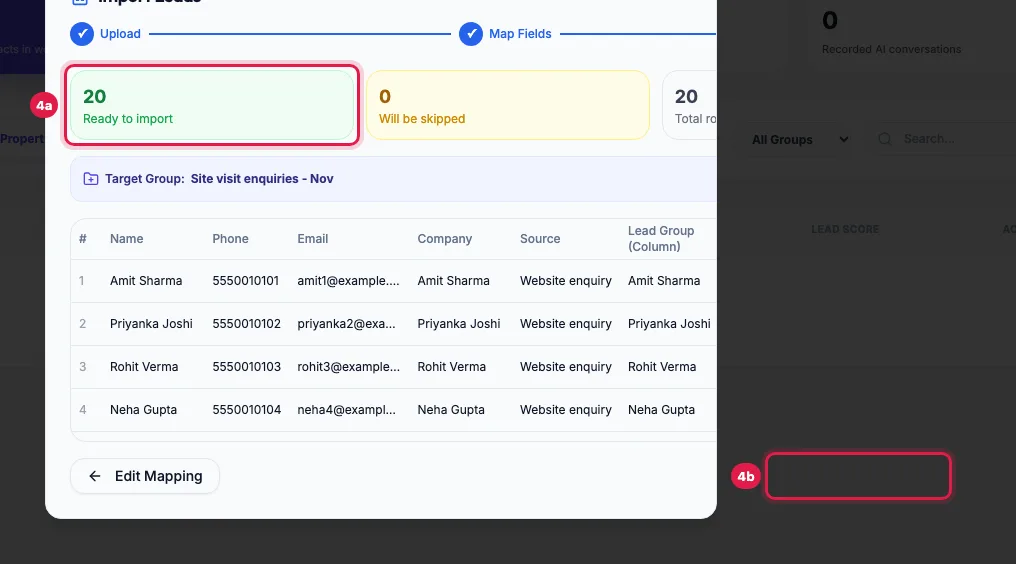
Preview step: rows ready to import and the Import 20 Leads button The result shows how many leads were imported, how many were new and how many already in your CRM were updated, and how many rows were skipped. Click Done: the leads are in the CRM and in the group you chose.
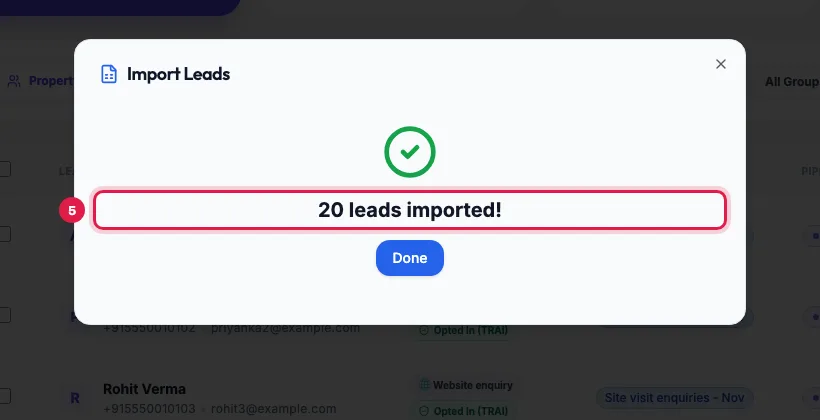
The import result: how many leads were imported and how many were skipped
How each column is used
- Phone: 10-digit Indian numbers get +91; a number with + and a country code is kept. Put one number per cell.
- Name, Email, Company, Notes and Source fill the lead's own fields. Without a Source column the leads get the source file_import.
- Lead Group (Column): a column with a group name per row puts each row in that group as well, if a group with that exact name exists (capital letters do not matter). Unknown names are ignored.
- Your industry's fields (for example Maximum Budget or Preferred Location) appear under Blueprint Fields; yes/no fields accept yes, true or 1.
- Custom Fields Mapping keeps any other column under the name you give it, shown on the lead's page and available to the agent on calls.
Duplicates and re-uploads
- A phone number that appears twice in the file is imported once (the first row); the result counts it as repeated in file.
- A phone number already in your CRM updates that lead: filled cells replace its name, email, company, notes and source, empty cells change nothing, custom fields are added, and the group is added to the groups it already has.
- A group's automatic WhatsApp, AI call or journey runs only for leads that newly join the group, so uploading the same file again does not call anyone twice.
Calls after an import
A group with Auto-trigger on new lead calls the imported leads with its agent. Leads that arrive in bulk are called between 9 AM and 9 PM IST; a file imported at night is called from 9:15 AM. Journeys that start on "New lead created or imported" start for the new leads too.
Webhook tab
Bulk CSV Import → Webhook shows an address your website, ad forms or tools like Zapier can send leads to, so they arrive without a file. Copy it with the copy button.
Example: 500 enquiries from an education fair
Bright Future Coaching collects 500 enquiries at an education fair in an Excel sheet with the columns Student Name, Mobile, Email, Course and City. The counsellor clicks Bulk CSV Import, creates the group "Edu fair - Nov", uploads the file, checks that Student Name is matched to Name and Mobile to Phone, maps Course to the industry field and keeps City as a custom field. Preview shows 496 ready and 4 skipped (empty rows); Import 496 Leads adds them in two batches, and a campaign for "Edu fair - Nov" calls them the next morning.
Tips
- Use one group per upload, so campaigns, WhatsApp messages and journeys can target exactly that batch.
- Clean the file first: one header row, one person per row, the phone number in its own column.
- Only import people who agreed to hear from you, and keep where and when they agreed in the Source or Notes column.
- For leads that keep coming every day, connect Google Sheets instead of uploading again and again.
Frequently asked questions
Why were some rows skipped?
A row is skipped when it has no name, phone or email. If a phone number appears twice in the file, only the first row is imported.
I uploaded the same file again. Will my leads get a second call or message?
No. Leads already in your CRM are updated, not added again, and a group's automatic actions run only for leads that newly join the group.
Excel se leads kaise upload kare?
Unified CRM → Bulk CSV Import → Choose File, select the .xlsx file, check the column matching on Map Fields, then Preview and Import.
My company names show the person's name. Why?
Check the Company row on Map Fields: if your file has no company column, set Company to — Skip —.
How many leads can I import at once?
Large files are fine: the import uploads them in batches of 250 and shows the progress. Keep the window open until it says leads imported.
The import stopped half-way.
The message says which batch failed and how many leads were already imported. Import the same file again: the leads already in are updated, not doubled.
Can I import leads into several groups from one file?
Yes. Add a column with the group name per row and match it to Lead Group (Column); the groups must already exist.
Questions this guide answers
- How do I upload leads for AI calling?
- Can I import an Excel list of leads to call?
- What happens to duplicate phone numbers when I import leads?
- Can I put imported leads into several groups at once?
Related guides
- How to Add Leads to an AI Calling CRM (One, Bulk or Automatic): Unified CRM → Add Lead adds one person: name, phone, source, stage, group, notes and your industry's fields. For many people at once use…
- How to Call Every New Lead Automatically Within Minutes: A lead group keeps related leads together, so a campaign, a message or a report can use exactly that list. A group can also act on every…
- How to Auto-Call Leads from Google Sheets with an AI Agent: Connect your Google account, add the sheet and tab, and say which columns hold the name, phone and email. New rows become leads within…
- How to Run an AI Calling Campaign: Automate Outbound Sales Calls: Campaigns → New Campaign: name it, choose the AI agent, set the retry rules, pick the lead group and click Create & Launch. The agent…
- How to Export Leads to Excel or CSV: Unified CRM's Export CSV downloads every lead that matches the list's filters (stage, group and search) with its contact details, stage…