How to Auto-Call Leads from Google Sheets with an AI Agent
In short: Connect your Google account, add the sheet and tab, and say which columns hold the name, phone and email. New rows become leads within about five minutes, and after each call the results can be written back to the sheet.
A step-by-step guide for BookAICall, an AI voice agent platform that makes and answers phone calls for businesses in Hindi, English, Hinglish and other Indian languages. Updated .
Steps
Open Google Sheets and click Connect Google Account. Sign in with the Google account that can open the sheet. Then click New Integration.
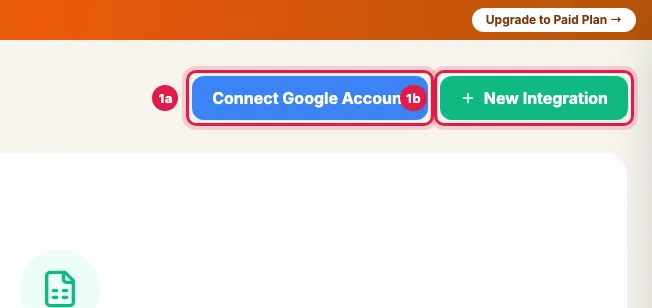
Connect the Google account that can open the sheet, then add a sheet with New Integration Paste the Google Sheet URL and enter the Sheet Tab Name exactly as it appears at the bottom of the sheet. Choose the Sync Direction: Import (sheet rows become leads), Export (call results go to the sheet) or Two-way Sync (both).
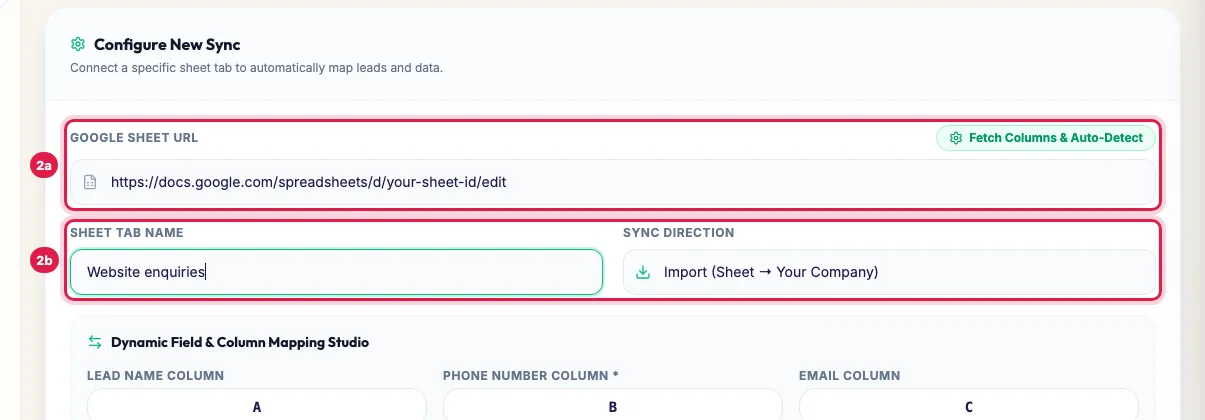
The sheet's link, the tab name and the sync direction Click Fetch Columns & Auto-Detect to read the sheet's headers, or type the column letters: Lead Name Column, Phone Number Column (required) and Email Column. Add Extra Column maps more columns, such as source or budget.
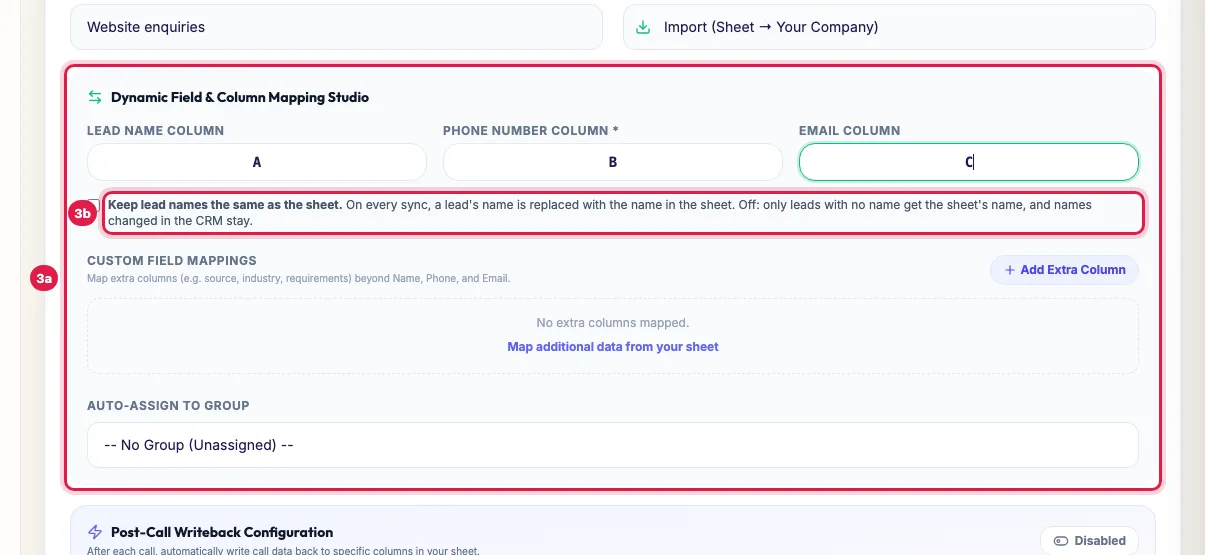
Which column holds the name, the phone number and the email, and whether names follow the sheet Choose Auto-Assign to Group to put new rows in a lead group (its automatic call then runs for them). To write results back after each call, switch on Post-Call Writeback Configuration, click Add Field, and map each call field to a column with Overwrite, Append or Keep Existing. Click Connect Sheet.
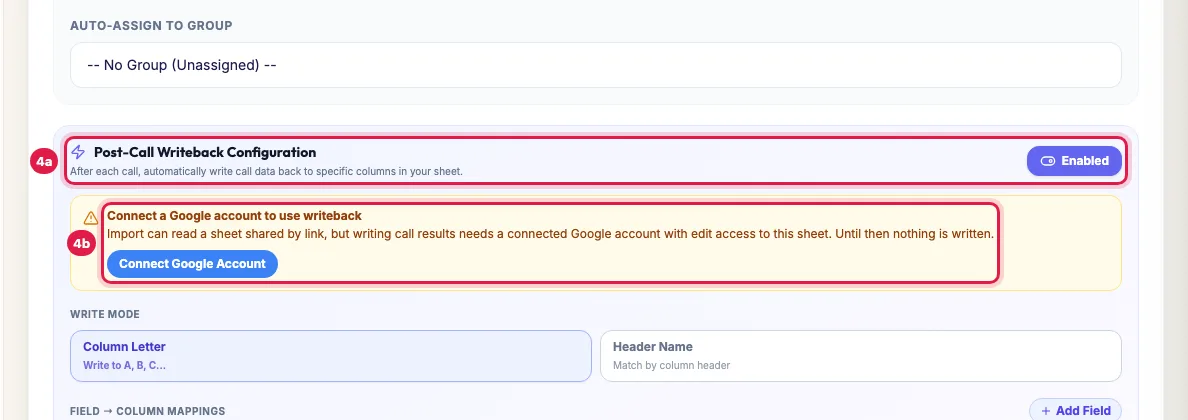
Writeback after each call needs a connected Google account that can edit the sheet
How often the sheet syncs
- Import runs by itself about every five minutes while your account is active or on trial; a sheet that has not changed is skipped.
- Force Sync on the sheet's card reads it at once.
- A row whose phone number is already a lead does not create a second lead: the lead gets the row's mapped fields, and joins the group if it is not in it.
- Deleting a row from the sheet does not delete the lead or take it out of the group.
- An Export-only sheet is not read: it is written after each call.
The sheet's card
- The status shows connected, syncing, error or disconnected; Flow shows the direction and Last Synced the time of the last read.
- Sync Result or Sync Error under it says what the last sync did or why it failed (for example a wrong tab name).
- The gear icon (Edit Sync Configuration & Direction) changes the mapping, the group or the writeback; Save Changes keeps it.
- The bin removes the integration. It asks whether to also purge the leads imported from this sheet: Cancel keeps them in your CRM.
Lead names
- A new row becomes a lead with the name in the Lead Name Column; a row with no name gets "Lead" and the last four digits of the phone.
- If a lead has no name, or that placeholder, the next sync gives it the name from the sheet.
- To always use the sheet's names, tick Keep lead names the same as the sheet: on every sync a different name is replaced with the sheet's. Leave it off if your team edits names in the CRM.
Calls for new rows
Rows from a sheet arrive in bulk, so a group's automatic call reaches them between 9 AM and 9 PM IST; rows that arrive at night are called from 9:15 AM. Journeys that start on "New lead created or imported" start for sheet leads as well.
Writing call results back
- Writeback needs Connect Google Account with a Google account that can edit the sheet. Link sharing lets Import read the sheet, but nothing is written without a connected account; the sheet's card warns when this is missing.
- The row is found by the phone number in the Phone Number Column (last 10 digits), not by row number, so deleting old rows or pasting new ones each day is fine. If the number is in the sheet twice, the first row is updated; if it is not there, a new row is added at the end.
- Column Letter mode writes to the letter you give (E). Header Name mode writes under the column whose first-row header matches the name you give ("Last Call"); if no column has that header, one is added at the end of the first row.
- Results are written after each call is analysed, for campaign, instant and incoming calls. When the recording arrives later, only the Recording URL column is filled in.
Example: Website enquiries straight to a call
Sharma Properties' website form fills a sheet tab called Website enquiries. Rahul connects it with Import, maps A, B and C to name, phone and email, and assigns new rows to the group Vaishali Nagar enquiries, whose automatic call uses Priya. An enquiry at 4 PM becomes a lead within five minutes and gets a call shortly after; the outcome is written back to column F.
Tips
- Rows without a valid phone number are skipped.
- Put new rows in a lead group with an automatic call to have each one called as it arrives (see "Call new leads from a sheet every day").
- Keep the header row as row 1 and do not rename the tab after connecting; if you must, update the Sheet Tab Name with the gear icon.
Frequently asked questions
What do Overwrite, Append and Keep Existing mean?
Overwrite replaces the cell on every call, Append adds the new value below the old one, and Keep Existing writes only into an empty cell.
The sync says it cannot read my sheet.
Connect Google Account with an account that can open the sheet, check the tab name, and try Fetch Columns & Auto-Detect again.
Can I import without connecting a Google account?
Yes, if the sheet's sharing is set to Anyone with the link can view: Import reads it from the link. Writing results back to the sheet needs a connected Google account that can edit the sheet.
Nothing was written to my sheet after the calls.
Check the sheet's card: if it says Writeback is not running, click Connect Google Account with an account that can edit the sheet. Then check that the Phone Number Column holds the numbers that were called, and that the mapped column letter or header exists.
Does the sheet sync on its own, or only with Force Sync?
On its own, about every five minutes. Force Sync reads it at once.
A lead's name in a campaign is different from the sheet.
Campaign results show each lead's current name. Tick Keep lead names the same as the sheet to make the sheet's name replace an older name on the next sync.
Google Form ke leads ko turant call kaise kare?
Link the form to a sheet, connect that sheet here with Import, and choose Auto-Assign to Group with a group that has Auto-trigger on new lead and an agent. Each new response is called during calling hours.
Can I connect more than one sheet or tab?
Yes. Click New Integration for each tab; each can go to its own group.
Questions this guide answers
- How do I call leads from a Google Sheet automatically?
- Can an AI agent update my Google Sheet after a call?
- How do I call Google Form leads with an AI agent?
- How often does the Google Sheet sync with the CRM?
Related guides
- How to Add Leads to an AI Calling CRM (One, Bulk or Automatic): Unified CRM → Add Lead adds one person: name, phone, source, stage, group, notes and your industry's fields. For many people at once use…
- How to Call Every New Lead Automatically Within Minutes: A lead group keeps related leads together, so a campaign, a message or a report can use exactly that list. A group can also act on every…
- Capture Call Outcomes and Lead Details Automatically with AI: After each call the AI fills in the lead's details, gives the call an outcome and moves the lead to a pipeline stage. Your industry sets…
- Call Results Not Written to Google Sheet? Fix Writeback: Writeback needs a connected Google account that can edit the sheet: a sheet shared by link can be imported but not written to. Then check…
- Call New Leads from a Google Sheet Every Day, Automatically: Connect the sheet with Import into a lead group. Then either switch on the group's automatic call, or create one campaign on the group…