Call New Leads from a Google Sheet Every Day, Automatically
In short: Connect the sheet with Import into a lead group. Then either switch on the group's automatic call, or create one campaign on the group with Keep calling new leads that join this group. Each new row becomes a lead within about five minutes and is called, every day, with nothing to relaunch.
A step-by-step guide for BookAICall, an AI voice agent platform that makes and answers phone calls for businesses in Hindi, English, Hinglish and other Indian languages. Updated .
Steps
Open Unified CRM → Manage Groups and create a group for the calls, for example "Delayed orders".
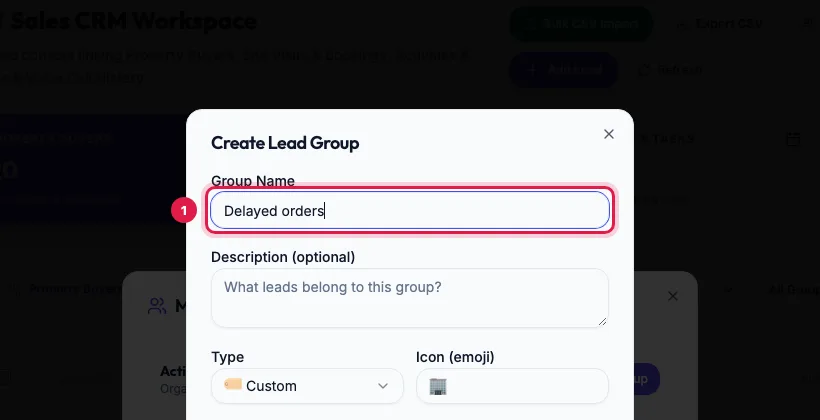
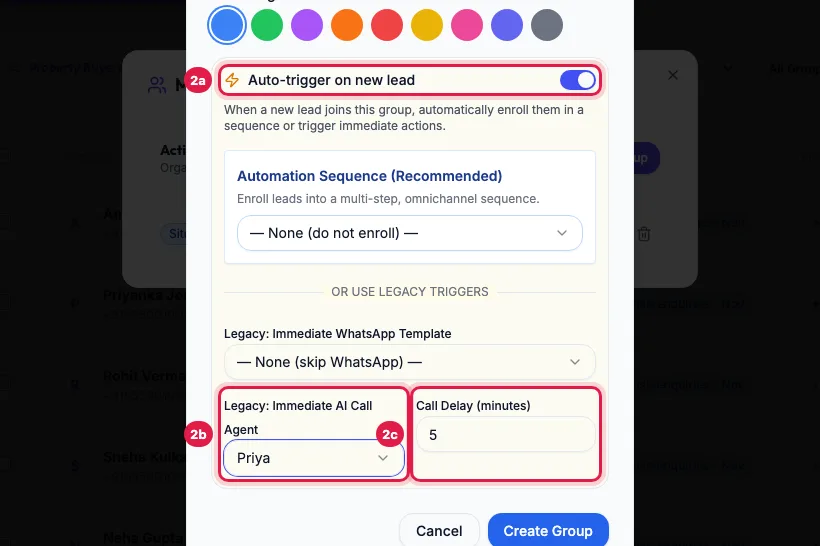
A lead group for the calls, for example Delayed orders In the group, switch on Auto-trigger on new lead, choose the agent under Legacy: Immediate AI Call Agent, and set Call Delay (minutes), 0 to call at once.
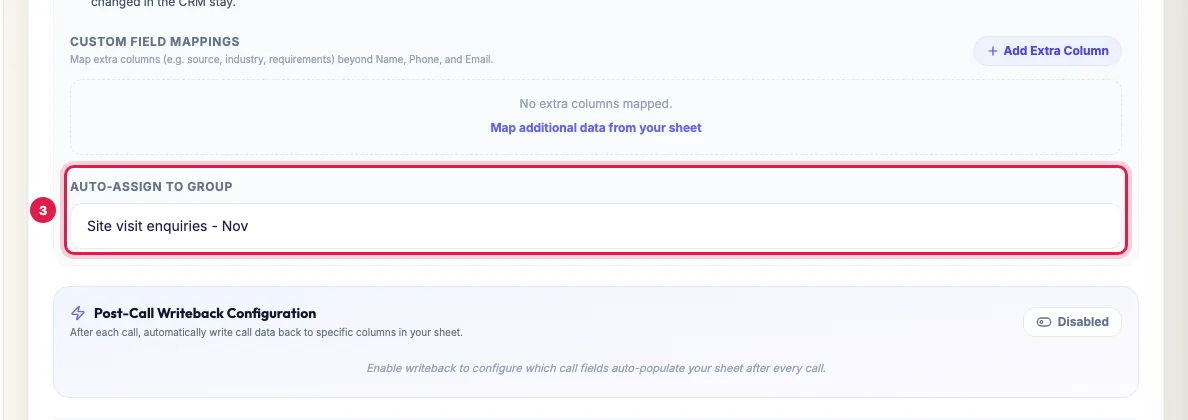
Auto-trigger on new lead: the agent that calls each new lead, and the delay Open Google Sheets, connect the sheet with Sync Direction Import (or Two-way Sync), and choose the group under Auto-Assign to Group.
Import the sheet into the group with Auto-Assign to Group To write each call's result back to the sheet, also click Connect Google Account with an account that can edit the sheet and set up Post-Call Writeback Configuration.
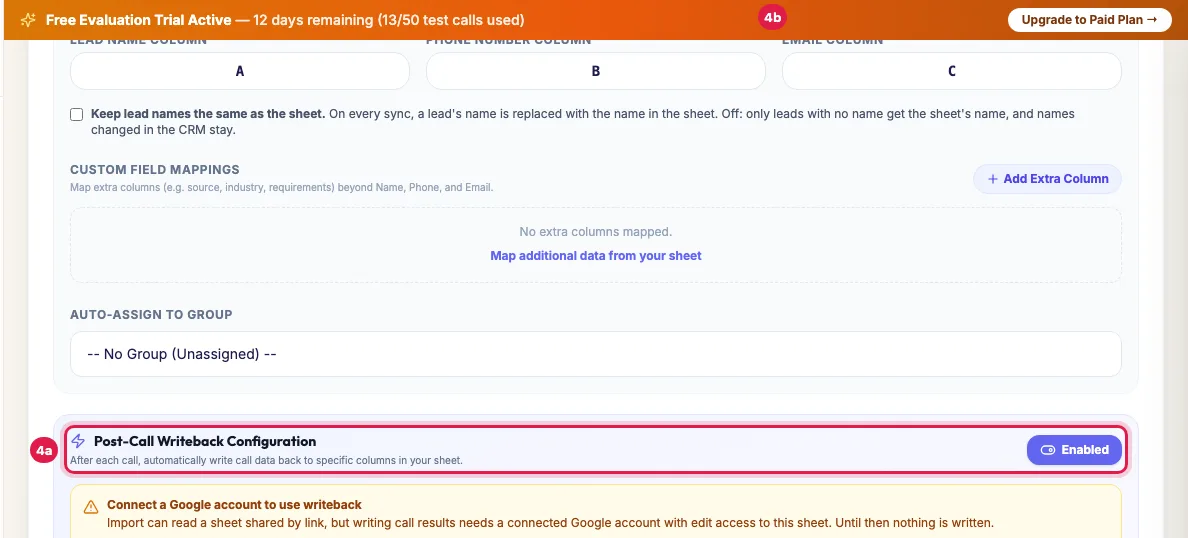
To write results back, connect a Google account that can edit the sheet Add rows to the sheet as orders come in. Every new phone number is called once when it joins the group, between 9 AM and 9 PM IST (rows synced at night are called from 9:15 AM); see each call in Call Logs and on the lead's page.
Or: one campaign that keeps calling
- Do steps 1 and 3 (a group, and the sheet importing into it), but leave the group's automatic call off.
- Campaigns → New Campaign, choose the group under Lead Group Filter and tick Keep calling new leads that join this group, then Create & Launch.
- The campaign stays on: every new lead of the group is added within a minute and called in calling hours, with the campaign's retry rules and one results page for all of them.
- The campaign page shows Keeps calling new group leads; click its cross to stop adding (the campaign then finishes its current leads), or Pause the campaign.
Which to choose
- The group's automatic call: the simplest, one call per new lead, results on each lead's page and in Call Logs.
- A keep-calling campaign: retries for people who did not answer, follow-up email or WhatsApp, and campaign results and exports for the whole flow. Use one or the other on a group, not both, or a new lead could be called twice.
How the timing works
- The sheet is read every few minutes; each new row with a phone number becomes a lead and joins the group.
- The group's automatic call waits the Call Delay you set; a keep-calling campaign picks the lead up within a minute.
- Calls go out between 9 AM and 9 PM IST. Rows that arrive at night are called from 9:15 AM, so a morning batch does not all ring at 9:00.
- The agent's channels limit how many calls happen at once; the rest wait their turn.
Example: Delayed-order calls for a D2C brand
A D2C skincare brand keeps a sheet "Delayed orders" that its warehouse fills every evening. It is imported into the group "Delayed orders", and a campaign on that group has Keep calling new leads that join this group, with 2 attempts 3 hours apart and a WhatsApp template for those not reached. Rows added at 8 PM are called from 9:15 AM next day; the agent apologises, gives the new delivery date and offers a callback. The team reads the day's outcomes on one campaign page.
Tips
- A number already in the group is not called again by the group. To call it again for a new order, use Call AI, a new campaign or Redial.
- Removing a row from the sheet does not remove the lead from the group.
- Keep one phone number column in the sheet, with 10-digit Indian numbers.
Frequently asked questions
Can a campaign stay always on and call new rows?
Yes: tick Keep calling new leads that join this group when you create it on a group.
At what time are the new rows called?
Between 9 AM and 9 PM IST, soon after the row is synced (plus the Call Delay of a group's automatic call). Rows synced at night are called from 9:15 AM.
Sheet me roz naye order aate hai, kya har baar campaign banana padega?
No. Set it up once as above; every new row is called by itself each day.
A customer appears in the sheet again with a new order. Is he called again?
Not by the group or the keep-calling campaign: each number is called once when it first joins. Call him with Call AI on his row, or include him in a new campaign.
Can the call result go back into the sheet?
Yes, with Post-Call Writeback Configuration and a connected Google account that can edit the sheet. See the writeback guide if the results do not appear.
How do I stop the daily calls?
Switch off Auto-trigger on new lead in the group, or on the keep-calling campaign click the cross on Keeps calling new group leads, or Pause it.
Questions this guide answers
- How do I auto-call new rows from a Google Sheet?
- Can an AI calling campaign pick up new leads automatically?
- How do I make an always-on AI calling campaign?
Related guides
- How to Auto-Call Leads from Google Sheets with an AI Agent: Connect your Google account, add the sheet and tab, and say which columns hold the name, phone and email. New rows become leads within…
- How to Call Every New Lead Automatically Within Minutes: A lead group keeps related leads together, so a campaign, a message or a report can use exactly that list. A group can also act on every…
- How to Add Leads to a Running AI Calling Campaign: Open the campaign, click Add Leads, choose a group or status (or tick specific leads), and click Add Selected Targets. Leads already in…
- How to Run an AI Calling Campaign: Automate Outbound Sales Calls: Campaigns → New Campaign: name it, choose the AI agent, set the retry rules, pick the lead group and click Create & Launch. The agent…
- Call Results Not Written to Google Sheet? Fix Writeback: Writeback needs a connected Google account that can edit the sheet: a sheet shared by link can be imported but not written to. Then check…
- How to Call a Returning Customer Again with AI: A group's automatic call and a keep-calling campaign call each phone number once, when it first joins. When the same customer comes back…