Call Results Not Written to Google Sheet? Fix Writeback
In short: Writeback needs a connected Google account that can edit the sheet: a sheet shared by link can be imported but not written to. Then check that writeback is Enabled with fields mapped, that the called numbers are in the Phone Number Column, and that the mapped column letter or header exists.
A step-by-step guide for BookAICall, an AI voice agent platform that makes and answers phone calls for businesses in Hindi, English, Hinglish and other Indian languages. Updated .
Steps
Open Google Sheets and look at the sheet's card. If it says Writeback is not running, click Connect Google Account at the top and sign in with a Google account that can edit the sheet.
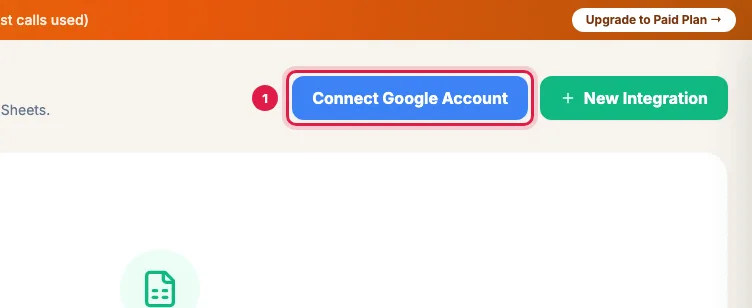
Connect Google Account with an account that can edit the sheet Open the sheet's settings (the gear icon on its card, Edit Sync Configuration & Direction) and check that Post-Call Writeback Configuration is Enabled with at least one field mapped. Writeback works with any Sync Direction.
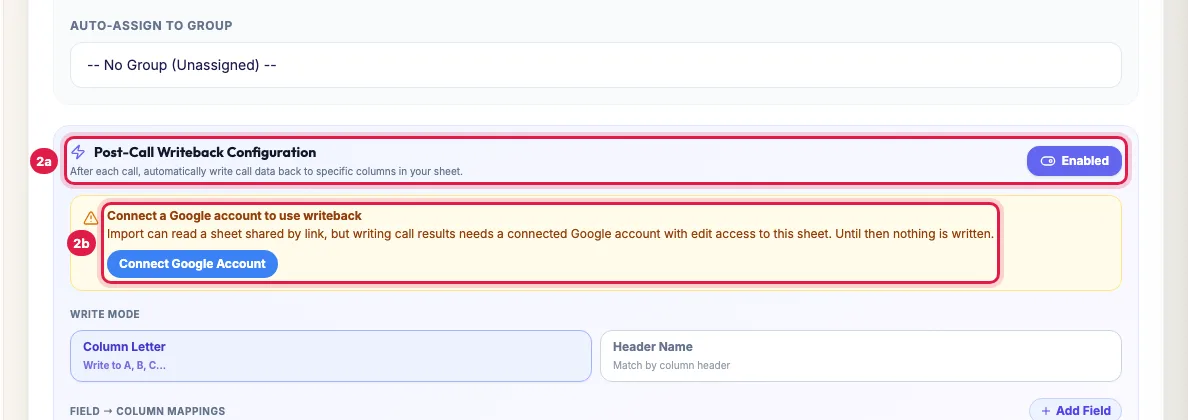
Post-Call Writeback Configuration, and the warning when no Google account is connected Check the Phone Number Column: writeback finds the row by the called number (its last 10 digits). A number that is not in that column gets a new row at the end of the sheet.
Check the mapping: in Column Letter mode the letter must be the column to fill; in Header Name mode the header in the first row must match the name you typed (if none matches, a new column is added at the end).
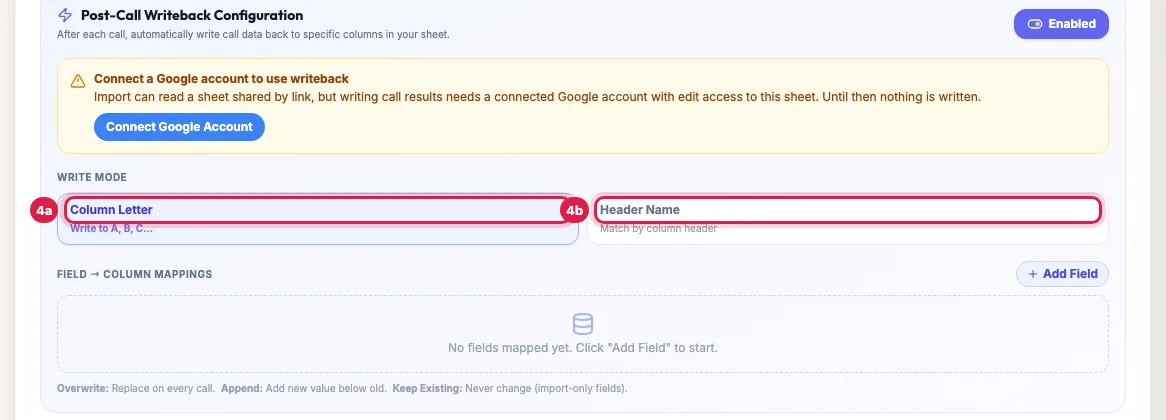
Column Letter or Header Name: where each result is written Make a test call to a number in the sheet and look at the row a minute after the call ends. The recording link may arrive a few minutes later.
How writeback works
- After each call is analysed (campaign, instant and incoming calls alike), the mapped fields are written to the row with the called number.
- Overwrite replaces the cell every time, Append adds the new value below the old one in the same cell, and Keep Existing fills only an empty cell.
- The recording arrives a little later; then only the Recording URL column is filled in, nothing else is rewritten.
- Writing uses the connected Google account. If that account loses edit access, or someone disconnects it, writing stops and the card warns you.
Common causes, in order
- No connected Google account, or one that can only view the sheet.
- Writeback switched off, or switched on with no field mapped.
- The Phone Number Column points at the wrong column, so rows are not found and new rows appear at the bottom.
- A typing difference in Header Name mode ("Last call" vs "Last Call "), which adds a new column at the end.
- The tab was renamed after connecting: update the Sheet Tab Name with the gear icon.
- The call was not answered or not analysed yet: wait a minute after it ends.
Example: Results back in the dealer's sheet
Shree Motors keeps its test-drive enquiries in a sheet tab called Leads, with phone numbers in column B. Results were not appearing because the sheet was connected only by link. The manager clicks Connect Google Account with the Gmail that owns the sheet, opens the gear icon, keeps Post-Call Writeback Configuration Enabled with Outcome → column F (Overwrite) and Summary → column G (Append), and makes a test call to his own number in row 2. A minute later F2 says Interested and G2 has the summary.
Frequently asked questions
Our sheet is shared only by link. Can writeback work without connecting Google?
No. Google lets us read a sheet shared by link, but writing needs a signed-in Google account with edit access. Import keeps working by link.
Does writeback use row numbers?
No, phone numbers. Deleting old rows or pasting new ones every day does not break it.
A column shows Completed instead of the outcome.
That came from an older version that rewrote the row when the recording arrived; now only the Recording URL is filled in then. The next call writes the outcome again.
New rows keep appearing at the bottom of my sheet.
The called numbers were not found in the Phone Number Column. Point it at the column that holds the phone numbers; numbers are matched on their last 10 digits, so +91 or spaces do not matter.
Sheet me result kitni der me aata hai?
About a minute after the call ends, once it is analysed. The recording link can take a few more minutes.
Can results go to a different tab from my leads?
Yes: connect that tab as its own integration with Export, the same Phone Number Column and the fields you want.
Questions this guide answers
- Why are AI call results not written to my Google Sheet?
- Does Google Sheets writeback work with a link-shared sheet?
- Why do new rows appear at the bottom of my sheet after calls?
Related guides
- How to Auto-Call Leads from Google Sheets with an AI Agent: Connect your Google account, add the sheet and tab, and say which columns hold the name, phone and email. New rows become leads within…
- Call New Leads from a Google Sheet Every Day, Automatically: Connect the sheet with Import into a lead group. Then either switch on the group's automatic call, or create one campaign on the group…
- Capture Call Outcomes and Lead Details Automatically with AI: After each call the AI fills in the lead's details, gives the call an outcome and moves the lead to a pipeline stage. Your industry sets…