Capture Call Outcomes and Lead Details Automatically with AI
In short: After each call the AI fills in the lead's details, gives the call an outcome and moves the lead to a pipeline stage. Your industry sets these by default; an agent can have its own, in Custom Lead Data Fields Studio, Call Outcomes & Tags Studio and Pipeline Stages Studio in its panel.
A step-by-step guide for BookAICall, an AI voice agent platform that makes and answers phone calls for businesses in Hindi, English, Hinglish and other Indian languages. Updated .
Steps
Open AI Agents, click Edit on the agent and find Custom Lead Data Fields Studio. Click Add Field, enter the Field Label, choose the Field Type (text, number, yes/no or a drop-down with options) and click Save Field. Ask AI suggests fields for your business; Sync from Settings copies your account's fields.
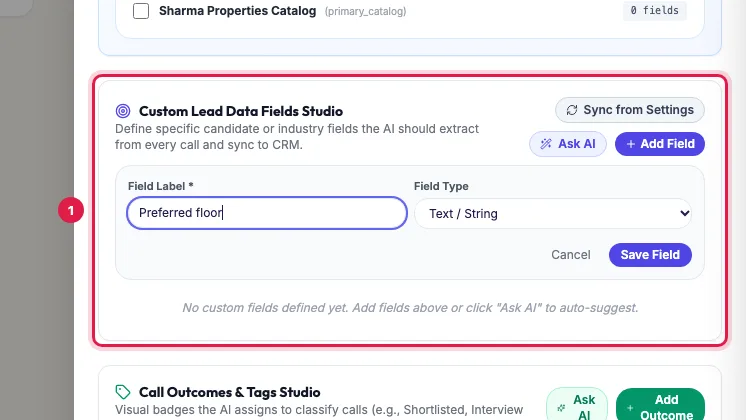
Custom Lead Data Fields Studio: the details the AI fills in from each call Call Outcomes & Tags Studio: click Add Outcome, type the outcome, such as Site visit booked, and click Add. With none listed, the agent uses your industry's outcomes; once you add any, this agent uses only its own list, so add every outcome you need (Ask AI suggests a full set).
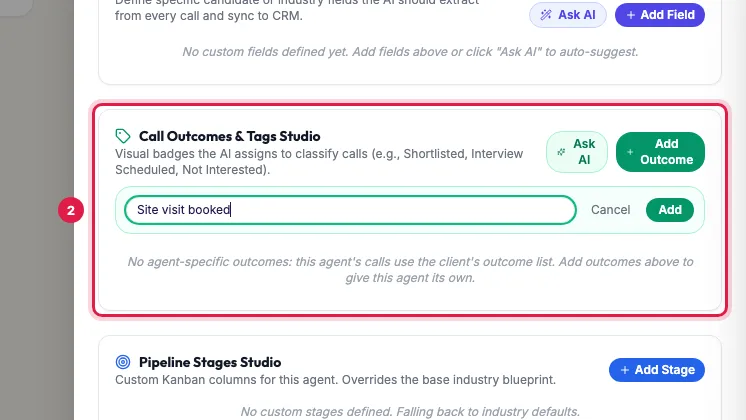
Call Outcomes & Tags Studio: the result the AI gives each call Pipeline Stages Studio: click Add Stage, type the stage and click Add. Like outcomes, the agent's own stages replace your industry's. Click Save Changes at the bottom of the panel.
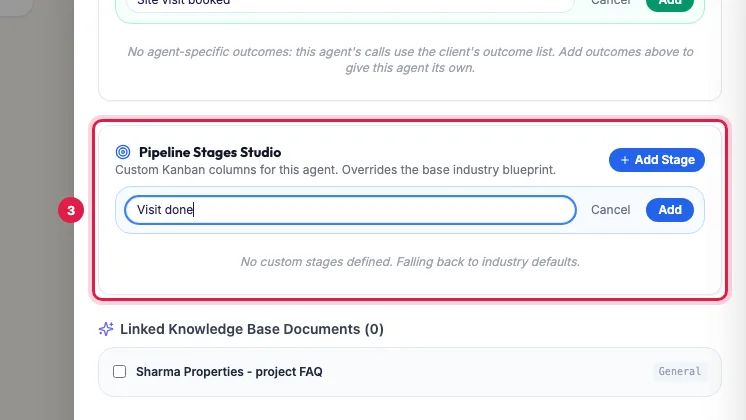
Pipeline Stages Studio: the stages a lead moves through
Lead fields
- Field types: Text / String, Number, Boolean (Yes/No), and Select / Dropdown Options with the options separated by commas (for example Ready to Move, 1 Year, Under Construction).
- The pencil edits a field's label, type, options and Field Key (Internal ID); the bin removes it.
- The key is what you write in a prompt to use the value, for example {{budget}}.
- Sync from Settings replaces this agent's list with your account's custom lead fields; an agent with no fields of its own starts with them.
Call outcomes
- Each call gets one outcome, shown on the call, in campaign results and in Analytics.
- Click the pencil on an outcome to rename it and to add Fields to Extract for this Outcome, such as a visit date for Site visit booked (Text, Number, Date, Date & Time or Currency).
- Keep them few and clear; five to eight is enough for most businesses. Include the unhappy ones too, such as Not interested and Wrong number.
Pipeline stages
- Stages are the columns a lead moves through, such as New, Qualified, Visit booked, Visit done, Won.
- Click the pencil on a stage to change its label, key or Order Index (the position of the column).
- With no stages of its own the agent uses your industry's; the panel says Falling back to industry defaults.
Where they show up
- Fields: on the lead's page, filled in from the call (you can correct them).
- Outcomes: on each call, in campaign results and in Analytics.
- Stages: in the CRM's stage filter and on Deals & Pipeline.
When they are filled in
Shortly after a call ends, the AI reads the transcript, writes the summary, chooses the outcome, moves the lead to a stage and fills the fields from what the caller said. Incoming calls are handled the same way.
Example: What a real-estate agent records
Sharma Properties gives Priya four fields: Budget (Number), Preferred area (Select: Vaishali Nagar, Mansarovar, Jagatpura), BHK (Select: 2 BHK, 3 BHK) and Home loan needed (Yes/No). Its outcomes are Site visit booked (with a Visit date field), Call back later, Not interested, Already bought and Wrong number. Its stages run New, Qualified, Visit booked, Visit done, Negotiation, Won. After a call, Rahul opens the lead and sees the budget, the area and the visit date already filled in, and the lead in Visit booked.
Tips
- Mention a field in the prompt too, so that the agent actually asks for it.
- Keep outcomes few and clear; five to eight is enough for most businesses.
- Save Changes stays grey until something in the panel has changed.
Frequently asked questions
How do I record call outcomes automatically?
List them in Call Outcomes & Tags Studio in the agent's panel, or keep your industry's. The AI picks one after every call.
Can AI fill CRM fields from a phone call?
Yes. Add the fields in Custom Lead Data Fields Studio and ask for them in the prompt; the AI fills them from what the caller says.
Outcome kaise add karein?
In the agent's panel, click Add Outcome in Call Outcomes & Tags Studio, type it, click Add, then Save Changes.
I added one outcome and the others disappeared.
Once an agent has its own outcomes it uses only that list. Add every outcome you need, or use Ask AI for a full set.
Can I correct a field the AI filled in wrongly?
Yes. Open the lead and edit the field; then make the prompt ask for it more clearly.
Questions this guide answers
- How do I record call outcomes automatically?
- Can AI fill CRM fields from a phone call?
- How do I set up call dispositions for an AI agent?
Related guides
- Using the CRM Built into Your AI Calling Agent: Unified CRM is where every lead, call outcome, follow-up and recorded call lives. The list shows each lead's source, consent, groups…
- Track Deals from AI Calls in a Sales Pipeline: Deals & Pipeline shows your sales opportunities by stage, as a Kanban board or a table, with the value of open deals, won deals and the…
- How to Write a Prompt for an AI Calling Agent (with Example): Open the agent with Edit and write its Greeting Message and System Prompt: who the agent is, the one goal of the call, the steps in order…
- Read a Lead's AI Score, Call Summary and Transcript: A lead's page shows who the person is and whether they agreed to be contacted, the AI score with its reason, your industry's details…
- Industry Blueprints: Ready Call Outcomes, Stages and Lead Fields: An industry blueprint is the ready setup for your kind of business: the pipeline stages a lead moves through, the outcomes a call can end…