How to Call Every New Lead Automatically Within Minutes
In short: A lead group keeps related leads together, so a campaign, a message or a report can use exactly that list. A group can also act on every new lead that joins it: call it with the AI agent you choose after a delay, send an approved WhatsApp template, or start a journey. One new lead is called at any hour; leads that arrive in bulk are called between 9 AM and 9 PM IST.
A step-by-step guide for BookAICall, an AI voice agent platform that makes and answers phone calls for businesses in Hindi, English, Hinglish and other Indian languages. Updated .
Steps
Open Unified CRM and click Manage Groups.
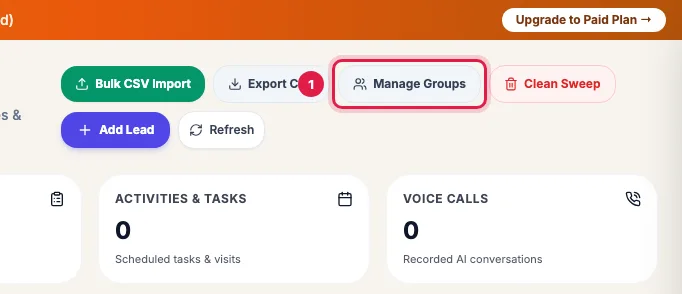
Manage Groups at the top of the Unified CRM Your groups are listed with how many leads each has; the pencil edits a group and the bin deletes it (its leads stay in the CRM). Click Create Group.
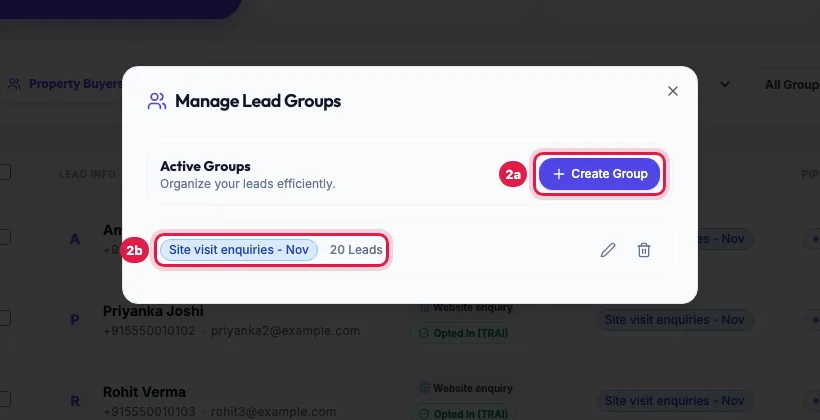
Your groups with their lead counts, and Create Group Enter the Group Name and, if you like, a Description of who belongs in it. Type, Icon (emoji) and Color Tag only change how the group looks.
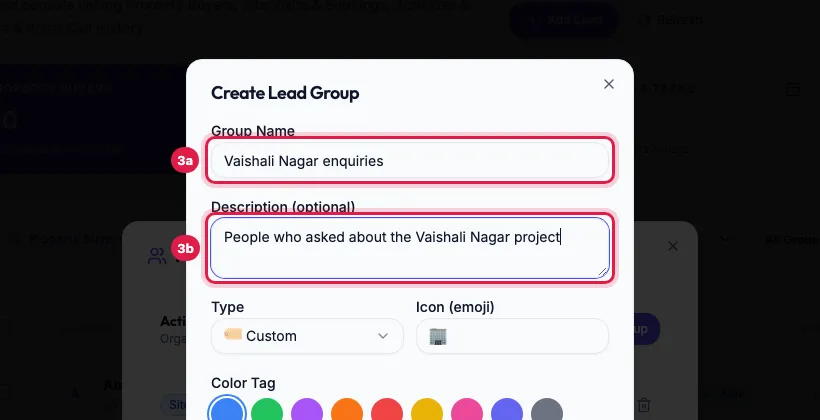
Group Name and Description To act on each new lead, switch on Auto-trigger on new lead. Choose the agent under Legacy: Immediate AI Call Agent and set the Call Delay (minutes). You can also pick a live journey under Automation Sequence (Recommended), or an approved template under Legacy: Immediate WhatsApp Template.
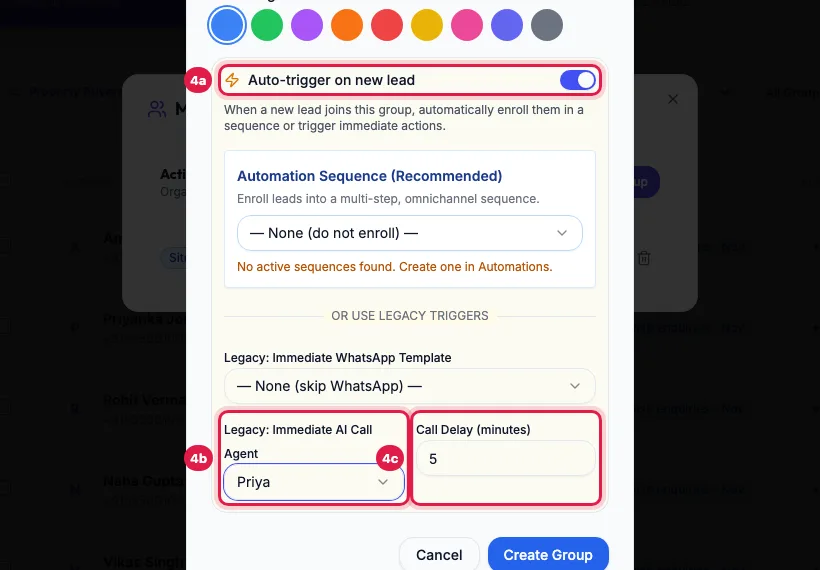
Auto-trigger on new lead: the AI agent that calls each new lead, and the delay Click Create Group. Add leads to it from Add Lead, Bulk CSV Import or Google Sheets (Auto-Assign to Group).
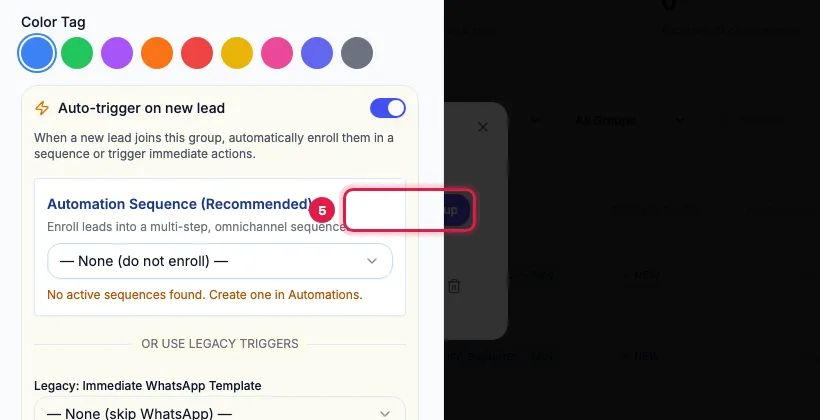
The Create Group button
What Auto-trigger on new lead does
- Legacy: Immediate AI Call Agent: the agent calls each lead that joins the group, Call Delay (minutes) after it arrives (1 to 1440; empty or 0 means 5).
- Legacy: Immediate WhatsApp Template: the approved template goes out after the same delay. Template Variables accept the lead's name, company, phone or email.
- Automation Sequence (Recommended): each new lead starts the live journey you choose, with all its steps and branches. Only published journeys are listed. If the group window says journeys are in shadow mode, journeys record but do not call yet: use the AI call above for real calls.
- You can use all three together. WhatsApp Auto-Delivery, shown when you edit a saved group, maps call outcomes to WhatsApp templates for calls to this group's leads.
Which leads trigger it, and when
- Leads that newly join the group by Add Lead, Bulk CSV Import or Google Sheets. A lead that was already in the group is not triggered again, so re-uploading a file is safe.
- Assign Group in the CRM's bulk bar does not trigger it; run a campaign for those leads instead.
- Switching Auto-trigger on does not call leads that are already in the group.
- One new lead (Add Lead, a form or the API) is called as soon as the delay is over, at any hour, because the person has just asked. Leads that arrive in bulk (a file, Google Sheets, several added at once) are called between 9 AM and 9 PM IST; a batch that arrives at night is called from 9:15 AM.
- If all your agent's lines are busy, the call waits for a free line instead of failing.
- Opted-out leads are not called or messaged.
Example: Call website enquiries within minutes
Sharma Properties creates "Vaishali Nagar enquiries" with Auto-trigger on new lead, agent Priya and a 5-minute delay, and sends its website form's leads into that group through Google Sheets. A lead who enquires at 4 PM gets a call from Priya a few minutes later; one who enquires at 11 PM is called after 9 AM the next morning. The calls and their outcomes show on each lead's page.
Tips
- Use one group per source or batch: campaigns, reports and WhatsApp messages can then target exactly that list.
- Leave Auto-trigger off for groups you only use to sort leads.
- Give the agent a prompt for first calls to fresh enquiries: who they enquired with and what about.
- Filter Unified CRM by the group (All Groups) to see its leads and their stages.
Frequently asked questions
Will leads already in the group be called when I switch Auto-trigger on?
No. It acts only on leads that join the group after that, from Add Lead, a file import or Google Sheets. To call the leads already in it, run a campaign for the group.
Naye lead ko turant call kaise karwaye?
Create a group with Auto-trigger on new lead, choose the agent and a short Call Delay, and send new leads into that group from Add Lead, a file or Google Sheets. The call goes out after the delay, at any hour for a single new lead; leads that arrive in bulk are called between 9 AM and 9 PM IST.
I deleted a group. Are its leads gone?
No. Deleting a group only removes it from its leads; the leads stay in your CRM.
Can one lead be in several groups?
Yes. The list shows the first two and a +n for the rest. Each group's automatic actions run when the lead joins that group.
Why did a new lead not get the group's call?
Check that Auto-trigger on new lead is on and an agent is chosen, that the agent is enabled and has a number, that the lead is not opted out (bulk arrivals also wait for 9 AM to 9 PM IST), and that it newly joined the group (Assign Group in the bulk bar does not trigger it).
What is the difference between a group and a journey?
A group is a list. A journey is a multi-step follow-up (calls, WhatsApp, email, waits and branches). A group can start a journey for each new lead.
Questions this guide answers
- How do I call website leads instantly with AI?
- How do I automate calls to new leads?
- What is speed to lead and how do I automate it?
- Why did a new lead not get an automatic call?
Related guides
- How to Add Leads to an AI Calling CRM (One, Bulk or Automatic): Unified CRM → Add Lead adds one person: name, phone, source, stage, group, notes and your industry's fields. For many people at once use…
- How to Import Leads from Excel or CSV for AI Calling: In Unified CRM click Bulk CSV Import, choose a lead group, upload your CSV or Excel file (or paste rows from Excel), check how each column…
- How to Auto-Call Leads from Google Sheets with an AI Agent: Connect your Google account, add the sheet and tab, and say which columns hold the name, phone and email. New rows become leads within…
- How to Run an AI Calling Campaign: Automate Outbound Sales Calls: Campaigns → New Campaign: name it, choose the AI agent, set the retry rules, pick the lead group and click Create & Launch. The agent…
- How to Automate Lead Follow-ups with AI Calls, WhatsApp and Email: A journey is a follow-up you set up once. When something happens (a new lead, a call outcome, a reply, a webhook or a set time), it calls…
- Call New Leads from a Google Sheet Every Day, Automatically: Connect the sheet with Import into a lead group. Then either switch on the group's automatic call, or create one campaign on the group…