How to Automate Lead Follow-ups with AI Calls, WhatsApp and Email
In short: A journey is a follow-up you set up once. When something happens (a new lead, a call outcome, a reply, a webhook or a set time), it calls with your AI agent, sends WhatsApp or email, updates the CRM and waits, step by step. Start from a ready template, describe it in your own words, or build it on the canvas; test it, then publish.
A step-by-step guide for BookAICall, an AI voice agent platform that makes and answers phone calls for businesses in Hindi, English, Hinglish and other Indian languages. Updated .
Steps
Open Journeys. Each card shows a journey's status (Draft, Live or Paused), what starts it, and how many leads are in it, finished it or reached its goal. Click New journey.
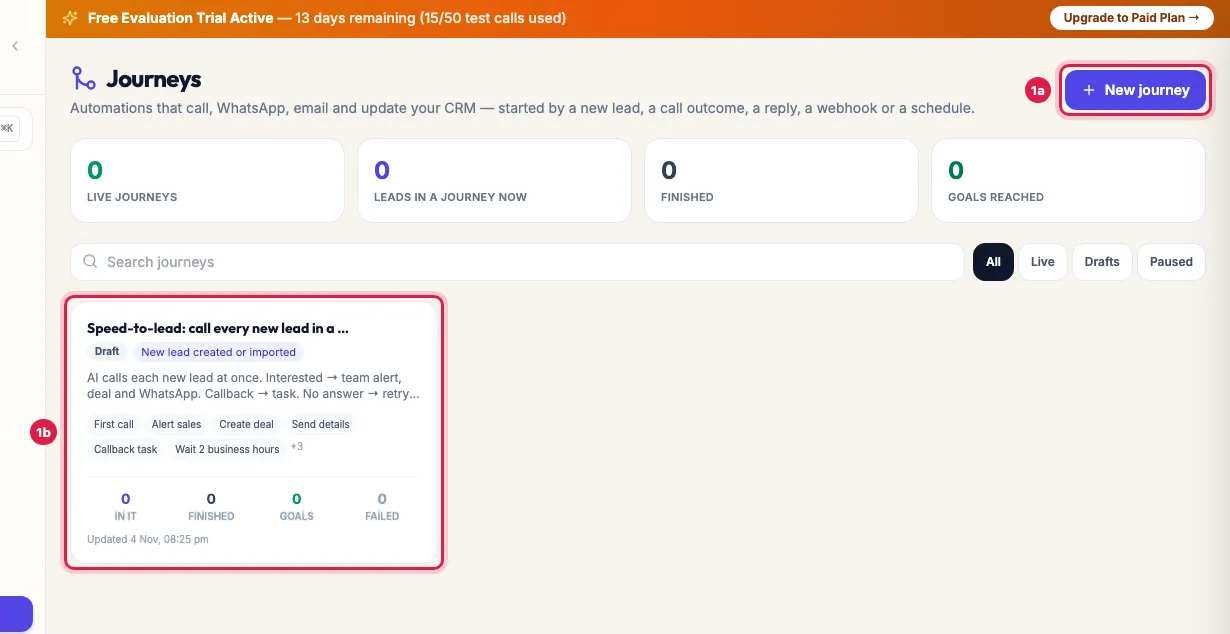
Journeys: your automations with their status and counts, and New journey Pick a ready template, for example Speed-to-lead: call every new lead in a minute, Missed-call recovery or Payment reminder with AI call. It opens as a draft that you can change.
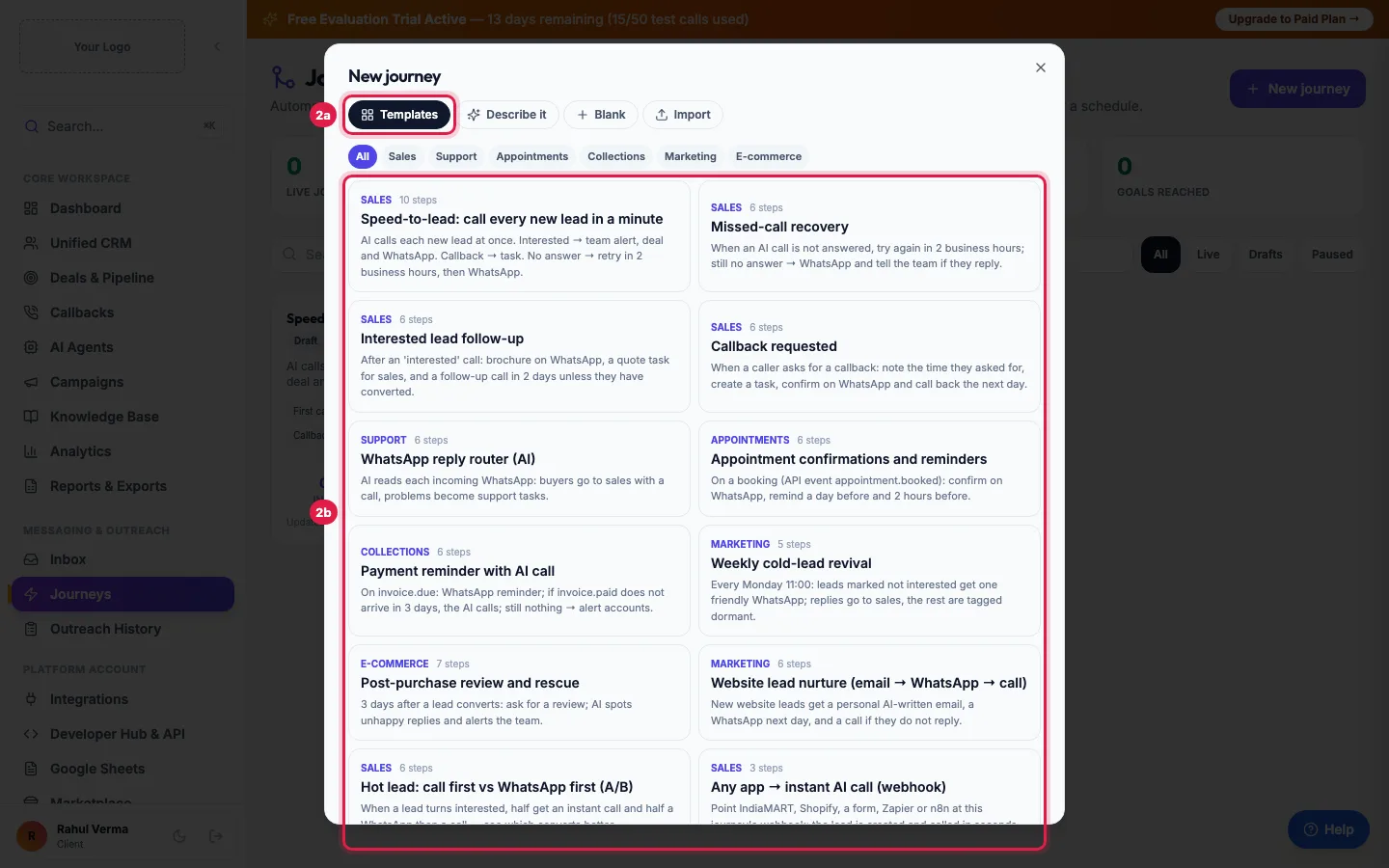
New journey: start from a ready template such as Speed-to-lead Or click Describe it, write what should happen in English, Hindi or Hinglish, and click Build it. You check it on the canvas before anything goes live. You can also start Blank, or Import a journey file.
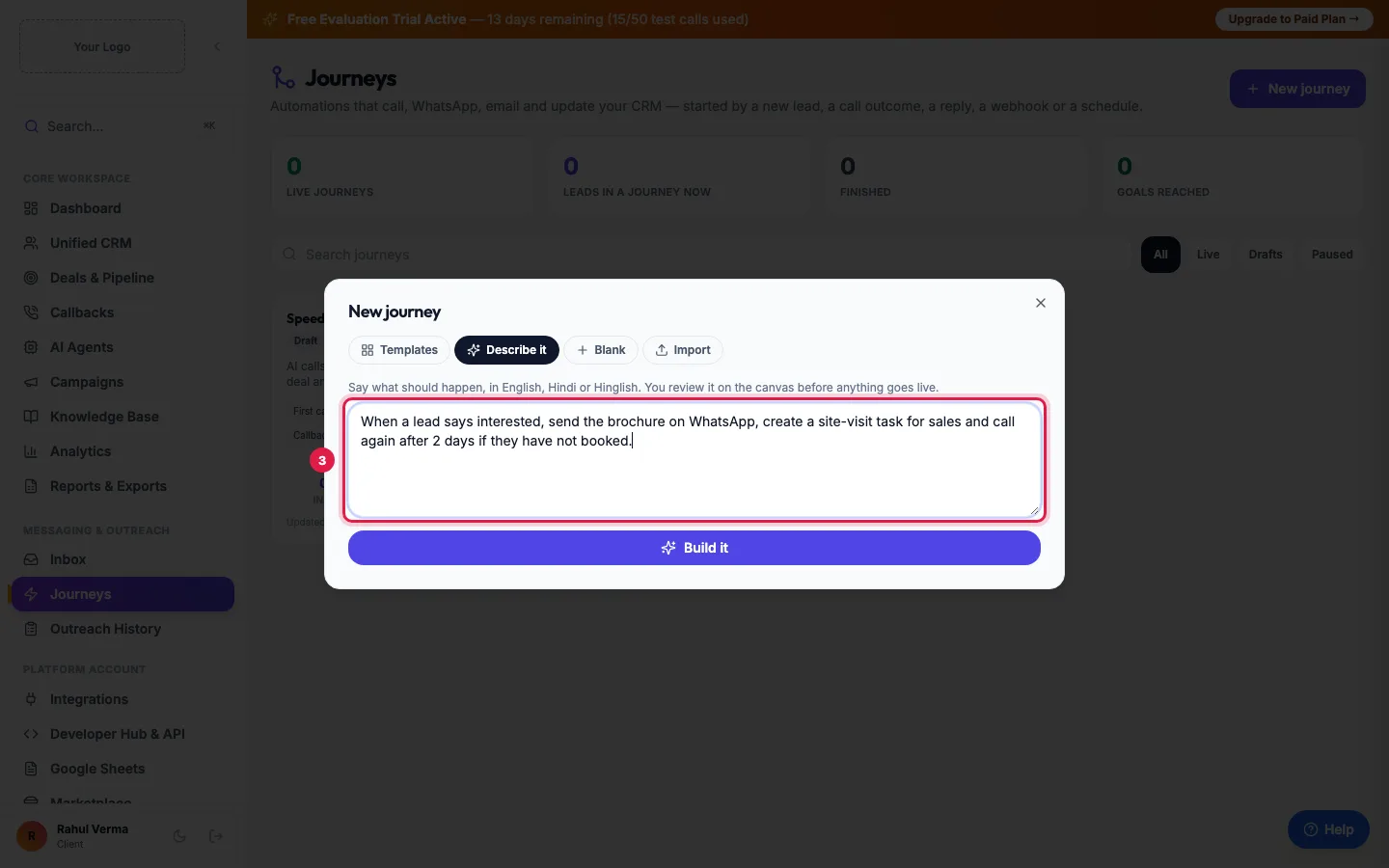
Describe it: write the workflow in your own words, in English or Hinglish In the builder, add steps from the left: AI voice call, WhatsApp, Email, Notify team, Update lead, Create task, Deal, AI steps, Wait, If / else and more. On the right, set the journey's goal (for example, lead status is converted), its exit rules, WhatsApp quiet hours, and whether a lead can go through it again.
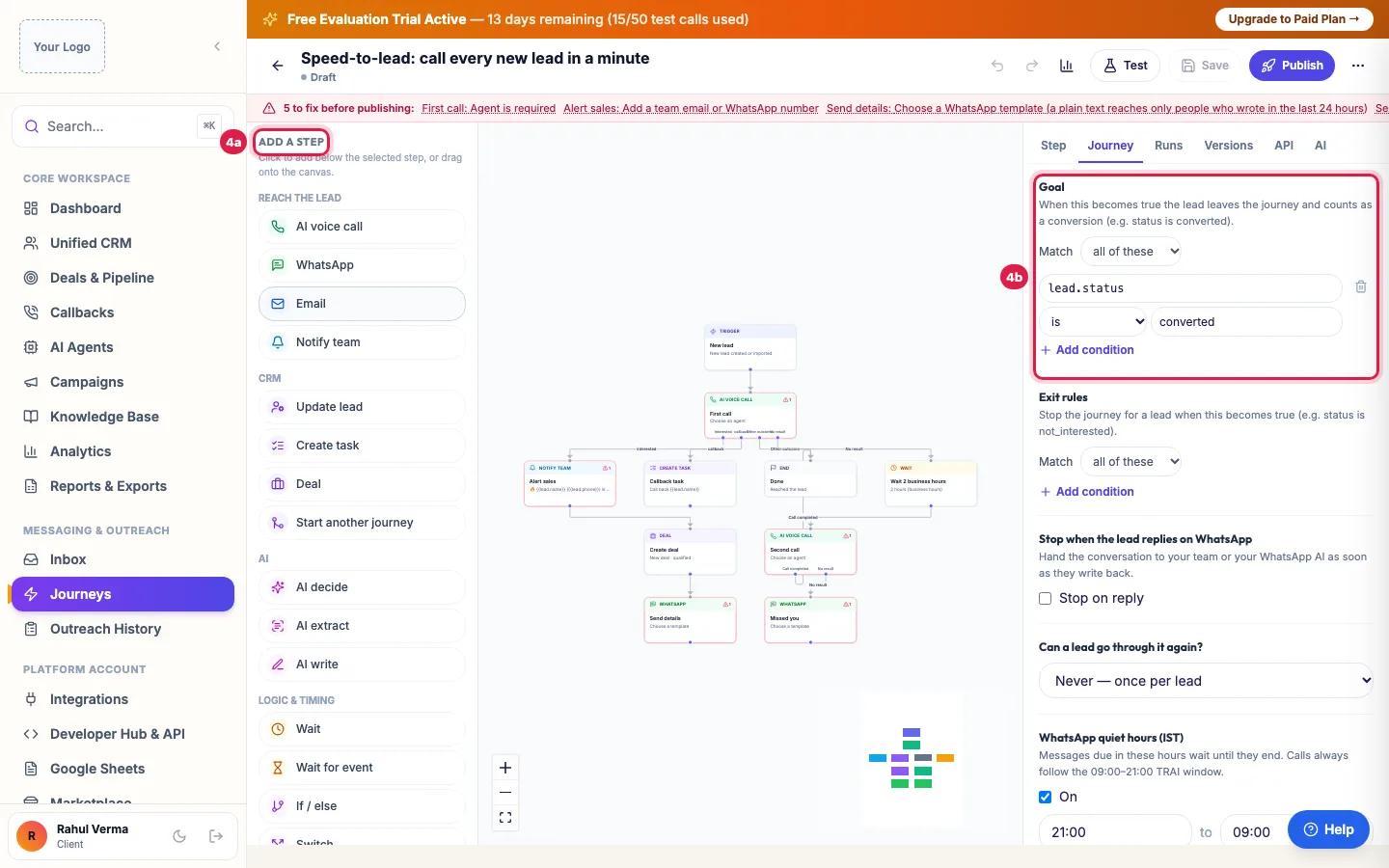
The journey builder: steps to add on the left, the flow in the middle, the journey's goal and rules on the right Click a step to set it up. For an AI voice call, choose the agent and write the purpose of the call. Keep Wait for the call outcome on to send each outcome (interested, callback, no answer) down its own branch.
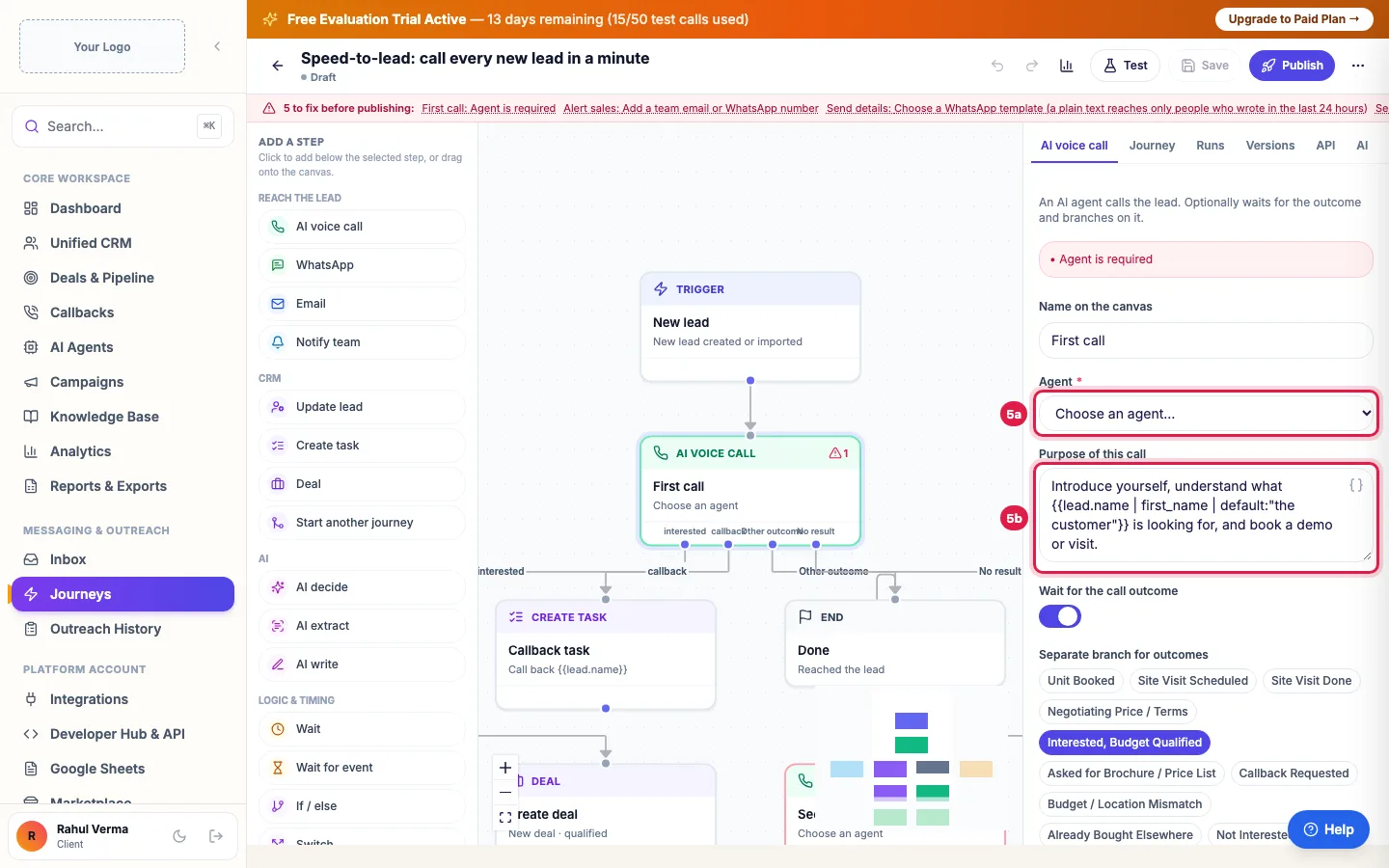
Click a step to set it up, for example which AI agent makes the call The red bar lists what is missing before the journey can go live. Fix each item, click Test to try it on a sample lead, then click Publish. New leads now join by the trigger; to add leads you already have, use Enroll leads in the ⋯ menu.
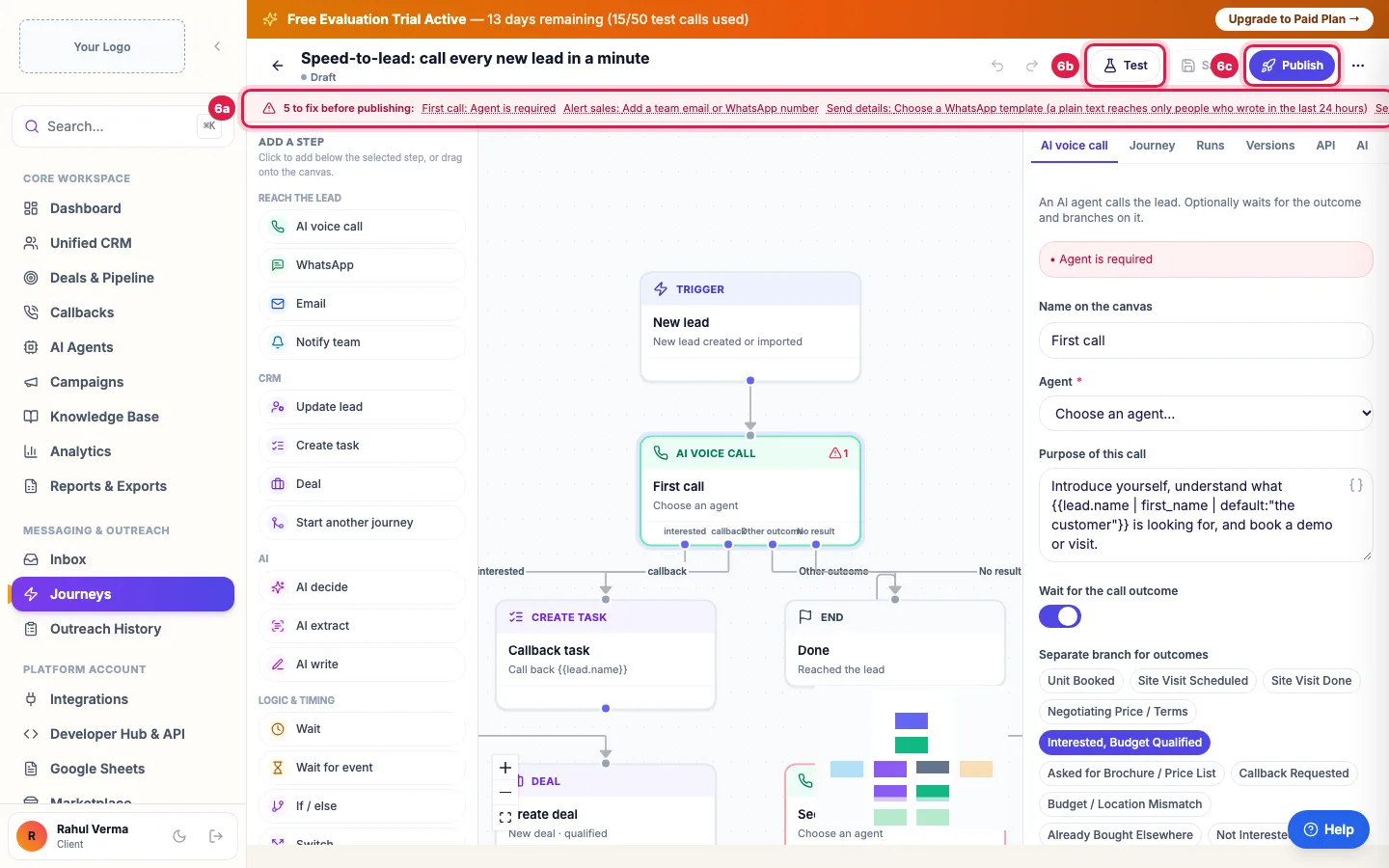
Fix what the red bar lists, try it with Test, then Publish
What starts a journey
- New lead created or imported (Add Lead, a file, Google Sheets, the API).
- AI call ends with an outcome, optionally only some outcomes or one agent's calls.
- Lead status, stage or tags change; Deal moves to a stage; WhatsApp message received (optionally containing a word).
- Incoming webhook (any app: a website form, a marketplace or Zapier) or Custom event via API; either can create the lead if it is new.
- On a schedule: every day or every week at a time you set (IST).
- Manual / bulk enrollment: Enroll leads in the ⋯ menu, Enroll Journey in the CRM's bulk bar, or a lead group's Automation Sequence for each new lead in the group.
- Any trigger can be narrowed to leads in a group, with a status, from a source or with a tag.
The steps you can add
- Messages: AI voice call, WhatsApp (an approved template, or text inside 24 hours of the lead's last message; can wait for a reply), Email (your text, or Let AI write the body; sent from your own mailbox), Notify team.
- CRM: Update lead (status, stage, tags, score, owner, tier, next follow-up, add to notes), Create task, Deal (create or move), Start another journey.
- AI: AI decide (choose a branch from what the lead said), AI extract (pull details out of a reply), AI write (draft a message).
- Logic: Wait, Wait for event, If / else, Switch, A/B split, Human approval (a person approves before the next step), End.
- Developer: HTTP request to your own system.
The builder's right panel
- Step: the settings of the step you clicked.
- Journey: Goal (the lead leaves and counts as a conversion), Exit rules, Stop when the lead replies on WhatsApp, Can a lead go through it again? (Yes, after they finish it; Never — once per lead; Always), WhatsApp quiet hours (IST) and Most messages to one lead per day.
- Runs: every lead in the journey with its status (Running, Waiting, Paused, Completed, Goal reached, Exited, Failed, Cancelled), each step it took, and Retry or Cancel run.
- Versions: each publish saves a version; leads already in the journey finish on the version they started. Restore to draft brings an old version back.
- API: the incoming webhook address and secret, and how to start the journey for a contact or send an event from your systems.
- AI: describe a change in your own words and click Put on the canvas.
Email steps
- An Email step sends the Subject and Body you write (or what Let AI write the body drafts from your brief) to the lead's email address, from your own mailbox, the same one your email campaigns use, so the lead sees your address and replies reach you.
- Connect the mailbox first in Integrations → Messaging Channels → Email Gateway Config (Zoho Mail, your own SMTP server such as Gmail or Outlook, or an email service's API key). Nothing goes out from a shared sender.
- Without your own mailbox, the Email card on the canvas says "Not sent: connect your own mailbox first". In a run the step is not sent: Runs shows "Not sent: connect your own mailbox first (Integrations → Messaging Channels → Email Gateway Config)" and the lead moves on to the next step. Test shows the same, so you can check before you publish.
- Every journey email ends with your business name and an Unsubscribe link, and carries the unsubscribe header email apps show as their own button. An address that unsubscribes, from a campaign or a journey email, is skipped by your later campaigns and Email steps; Runs shows it as blocked.
- A lead without an email address is skipped, and the journey goes on. Journey emails count towards Most messages to one lead per day.
- Notify team and Human approval emails go to your own team, not to leads.
Test before you publish
Test runs the canvas as it is now, on a sample lead or a real one you search for. Nothing is sent and nothing is saved; AI steps do run, so you can see what they would write. Try another branch to check each path. Save keeps the draft; Publish (or Publish changes) makes it live.
Calling hours, quiet hours and limits
- AI calls go out only between 9 AM and 9 PM IST; a call due at night waits until 9:15 AM.
- WhatsApp messages due during quiet hours (9 PM to 9 AM IST unless you change it) wait until the hours end.
- Most messages to one lead per day counts calls, WhatsApps and emails from all journeys together; more wait for the next morning.
- Opted-out leads are not put in journeys, and a lead who replies STOP on WhatsApp is opted out and leaves its journeys.
- Pause stops a journey; leads in it wait where they are until you Resume.
Shadow mode
If Journeys shows a Shadow mode bar, journeys run and record what they would send, but no call, WhatsApp or email goes out yet. Use it to check your journeys on real leads; your administrator switches sending on. Until then, a lead group's Immediate AI Call Agent or a campaign places real calls.
Example: Calling every new lead within a minute
Sharma Properties publishes Speed-to-lead. A lead from the website form arrives at 7:10 PM and Priya calls within a minute. Neha says she is interested: the sales team gets an alert, a deal is created, and Neha gets the details on WhatsApp. Another lead does not answer: the journey waits 2 business hours, calls again, and then sends a WhatsApp message. A lead that arrives at 10 PM waits for the morning: its call goes out at 9:15 AM.
Tips
- Start from a template and change it: the branches for interested, callback and no answer are already in place.
- A WhatsApp step to someone who has not written to you in the last 24 hours needs an approved template; plain text reaches only people who wrote in that time.
- Click the chart icon (Show results on the canvas) to see how many leads passed each step.
- Use Export JSON in the ⋯ menu to keep a copy, and Import to bring it back. Import also reads n8n workflows and marks steps it cannot convert.
- Set a goal: it ends the journey for leads who convert, so they stop getting follow-ups.
Frequently asked questions
Workflow kaise banaye?
Open Journeys → New journey. Pick a template, or click Describe it and write what should happen in Hinglish, then check the canvas, click Test and Publish.
Journey me call kyon nahi gayi?
Check for the Shadow mode bar (nothing is sent yet), the time (calls go out 9 AM to 9 PM IST), that the journey is Live, the lead's consent, and the lead's run under Runs, which shows each step and any error.
How do I add leads I already have?
Open the journey, ⋯ → Enroll leads, and choose a group, status, source or tag (empty means any). Or tick leads in Unified CRM and use Enroll Journey.
Can a lead be in a journey twice?
By default not while it is still in it: Can a lead go through it again? decides (after they finish it, never, or always).
What happens to leads in a journey when I publish changes?
They finish on the version they started; new leads get the new version.
Can another app start a journey?
Yes. Use the trigger Incoming webhook (any app) and copy the address and secret from the API panel into your form, marketplace or Zapier.
Is a journey the same as a campaign?
No. A campaign calls a list once (with retries). A journey reacts to events and runs many steps over days: calls, WhatsApp, email, waits and branches.
Why did my journey email not go?
Open the lead's run under Runs. "Not sent: connect your own mailbox first" means no mailbox of your own is connected: connect it in Integrations → Messaging Channels → Email Gateway Config and click Test Email Connection; leads who reach the Email step after that get the email. Blocked can also mean the address unsubscribed, and skipped that the lead has no email address. Also check for the Shadow mode bar.
Journey ki email kis address se jaati hai?
Aapke apne mailbox se, wahi jo email campaigns use karte hain (Integrations → Messaging Channels → Email Gateway Config). Mailbox connect nahi hai to Email step nahi bhejta aur lead agle step par chala jaata hai.
Questions this guide answers
- How do I automate lead follow-up with AI?
- How do I call every new lead within a minute?
- Can I combine AI calls with WhatsApp and email automation?
- Can a webhook from another app start an AI call?
- How do I import an n8n workflow?
Related guides
- How to Run an AI Calling Campaign: Automate Outbound Sales Calls: Campaigns → New Campaign: name it, choose the AI agent, set the retry rules, pick the lead group and click Create & Launch. The agent…
- How to Create WhatsApp Templates and Get Them Approved: A template is a message WhatsApp has approved, needed to message anyone who has not written to you in the last 24 hours. Create it in…
- How AI Agents Book and Make Callbacks Automatically: When a customer says "call me later", the agent books a callback for the time they asked (or the next good slot) and calls them back then…
- How to Call Every New Lead Automatically Within Minutes: A lead group keeps related leads together, so a campaign, a message or a report can use exactly that list. A group can also act on every…
- Bulk Actions: Group, Journey, WhatsApp, Email or Delete Many Leads: Filter Unified CRM, tick the leads (or the top box for the page, then Select all … matching current filters) and a bar appears: Assign…
- Track Deals from AI Calls in a Sales Pipeline: Deals & Pipeline shows your sales opportunities by stage, as a Kanban board or a table, with the value of open deals, won deals and the…
- Send CRM Emails From Your Own Address: Zoho, Gmail or SMTP: Integrations → Messaging Channels → Email Gateway Config: choose your Email Provider (Zoho Mail, your own SMTP server such as Gmail or…