How to Create WhatsApp Templates and Get Them Approved
In short: A template is a message WhatsApp has approved, needed to message anyone who has not written to you in the last 24 hours. Create it in WhatsApp Suite → Meta Templates and click Submit to Meta; it shows PENDING until WhatsApp approves it, and only APPROVED templates can be used in campaigns and follow-ups.
A step-by-step guide for BookAICall, an AI voice agent platform that makes and answers phone calls for businesses in Hindi, English, Hinglish and other Indian languages. Updated .
Steps
Open WhatsApp Suite → Meta Templates. It lists each Template Name with its Category, Language, Status and Body Preview. Click Sync Templates to bring in templates made in your WhatsApp account and refresh their statuses.
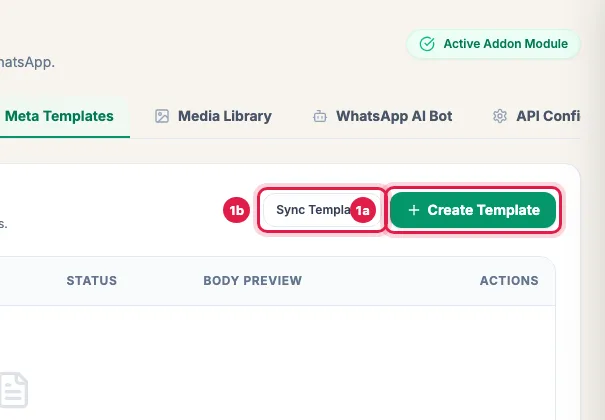
Templates: your approved WhatsApp templates; create one or sync those made in your provider's dashboard Click Create Template. Enter the Template Name in lower case with underscores (for example site_visit_reminder), and choose the Category (Utility, Marketing or Authentication) and the Language (English (US) or Hindi).
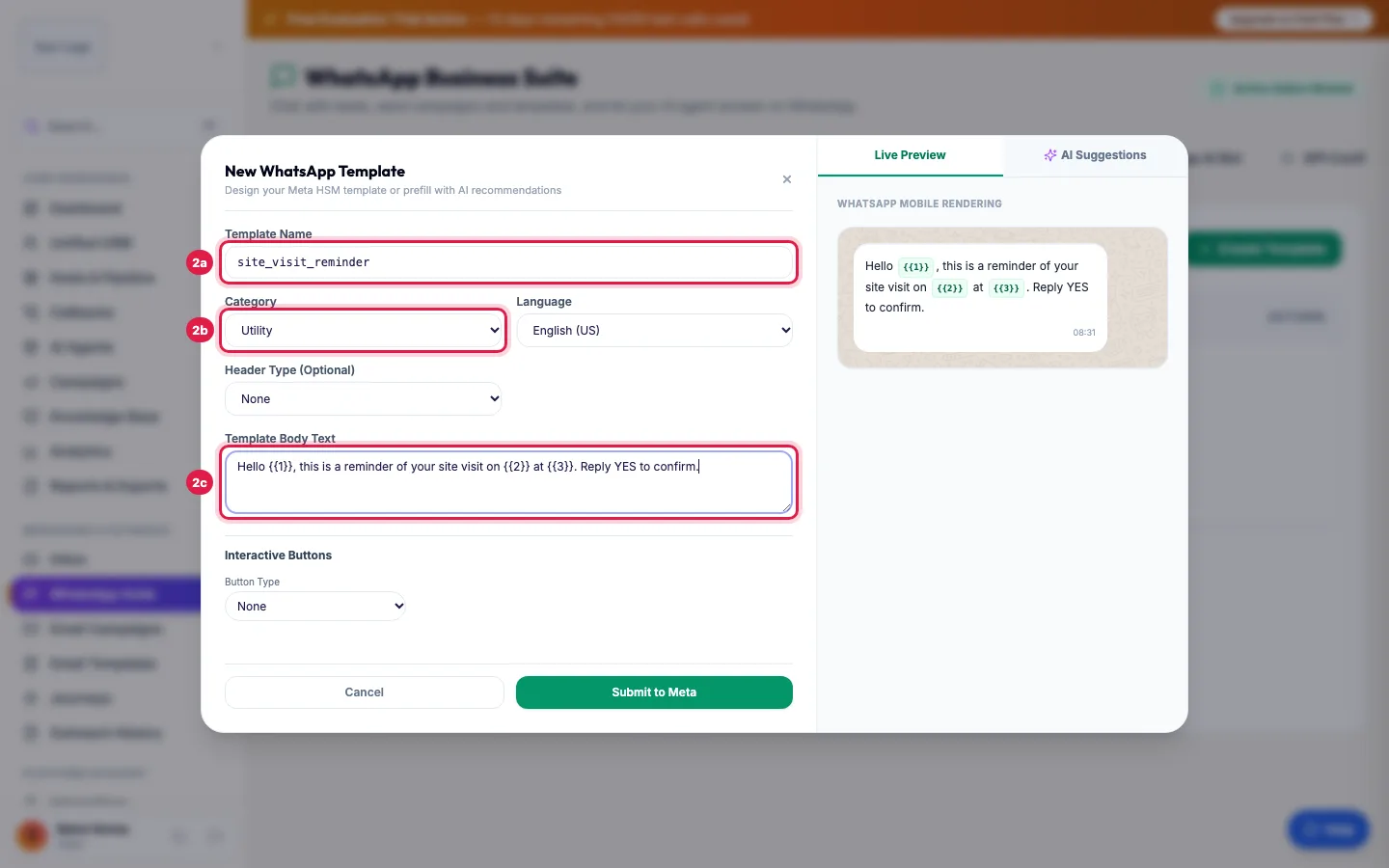
New template: a name, its category and the text, with {{1}}, {{2}} for each customer's details Write the Template Body Text, with {{1}}, {{2}} where each customer's details go. If you like, add a Header Type (Text, Image or Document (PDF)) and Interactive Buttons (Quick Reply or Call to Action (URL)); WhatsApp Mobile Rendering shows the message as it will look.
Click Submit to Meta. With Meta's Cloud API it goes to WhatsApp for review and shows PENDING; click Sync Templates later to see APPROVED or REJECTED. With another provider it is saved as a DRAFT: create the same template in that provider's dashboard, then click Sync Templates.
Which category
- Utility: about something the customer already started, such as an appointment reminder, an order update or a payment due. Usually approved fastest.
- Marketing: offers, launches, festival greetings and anything that sells.
- Authentication: one-time codes only.
Statuses
- DRAFT: saved here only; WhatsApp has not seen it yet.
- PENDING: WhatsApp is reviewing it, usually from a few minutes to a day.
- APPROVED: ready to use in WhatsApp Campaigns and in campaign follow-ups.
- REJECTED: change the text and submit it again under a new name.
Why templates get rejected
- The text starts or ends with a variable, or has two variables side by side.
- The category does not match the text, for example an offer sent as Utility.
- The wording is vague ("Hi {{1}}, check this") or asks for sensitive details.
- A link or a button points somewhere unclear. Keep one clear purpose per template.
Variables
{{1}}, {{2}} and so on are filled per customer when you send: in a WhatsApp campaign you map each one to a lead field (Name, Phone, Email or Company) or a fixed value, with a fallback if the field is empty.
Example: A site-visit reminder
Sharma Properties creates site_visit_reminder (Utility, English (US)): "Hello {{1}}, this is a reminder of your site visit to {{2}} on {{3}}. Reply YES to confirm or call us to change the time." It clicks Submit to Meta, sees PENDING, and after Sync Templates an hour later the status is APPROVED. In its campaign, {{1}} is the lead's Name and {{2}} and {{3}} are fixed values.
Tips
- Write the template as a full sentence with the variables in the middle, never at the very start or end.
- Make separate templates for English and Hindi.
- Only APPROVED templates appear when you create a WhatsApp campaign.
Frequently asked questions
Template kaise banaye aur approve kaise karaye?
WhatsApp Suite → Meta Templates → Create Template, fill the name, category, language and text, and click Submit to Meta. WhatsApp reviews it; click Sync Templates to see the result.
How long does approval take?
Often minutes, sometimes up to a day. Click Sync Templates to refresh the status.
My template was rejected. What now?
Change the text using the reasons above, and submit it again under a new name.
Why do I need a template at all?
WhatsApp lets a business send free text only within 24 hours of the customer's last message. To start a conversation, or after 24 hours, you must use an approved template.
I made templates in my provider's dashboard. How do I use them here?
Click Sync Templates on Meta Templates. They appear with their status and can be used once APPROVED.
Can my AI agent send a template after a call?
Yes: in a voice campaign, switch on the WhatsApp follow-up for answered or unanswered calls and choose the approved template.
Questions this guide answers
- How do I get a WhatsApp message template approved?
- Why was my WhatsApp template rejected?
- What is the difference between Utility and Marketing WhatsApp templates?
Related guides
- How to Connect WhatsApp Business API to Your AI Calling CRM: Open WhatsApp Suite (activate the WhatsApp add-on if asked), choose your provider in API Configuration, enter your WhatsApp Business…
- How to Send a Bulk WhatsApp Campaign to Your Leads: WhatsApp Suite → WhatsApp Campaigns → New Campaign: name it, pick an approved template and the leads (a group, picked leads, pasted…
- How to Run an AI Calling Campaign: Automate Outbound Sales Calls: Campaigns → New Campaign: name it, choose the AI agent, set the retry rules, pick the lead group and click Create & Launch. The agent…
- Reply to Leads' WhatsApp Messages from One Inbox: Inbox shows every WhatsApp conversation in which a lead wrote to you, newest first, with a count of messages since your last reply. Click…