Reply to Leads' WhatsApp Messages from One Inbox
In short: Inbox shows every WhatsApp conversation in which a lead wrote to you, newest first, with a count of messages since your last reply. Click one, read it, type a reply and click Send: it goes from your own WhatsApp number. Free text works within 24 hours of the lead's last message; after that, send an approved template.
A step-by-step guide for BookAICall, an AI voice agent platform that makes and answers phone calls for businesses in Hindi, English, Hinglish and other Indian languages. Updated .
Steps
Open Inbox. Each conversation shows the lead's name (or number), their last message and when it came; the blue number counts messages after your last reply. Search by name, number or text.
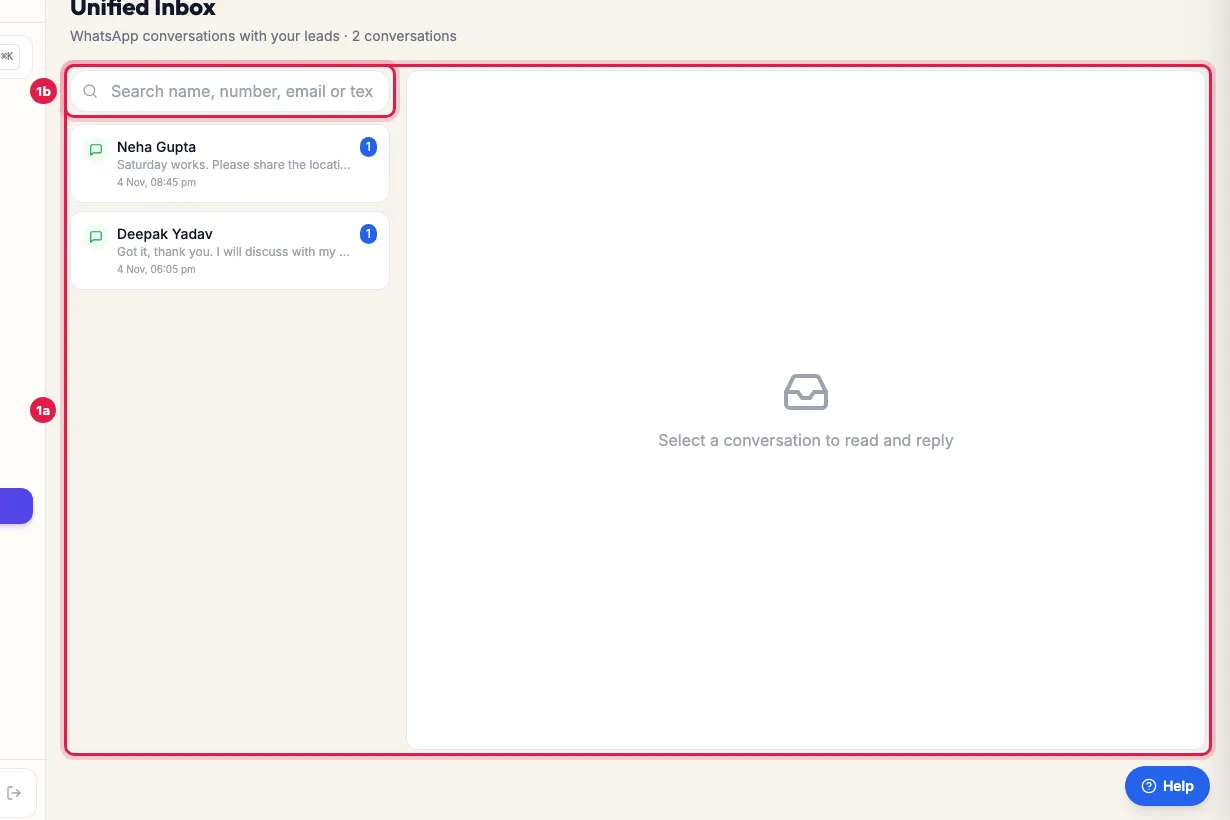
Unified Inbox: conversations where leads wrote to you, newest first, with unread counts Click a conversation to read it. The lead's name at the top opens their page, with calls and notes.
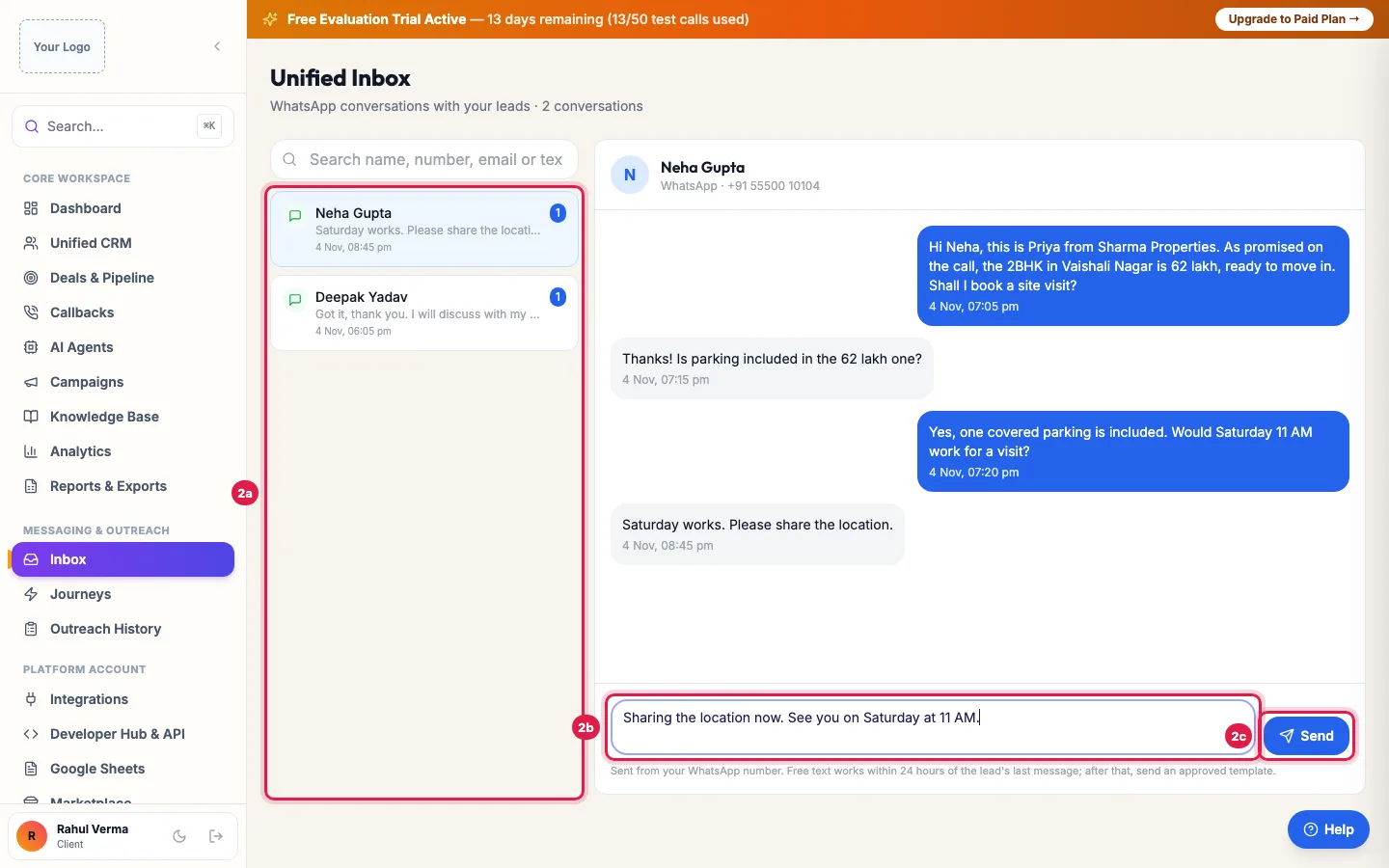
Open a conversation, read it, and reply from your own WhatsApp number Type your reply and click Send (Enter also sends; Shift+Enter starts a new line). The reply goes from your WhatsApp number and appears in the conversation.
If the lead last wrote more than 24 hours ago, the reply is refused with a message saying so: send them an approved template instead.
What shows here
- Conversations where a lead sent a WhatsApp message to your connected number, matched to the lead by phone number.
- Your replies from this screen, and the earlier messages in the same conversation.
- Each message from a lead appears once, even if WhatsApp delivers it to us twice.
- Messages you sent that got no reply yet are not here: see Outreach History. Email replies from leads do not reach this screen; they arrive in your own mailbox.
The 24-hour rule
WhatsApp allows a business to send free text only within 24 hours of the customer's last message. After that the Inbox refuses the reply and tells you; send an approved template (for example with a WhatsApp campaign to that one lead, using Manual Selection). When the lead writes back, the 24 hours start again.
When a reply fails
- A red box above the reply shows the reason, and the message is marked not delivered.
- WhatsApp is not connected, or the token has expired: fix it in WhatsApp Suite → API Configuration.
- The number cannot receive WhatsApp: call the lead instead.
Example: A parent asks about fees
At 7:40 PM a parent replies to Bright Future Classes' brochure: "Fees kitni hai aur batch kab se?" The conversation is at the top of Inbox with a 1. The counsellor opens it, clicks the parent's name to see that the AI agent spoke to her that morning, and replies with the fee details and the batch date. The next morning, 14 hours later, she can still reply with free text.
Tips
- Reply within the 24 hours: after that you need an approved template, which feels less personal.
- To let your AI agent answer chats when no one is free, switch on WhatsApp Suite → WhatsApp AI Bot.
Frequently asked questions
Customer ke WhatsApp ka jawab kaha se de?
Open Inbox, click the conversation, type your reply and click Send. It goes from your own WhatsApp number.
Why was my reply refused after a day?
WhatsApp allows free text only within 24 hours of the lead's last message. Send an approved template instead.
Why is a lead's message not in Inbox?
Check that the webhook is set in your WhatsApp account (WhatsApp Suite → API Configuration → Inbound Webhook URL Configuration). Without it, replies do not reach the platform.
Does Inbox show email replies?
No. Leads' email replies go to your own mailbox. Inbox shows WhatsApp conversations.
Can several team members use the Inbox?
Yes: everyone with access to Inbox sees the same conversations and can reply from your number.
Questions this guide answers
- How do I reply to customer WhatsApp messages from my CRM?
- What is the WhatsApp 24-hour rule?
- Why was my WhatsApp reply not sent?
Related guides
- How to Connect WhatsApp Business API to Your AI Calling CRM: Open WhatsApp Suite (activate the WhatsApp add-on if asked), choose your provider in API Configuration, enter your WhatsApp Business…
- How to Create WhatsApp Templates and Get Them Approved: A template is a message WhatsApp has approved, needed to message anyone who has not written to you in the last 24 hours. Create it in…
- Check Whether Your Emails, WhatsApp Messages and AI Calls Reached Leads: Outreach History lists the latest emails, WhatsApp messages and AI calls sent to your leads, newest first, with whether each one went…
- Read a Lead's AI Score, Call Summary and Transcript: A lead's page shows who the person is and whether they agreed to be contacted, the AI score with its reason, your industry's details…