How to Send a Bulk WhatsApp Campaign to Your Leads
In short: WhatsApp Suite → WhatsApp Campaigns → New Campaign: name it, pick an approved template and the leads (a group, picked leads, pasted numbers or all leads), map the template's variables, check the summary and click Create Campaign. Then click Run on its card; Report → shows what was sent, skipped and failed.
A step-by-step guide for BookAICall, an AI voice agent platform that makes and answers phone calls for businesses in Hindi, English, Hinglish and other Indian languages. Updated .
Steps
Open WhatsApp Suite → WhatsApp Campaigns and click New Campaign.
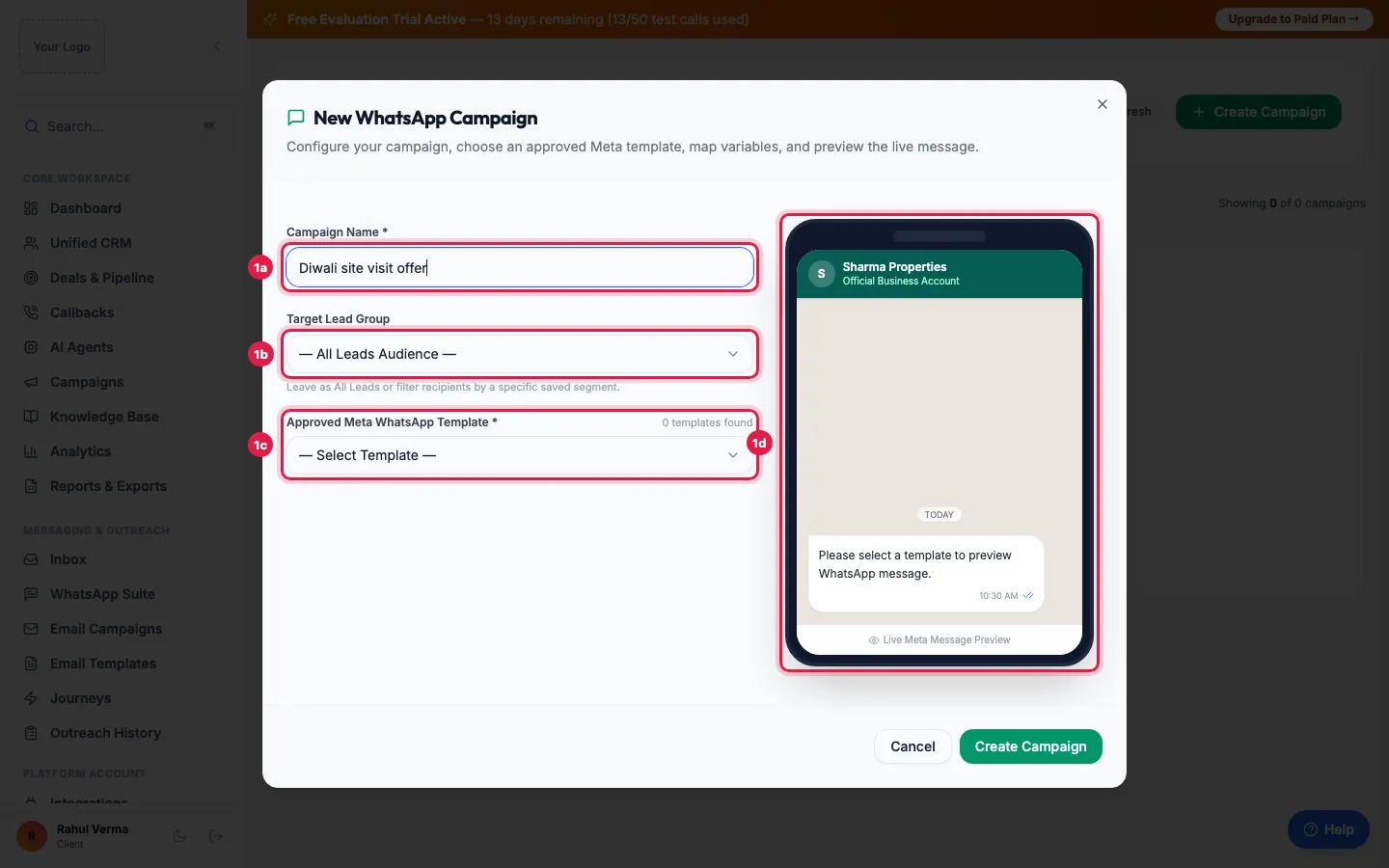
New WhatsApp campaign: a name, the lead group, an approved template, and the live preview 1. Lead Selection: enter the Campaign Name and choose the template under Select Meta Template (approved ones only). Then choose the Lead Selection Mode: By Lead Group, Manual Selection (tick leads), Bulk Paste Numbers (one number per line, optionally with a name) or All Leads. Click Next.
2. Template Variables: for each {{1}}, {{2}} click Add Variable, and choose Dynamic (from Lead) with the Lead Field (Name, Phone, Email or Company) and a Fallback (if empty), or Static (fixed value). Skip this if the template has no variables. Click Next.
3. Review & Launch: check the Campaign Summary (name, template, target leads, variables) and click Create Campaign. It is saved as a Draft with its recipients.
Click Run on the campaign's card. The messages go out from your WhatsApp number; click Report → to see Recipients, Sent, Skipped (DND) and Failed, with each number's status and the reason for any failure.
Who receives it
- Leads with a phone number in the group, the ones you ticked, the numbers you pasted, or every lead.
- Numbers on your DND list are skipped and shown as Skipped (DND) in the report.
- The list is fixed when you click Create Campaign: leads who join the group later are not added. Create a new campaign for them.
Before you run it
- WhatsApp must be connected in API Configuration; otherwise Run stops with a message saying so.
- Only APPROVED templates can be sent; WhatsApp refuses others for every number.
- Marketing templates reach only people who agreed to hear from you. Send offers to your own enquiries and customers, not bought lists.
After you run it
- The card shows the recipients and the status (running, then completed).
- Report → lists each number with SENT, FAILED or SKIPPED, the message ID, and the provider's reason for a failure, such as a number not on WhatsApp.
- Replies come to your Inbox, where you can answer with free text within 24 hours.
Example: A festive offer to past enquiries
A furniture showroom has an approved Marketing template diwali_offer: "Hello {{1}}, our Diwali sale is on till {{2}}. Visit us or reply to this message to book a home visit." The owner creates a campaign, chooses By Lead Group with "Showroom walk-ins - Oct" (180 leads), maps {{1}} to Name with the fallback Customer and {{2}} to the fixed value 15 November, and clicks Create Campaign, then Run. The report shows 171 sent, 3 skipped (DND) and 6 failed (numbers not on WhatsApp); 22 replies arrive in Inbox that evening.
Tips
- Send yourself a test first: a campaign with Bulk Paste Numbers and only your own number.
- Use a fallback such as Customer for {{1}}, so leads without a name do not get an empty greeting.
- Keep marketing messages to a few a month per customer; people who feel spammed block the number.
Frequently asked questions
WhatsApp par bulk message kaise bheje?
WhatsApp Suite → WhatsApp Campaigns → New Campaign: choose an approved template and the leads, map the variables, Create Campaign, then Run.
Why is my template not in the list?
Only APPROVED templates are offered. Check its status in Meta Templates and click Sync Templates.
Why did some messages fail?
Open Report →: the reason is shown for each number. Common ones are a number not on WhatsApp, a template that is not approved, or a variable left empty.
Are numbers on my DND list messaged?
No. They are skipped and shown as Skipped (DND) in the report.
Can I schedule a WhatsApp campaign?
Not from this screen: it is sent when you click Run. For timed messages, use a journey with a WhatsApp step.
Can I see who read the message?
The report shows whether each message was sent or failed. Replies show in Inbox.
Questions this guide answers
- How do I send bulk WhatsApp messages to leads?
- Can I send WhatsApp campaigns from my CRM?
- Why did my WhatsApp broadcast messages fail?
Related guides
- How to Create WhatsApp Templates and Get Them Approved: A template is a message WhatsApp has approved, needed to message anyone who has not written to you in the last 24 hours. Create it in…
- How to Connect WhatsApp Business API to Your AI Calling CRM: Open WhatsApp Suite (activate the WhatsApp add-on if asked), choose your provider in API Configuration, enter your WhatsApp Business…
- How to Call Every New Lead Automatically Within Minutes: A lead group keeps related leads together, so a campaign, a message or a report can use exactly that list. A group can also act on every…
- Reply to Leads' WhatsApp Messages from One Inbox: Inbox shows every WhatsApp conversation in which a lead wrote to you, newest first, with a count of messages since your last reply. Click…
- Check Whether Your Emails, WhatsApp Messages and AI Calls Reached Leads: Outreach History lists the latest emails, WhatsApp messages and AI calls sent to your leads, newest first, with whether each one went…
- How to Automate Lead Follow-ups with AI Calls, WhatsApp and Email: A journey is a follow-up you set up once. When something happens (a new lead, a call outcome, a reply, a webhook or a set time), it calls…