Bulk Actions: Group, Journey, WhatsApp, Email or Delete Many Leads
In short: Filter Unified CRM, tick the leads (or the top box for the page, then Select all … matching current filters) and a bar appears: Assign Group, Enroll Journey, WhatsApp, Email or Delete for all of them. Group changes and deletes work on every matching lead; journeys and quick messages go to the leads on the page you selected.
A step-by-step guide for BookAICall, an AI voice agent platform that makes and answers phone calls for businesses in Hindi, English, Hinglish and other Indian languages. Updated .
Steps
Open Unified CRM and narrow the list first: a stage in All Stages, a group in All Groups (or Ungrouped Leads), or a name, number or email in Search.
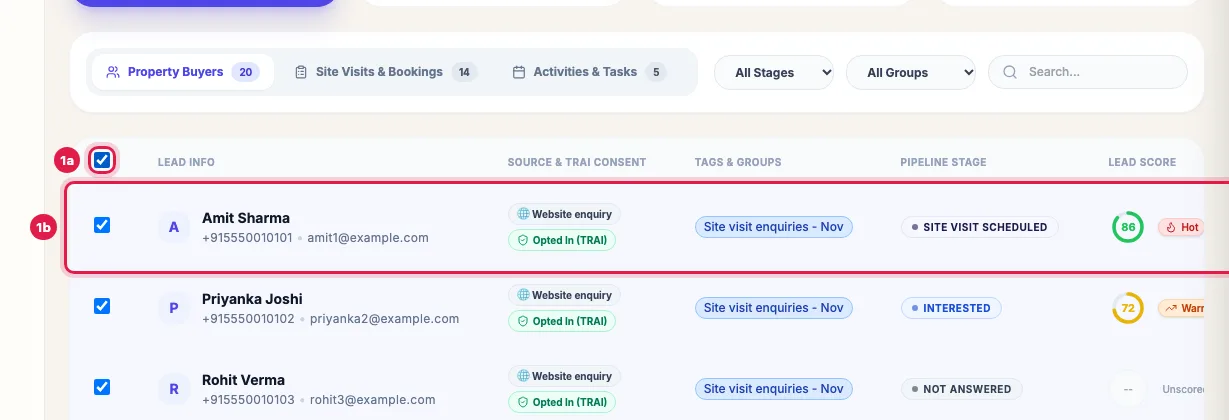
Tick leads, or the box at the top for the whole page Tick the leads you want, or the box at the top of the list to tick the whole page (50 leads). When more leads match, a line offers Select all … leads matching current filters.
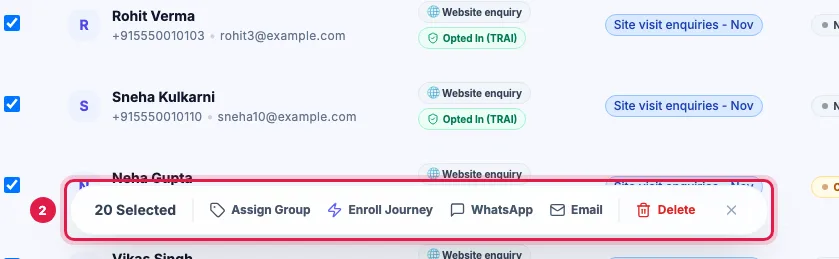
The bar: Assign Group, Enroll Journey, WhatsApp, Email, Delete The bar at the bottom shows how many are selected (All Filtered when you selected every match): Assign Group, Enroll Journey, WhatsApp, Email and Delete. The X clears the selection.
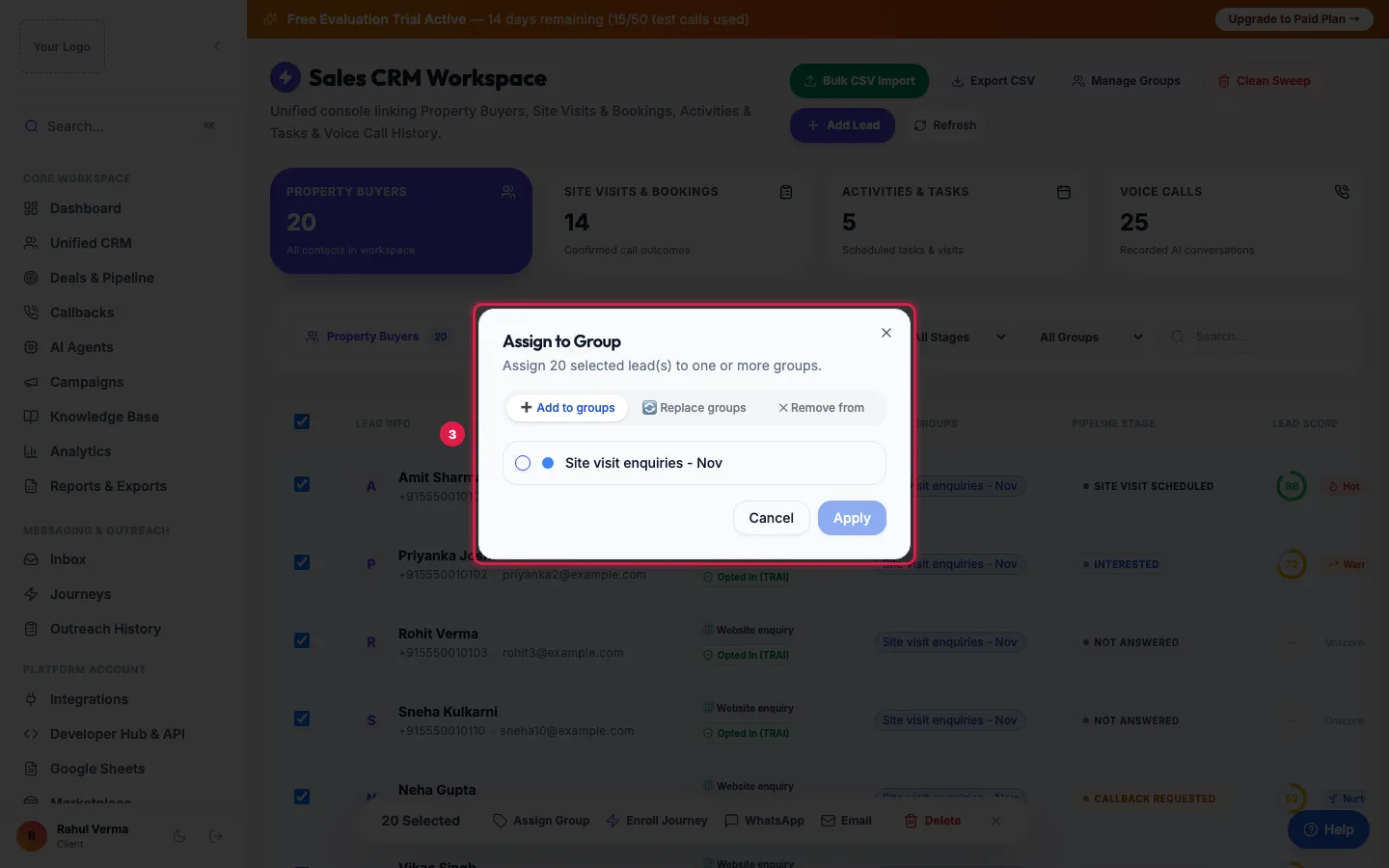
Assign to Group: add to, replace or remove from groups, then Apply Assign Group: choose Add to groups, Replace groups or Remove from, tick the groups and click Apply. A message says how many leads changed.
Enroll Journey: pick a live journey under Select Active Journey and click Enroll Leads Now. Leads already in that journey are skipped.
WhatsApp or Email: choose an approved WhatsApp template, or write the Subject Line and Email Body, and click Send … Messages. They go out at once from your own connected number or email.
Delete: type DELETE in the box and click Delete Permanently. The leads, their campaign entries and their activities are removed.
What each action reaches
- Assign Group and Delete act on every lead you selected, including all matches when you chose Select all … matching current filters.
- Enroll Journey, WhatsApp and Email send the leads ticked on the current page. The window says so when you had selected more; for a whole group, use the journey's Enroll leads or a WhatsApp or email campaign.
- Assign Group does not start a group's automatic WhatsApp, AI call or journey: those run only for leads that arrive in the group by Add Lead, a file import or Google Sheets. To call the leads you grouped, run a campaign for that group.
- Opted-out leads get no campaign or journey message, whichever way you select them.
Clean Sweep is different
Clean Sweep at the top of the page deletes every lead in the workspace, whatever is ticked or filtered. It asks you to type DELETE and says how many will go. To delete some leads, tick them and use Delete in the bar instead. Only people allowed to delete leads see either button.
Example: Regrouping last month's enquiries
Green Valley Dental filters Unified CRM by the stage Callback Requested and the group "October walk-ins", clicks Select all 86 leads matching current filters, and uses Assign Group → Add to groups → "November recall". It then runs a campaign on "November recall" so Priya calls all 86 between 9 AM and 9 PM.
Tips
- Filter first, then select all matching: it is the safest way to change exactly the right leads.
- Delete cannot be undone. Export CSV first if you may need the list later.
- A WhatsApp message to someone who has not written to you in 24 hours needs an approved template.
Frequently asked questions
Sab leads ek saath kaise select kare?
Tick the box at the top of the list, then click Select all … leads matching current filters in the line that appears above it.
I added leads to a group but the group's AI call did not happen.
Assign Group never starts a group's automatic actions. Run a campaign for that group, or add new leads to it through Add Lead or a file import.
Why did Enroll Journey take only 50 leads?
It sends the leads on the page you ticked. To enroll a whole group or stage, open the journey and use Enroll leads in its ⋯ menu.
The journey list in Enroll Journey is empty.
Only live journeys are listed. Open Journeys, publish one, and try again.
Can I undo a delete?
No. Deleted leads, their campaign entries and activities are gone for good.
Why don't I see Delete?
Your role cannot delete leads. An Admin can give that permission in Team.
Questions this guide answers
- How do I send WhatsApp to many leads at once?
- How do I move many leads to a group in the CRM?
- How do I delete many leads at once?
- How do I select all leads matching a filter?
Related guides
- Using the CRM Built into Your AI Calling Agent: Unified CRM is where every lead, call outcome, follow-up and recorded call lives. The list shows each lead's source, consent, groups…
- How to Call Every New Lead Automatically Within Minutes: A lead group keeps related leads together, so a campaign, a message or a report can use exactly that list. A group can also act on every…
- How to Automate Lead Follow-ups with AI Calls, WhatsApp and Email: A journey is a follow-up you set up once. When something happens (a new lead, a call outcome, a reply, a webhook or a set time), it calls…
- How to Run an AI Calling Campaign: Automate Outbound Sales Calls: Campaigns → New Campaign: name it, choose the AI agent, set the retry rules, pick the lead group and click Create & Launch. The agent…
- How to Send a Bulk WhatsApp Campaign to Your Leads: WhatsApp Suite → WhatsApp Campaigns → New Campaign: name it, pick an approved template and the leads (a group, picked leads, pasted…