How to Edit a Lead or Mark It Opted Out in the AI Calling CRM
In short: Unified CRM → Edit at the end of the lead's row changes the name, phone, email, company, source, pipeline stage and the opt-in. Untick Customer Opt-in Verified to stop all calls and messages to that person. Status, tier, notes and your industry's fields are edited with the pencil on the lead's page.
A step-by-step guide for BookAICall, an AI voice agent platform that makes and answers phone calls for businesses in Hindi, English, Hinglish and other Indian languages. Updated .
Steps
Open Unified CRM, find the lead (type the name or number in Search) and click Edit at the end of its row. You see Edit only if your role may change leads.
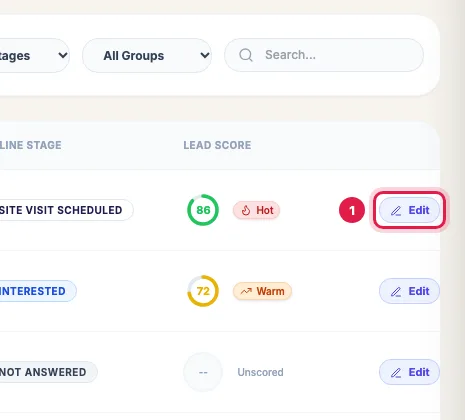
Edit at the end of the lead's row Change the Full Name, Phone Number, Email Address, Company or Lead Source.
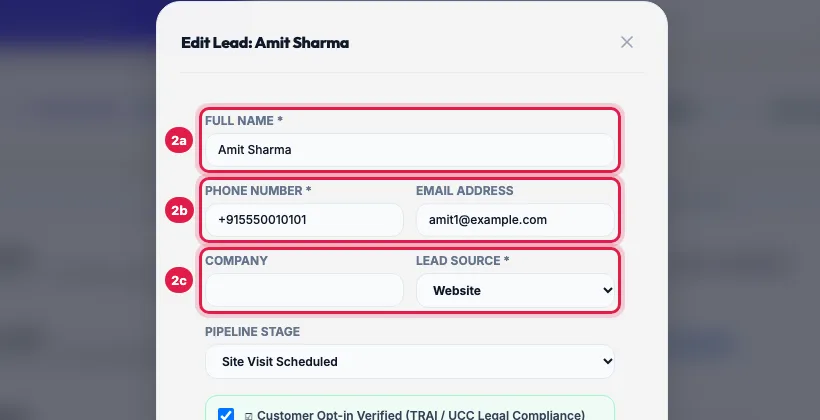
The lead's name, phone, email, company and source Set the Pipeline Stage by hand if you need to, for example after a site visit. Tick or untick Customer Opt-in Verified (TRAI / UCC Legal Compliance): unticked means the person is opted out.
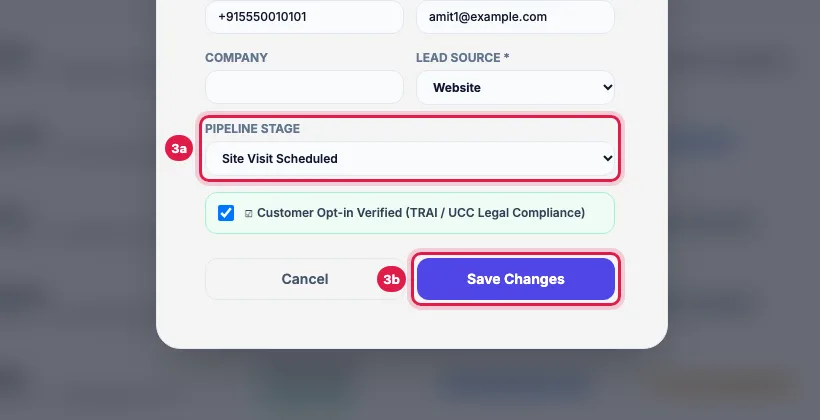
Pipeline Stage, and Save Changes Click Save Changes. The message Lead updated successfully! confirms it, and the row shows the new details and its consent badge.
For the lead's status, qualification tier, notes and your industry's fields (budget, location, course and so on), click the name to open the lead's page and use the pencil on the details card, then Save Changes.
Opt-in and opt-out
- The Source & TRAI Consent column shows Opted In (TRAI) or Opted Out / DND for each lead. A lead whose consent was never recorded counts as opted in.
- Untick Customer Opt-in Verified and save, or click Mark Opt-Out / DND in the lead's 360° Profile, when someone asks not to be contacted.
- An opted-out lead is not called by campaigns (it is closed as DND, without using an attempt), gets no WhatsApp or email campaign message and is not put in journeys. Call AI on its row stops with "This contact is marked Opted Out / DND. Tick "Customer Opt-in Verified" in Edit Lead to call them."
- To allow contact again, tick the box and save, or click Grant Opt-In Consent in the 360° Profile.
- Every consent change is recorded with who made it and when; Export CSV shows the current consent and when it last changed.
What the calls change by themselves
- After each analysed call, the pipeline stage, the score and your industry's fields can change from what was said, so a stage you set may move forward again.
- A stage never moves back by itself, and a lead marked converted or declined gets no automatic follow-up call.
Two edit screens
Edit in the list is the quick one: contact details, source, stage and consent. The pencil on the lead's page opens Edit Lead Details, with Form Mode and JSON Mode: the name, company, phone, email, Lead Status (New, Contacted, Callback, Interested, Not Interested, Converted, Do Not Call), Qualification Tier (Hot, Warm, Nurture, Cold, Disqualified), Internal Notes, your industry's fields, and Add Custom Field for anything else.
Example: A number change and an opt-out
A student of Bright Future Coaching calls to say his father's number should be used. The counsellor searches for Rohan Verma in Unified CRM, clicks Edit, replaces the Phone Number and clicks Save Changes. The next week another parent says "please don't call again": the counsellor opens Edit on that lead, unticks Customer Opt-in Verified and saves; the campaign skips that number from then on.
Tips
- Change a wrong number with Edit rather than adding a new lead, so the call history stays in one place.
- If two leads exist for one person, keep the one with the calls and delete the other.
Frequently asked questions
Lead ko call karna band kaise kare?
Click Edit on the lead's row, untick Customer Opt-in Verified (TRAI / UCC Legal Compliance) and click Save Changes. The badge turns to Opted Out / DND and no campaign, journey or Call AI reaches that person.
Why don't I see the Edit button?
Your role cannot edit leads. Ask your account Admin to give you edit access on Team → Roles & Permissions.
I changed the stage but it changed again after a call.
Each analysed call can move the stage forward from what the customer said. It does not move it back.
Where do I change the budget or location?
Those are your industry's fields: open the lead's page and use the pencil on its details card.
Can I change many leads at once?
Groups, yes: tick the leads and use Assign Group in the bar at the bottom. Other fields are edited one lead at a time.
Does editing a lead call them again?
No. Editing never starts a call or message by itself.
Questions this guide answers
- How do I edit a lead's details in the CRM?
- How do I change a lead's pipeline stage?
- How do I stop AI calls to a customer who opted out?
- Where do I change a lead's budget or location?
Related guides
- Read a Lead's AI Score, Call Summary and Transcript: A lead's page shows who the person is and whether they agreed to be contacted, the AI score with its reason, your industry's details…
- Using the CRM Built into Your AI Calling Agent: Unified CRM is where every lead, call outcome, follow-up and recorded call lives. The list shows each lead's source, consent, groups…
- Bulk Actions: Group, Journey, WhatsApp, Email or Delete Many Leads: Filter Unified CRM, tick the leads (or the top box for the page, then Select all … matching current filters) and a bar appears: Assign…
- DND and Opt-outs in AI Calling: Block Numbers and Record Consent: The DND list holds the numbers your AI agents never call: a number joins when the person asks on a call not to be called, replies STOP to…
- Lead Notes: Tell the AI Agent What Was Discussed Before: Each lead has Internal Notes for what your team should know: a visit, a preference, a promise. Add them in Add Lead, on the lead's page…