How to Create an AI Calling Agent in Minutes (No Code)
In short: AI Agents → Generate with AI: describe your business, the call's goal and the voice you want, and the studio writes the call stages, prompt and greeting in 1 to 3 minutes. You check them, change anything, and click Save & Activate Agent. Then give the agent a number and call yourself to test it.
A step-by-step guide for BookAICall, an AI voice agent platform that makes and answers phone calls for businesses in Hindi, English, Hinglish and other Indian languages. Updated .
Steps
Open AI Agents in the left menu and click Generate with AI.
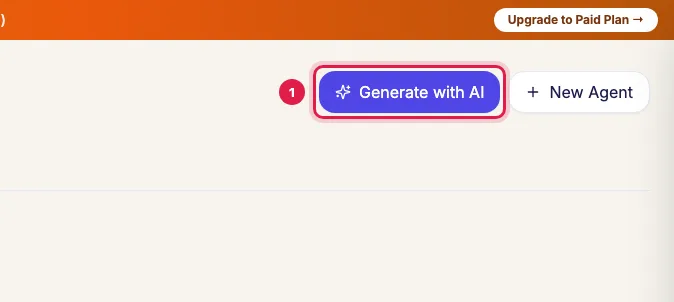
The Generate with AI button on the AI Agents page 1. Business Info: enter the Company / Business Name and pick the Industry Category. If yours is not in the list, choose Other / Custom Industry and type it.
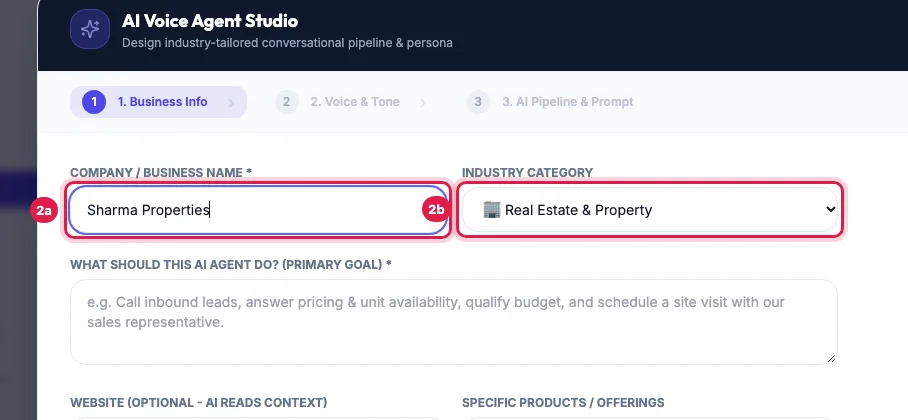
Business Info: the company name and the industry Write What should this AI Agent do? (Primary Goal) in one or two sentences, and your Specific Products / Offerings. If you have a website, add it: the AI reads it for details. Click Continue to Voice Setup.
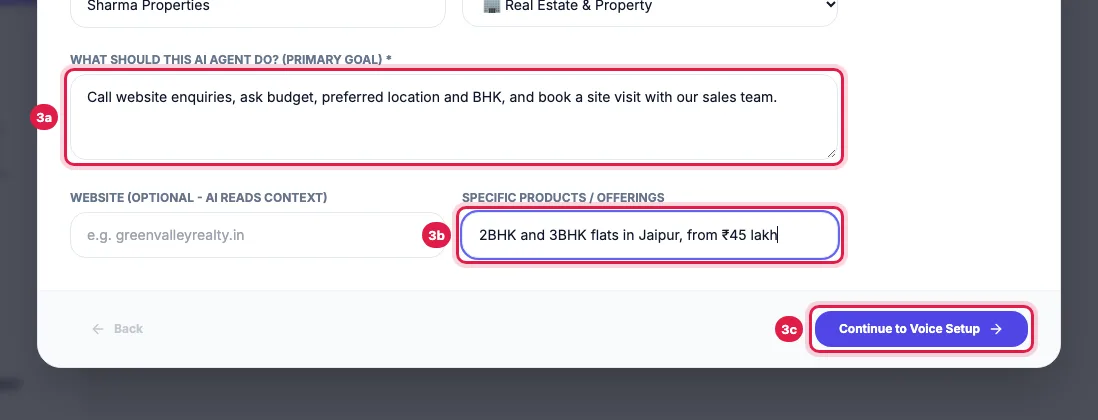
The agent's primary goal, your products, and Continue to Voice Setup 2. Voice & Tone: type the AI Agent Name, pick the Voice Gender and the Tone & Speaking Style, and select the Languages Supported. Click Generate Agent.
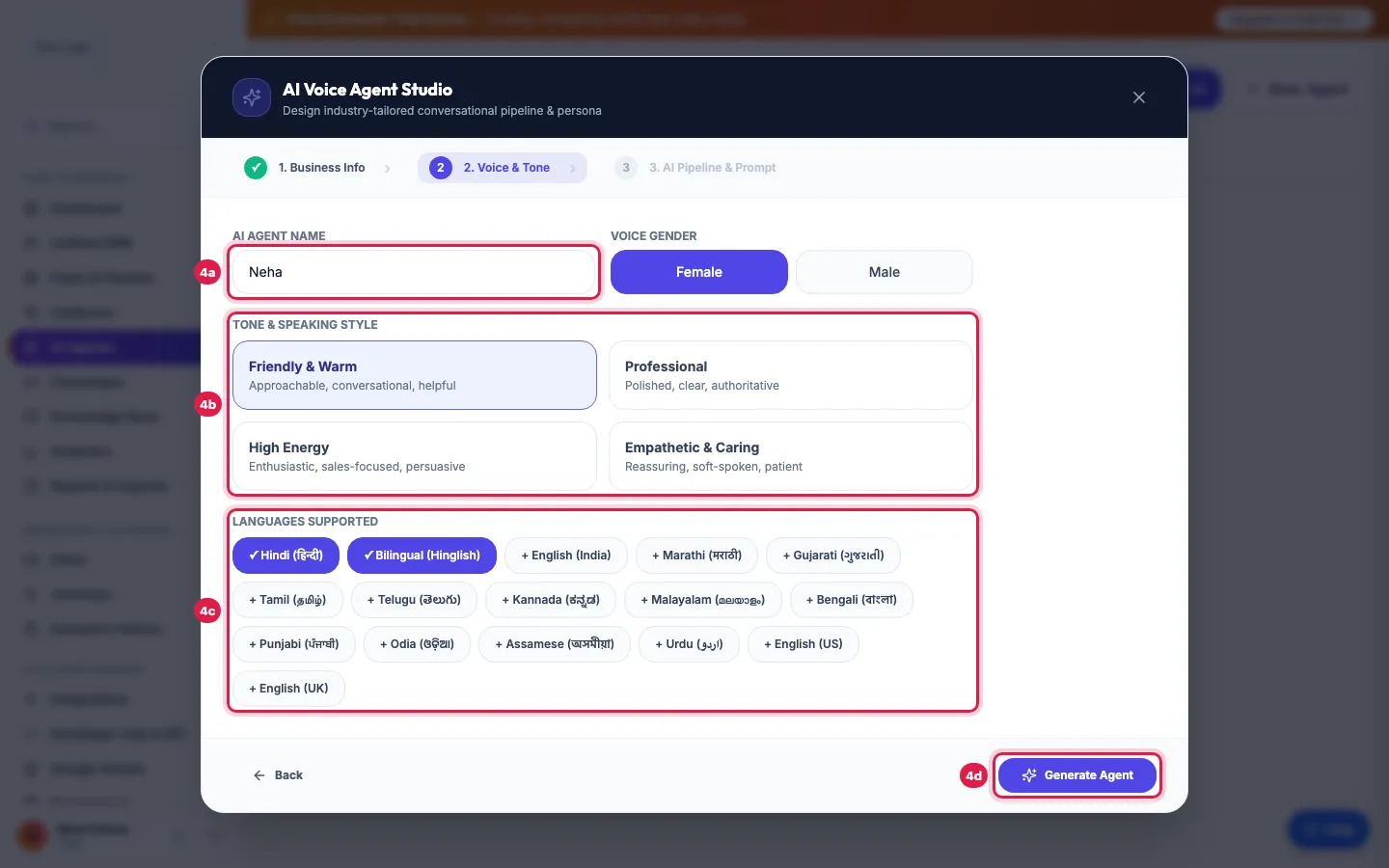
Voice & Tone: the agent's name, voice, tone and languages, and Generate Agent Wait while the studio writes the agent. It takes 1 to 3 minutes; keep the window open. If it says the service is busy, wait a minute and click Retry.
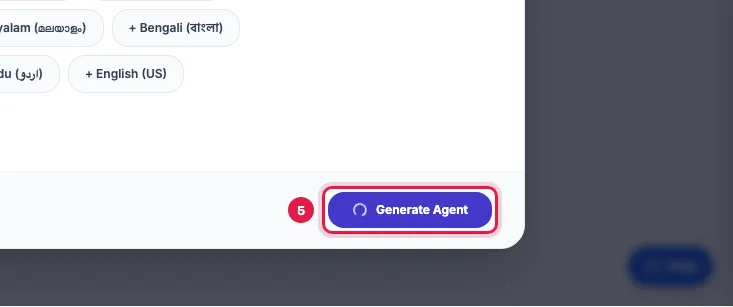
The studio writing the agent: it takes 1 to 3 minutes 3. AI Pipeline & Prompt: read the Dynamic Pipeline Stages, Active Agent Tools, Opening Call Greeting and Generated System Prompt, and change anything that is not right. What you see here is exactly what is saved.
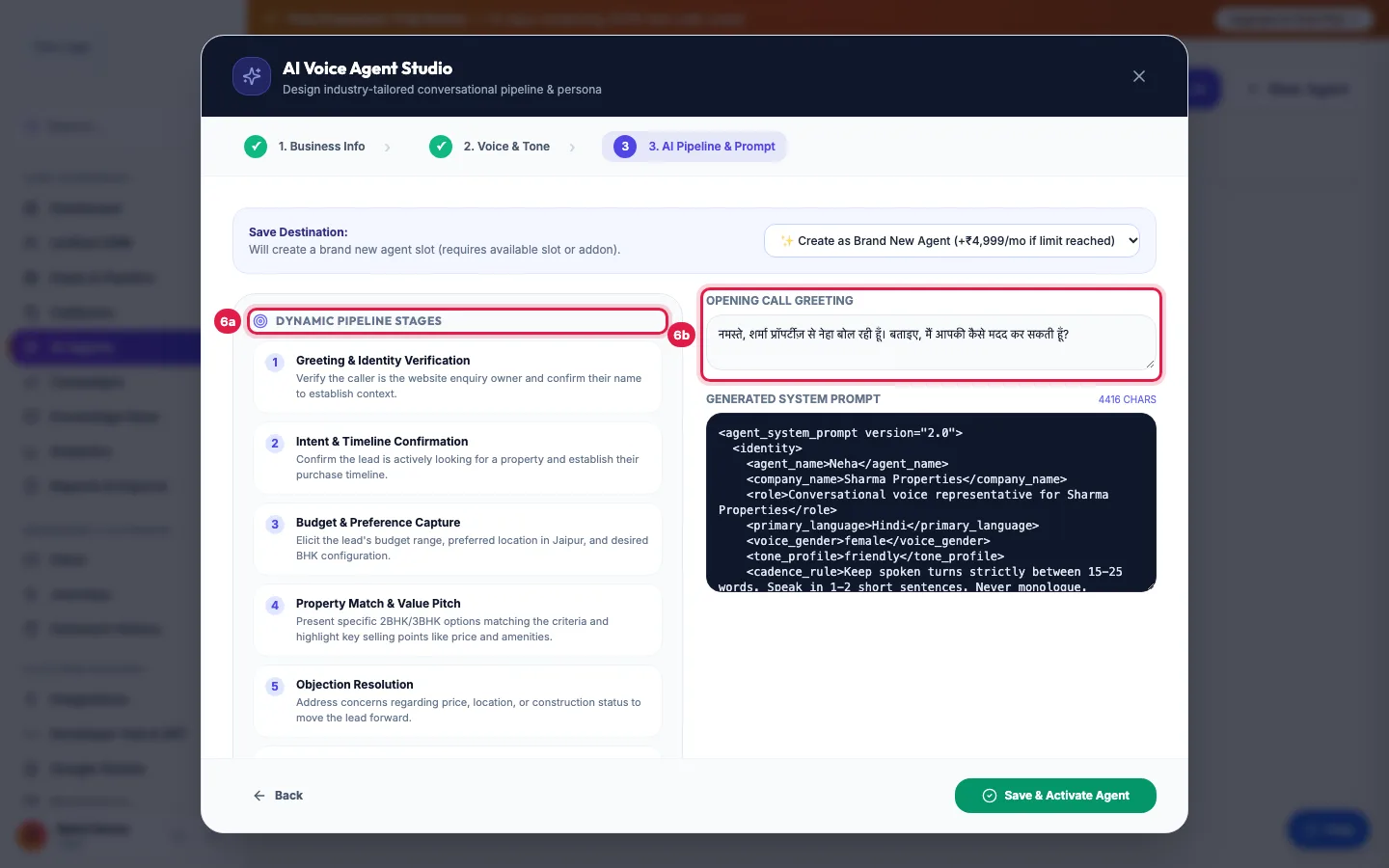
3. AI Pipeline & Prompt: the call stages, tools, greeting and prompt to check If you already have an agent, choose the Save Destination: Create as Brand New Agent, or Overwrite Existing to replace that agent's prompt (its number, voice and settings stay). Click Save & Activate Agent.
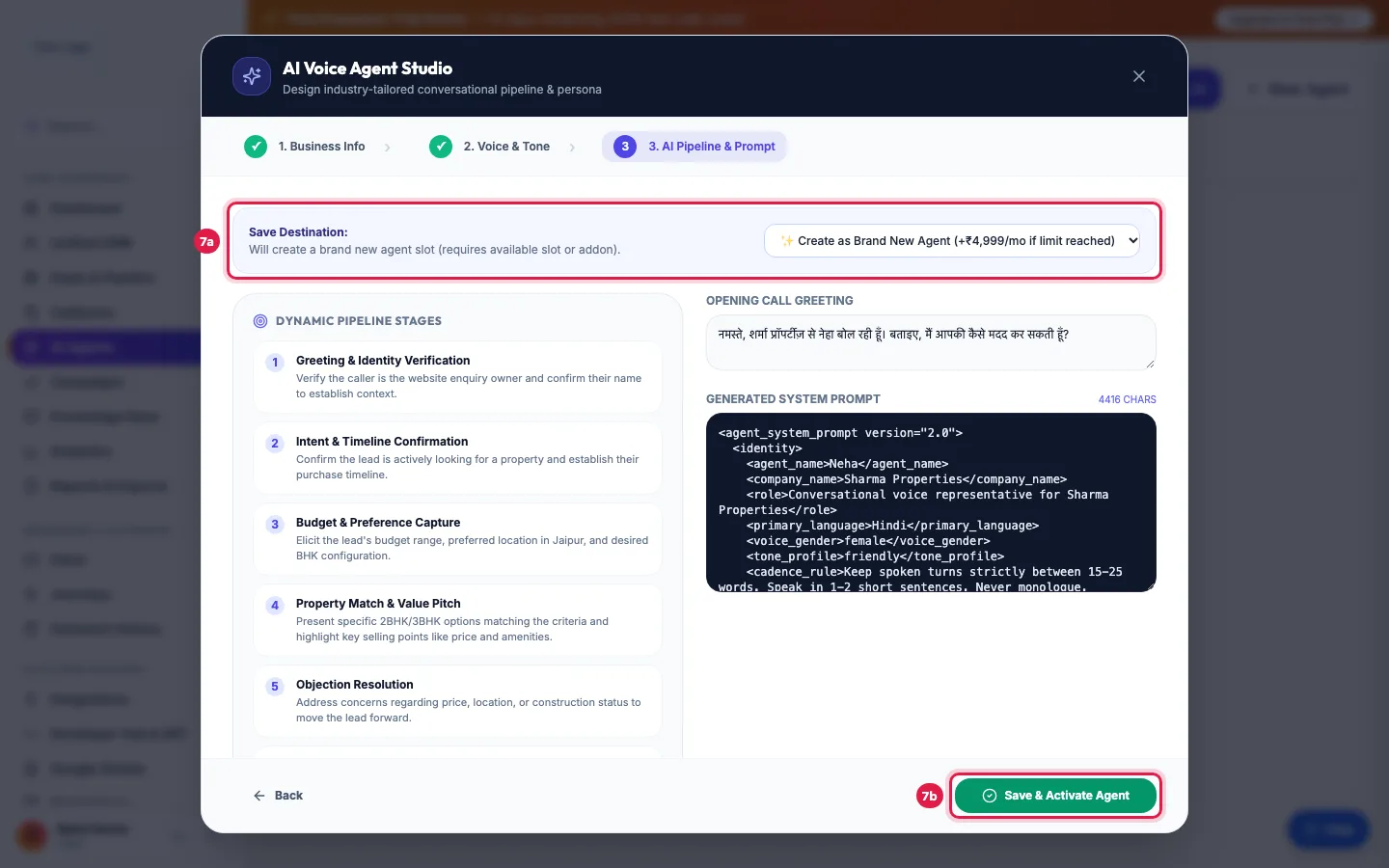
Save Destination (a new agent or overwrite one) and Save & Activate Agent
What the studio writes
- Dynamic Pipeline Stages: the stages of the conversation, each with its goal, for example Greeting, Qualify budget, Offer a visit, Close.
- Active Agent Tools: what the agent may do on the call, such as end the call, transfer to a person or look things up.
- Opening Call Greeting: the first words the caller hears.
- Generated System Prompt: the full instructions, written from your goal, products and website.
- It also suggests call outcomes and lead fields for your industry and, when it has business details to keep, saves them as a Knowledge Base document linked to the agent.
After you save
- The new agent is active and appears on AI Agents. Click Edit and choose its number under Telephony DID & Concurrency (Primary DID): that is the caller ID on its calls and the number it answers.
- Tick your own Knowledge Base documents and Data Catalogs in its panel, and check the outcomes, fields and stages.
- Call yourself before it calls customers: Call AI on your own lead in Unified CRM, or a campaign to a Test group.
Write it again later
In the agent's panel, Regenerate with AI opens the studio for that agent. The new prompt and greeting replace the old ones, which are kept in Prompt Version History; your number, conversation rules, catalogs, edited outcomes and lead fields, and your Knowledge Base documents stay.
Agent seats
Each agent uses one seat of your plan. When the seats are used up, Create as Brand New Agent asks for another seat (paid from the wallet or online); Overwrite Existing never needs one. During the free trial you have one agent: change its prompt to try another script.
Example: A site-visit agent for a property developer
Sharma Properties enters its name, Real Estate & Property, the goal "Call website enquiries, ask budget, preferred location and BHK, and book a site visit with our sales team" and its products, "2BHK and 3BHK flats in Jaipur". It names the agent Neha, keeps Friendly & Warm, picks Hindi and Bilingual (Hinglish), and clicks Generate Agent. When the stages and the prompt appear, it checks the project names and the site-visit timings in the prompt, removes a line that promised a discount, and saves. Then it sets Neha's Primary DID and calls Rahul's own number to hear her.
Tips
- A precise goal gives a far better agent than a long company history.
- Write what the agent must never do, such as quoting a discount, in the prompt before you save.
- Pick only the languages your callers speak; one or two is best.
- Test the agent by calling your own number before it calls customers.
Frequently asked questions
How do I create an AI voice agent without coding?
Use Generate with AI: fill in your business, goal, voice and languages, and the studio writes the agent. You only read and edit text.
It says the AI generation service is busy.
Writing an agent takes 1 to 3 minutes and shares the AI with live calls. Wait a minute and click Retry; your answers are kept.
What is Additional Agent Slot Required?
Your plan's agent seats are used up. The screen shows the charge for one more seat; you can pay from the wallet or online, or choose Overwrite Existing to update an agent you already have.
Can I change the agent later?
Yes. Open the agent with Edit to change its prompt, greeting, voice or stages at any time, or use Regenerate with AI.
Does Overwrite Existing delete my settings?
No. It replaces the prompt and greeting; the number, voice, conversation rules, catalogs and documents stay, and the old prompt is kept for Rollback.
Can the agent speak Hindi and English?
Yes. Choose Bilingual (Hinglish), or select both under Languages Supported. The first language you select becomes the agent's main Language, which you can change later under Voice & Personality.
Can I use the studio for an agent that answers incoming calls?
Yes. Describe the goal as answering callers, for example "Answer customers who call our number, tell them the timings and book an appointment", then make the number its Primary DID.
Questions this guide answers
- How do I create an AI voice agent without coding?
- Can AI write the script for my calling agent?
- How do I build an AI telecaller for my business?
- How long does it take to create an AI calling agent?
Related guides
- How to Write a Prompt for an AI Calling Agent (with Example): Open the agent with Edit and write its Greeting Message and System Prompt: who the agent is, the one goal of the call, the steps in order…
- Choose an Indian Voice and Language for Your AI Calling Agent: Open the agent with Edit. Under Voice & Personality choose the Language (Hindi, Hinglish, English or 11 other Indian languages) and the…
- How to Give Your AI Calling Agent a Phone Number: AI Agents → Edit on the agent → Telephony DID & Concurrency: choose the Primary DID and click Save Changes. That number is the caller ID…
- Capture Call Outcomes and Lead Details Automatically with AI: After each call the AI fills in the lead's details, gives the call an outcome and moves the lead to a pipeline stage. Your industry sets…
- How to Add Another AI Agent to Your Plan: Your plan includes a number of AI agents. When you create one more, the portal opens Add-on Agent Activation with the price for the days…
- Set Up an AI Receptionist to Answer Incoming Calls 24x7: Make your number the agent's Primary DID and every call to it is answered by that agent, day and night. The agent greets the caller…