How to Build an AI Voice Agent Step by Step (Your Own Script)
In short: AI Agents → New Agent: type the agent's name, industry, greeting and system prompt yourself, pick a voice and a language, and click Create Agent. The new agent starts switched off: click Enable on its card, then Edit to give it a number. Use this when you already have a script; otherwise Generate with AI writes one for you.
A step-by-step guide for BookAICall, an AI voice agent platform that makes and answers phone calls for businesses in Hindi, English, Hinglish and other Indian languages. Updated .
Steps
Open AI Agents in the left menu and click New Agent.
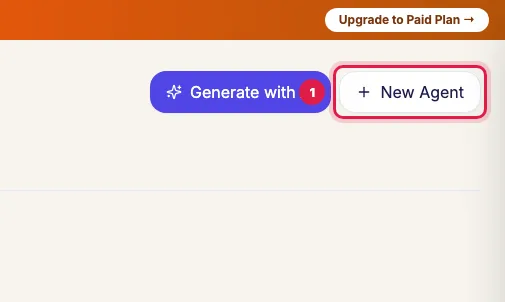
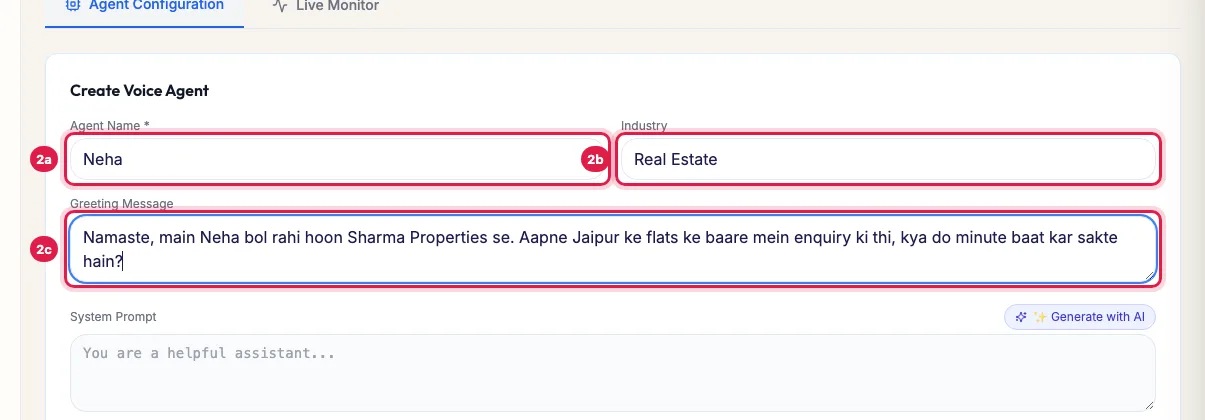
The New Agent button on the AI Agents page Fill in Agent Name, Industry and the Greeting Message: the first thing the agent says when the call connects.
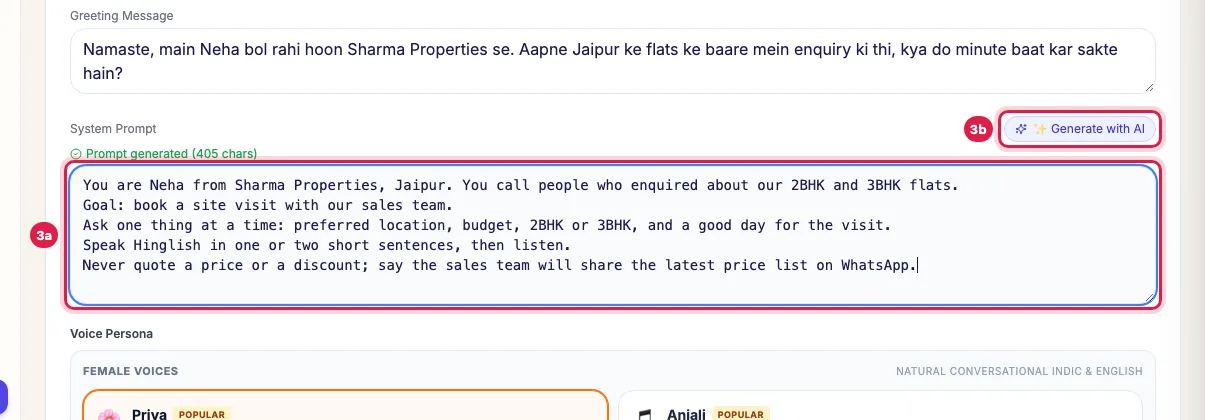
Agent Name, Industry and Greeting Message Write the System Prompt: who the agent is, the goal of the call, what to ask, and what it must never say. Or click ✨ Generate with AI next to it for a first draft from the name and industry, then edit it.
The System Prompt, and the button that writes one for you Under Voice Persona, choose Female or Male, then pick a voice from the list.
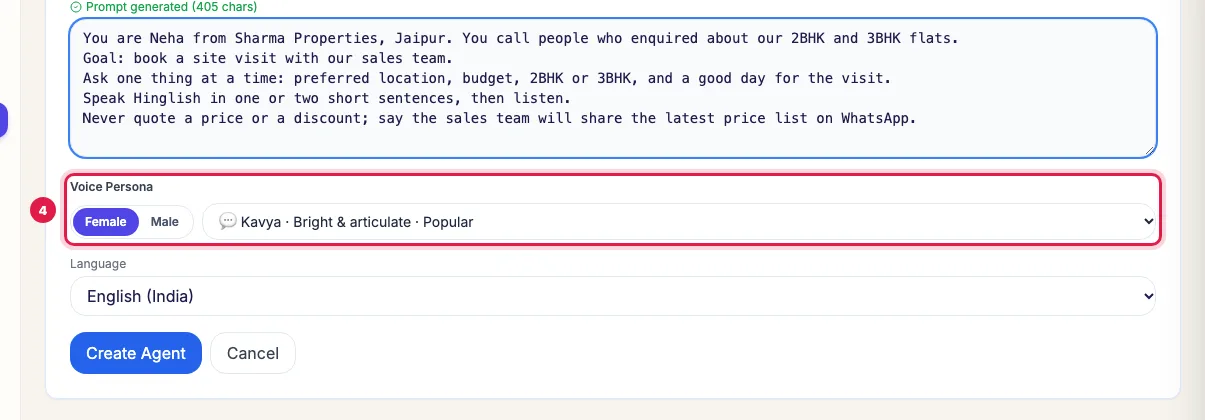
Voice Persona: Female or Male, then the voice Choose the Language and click Create Agent. The agent appears in the list with the Status INACTIVE.
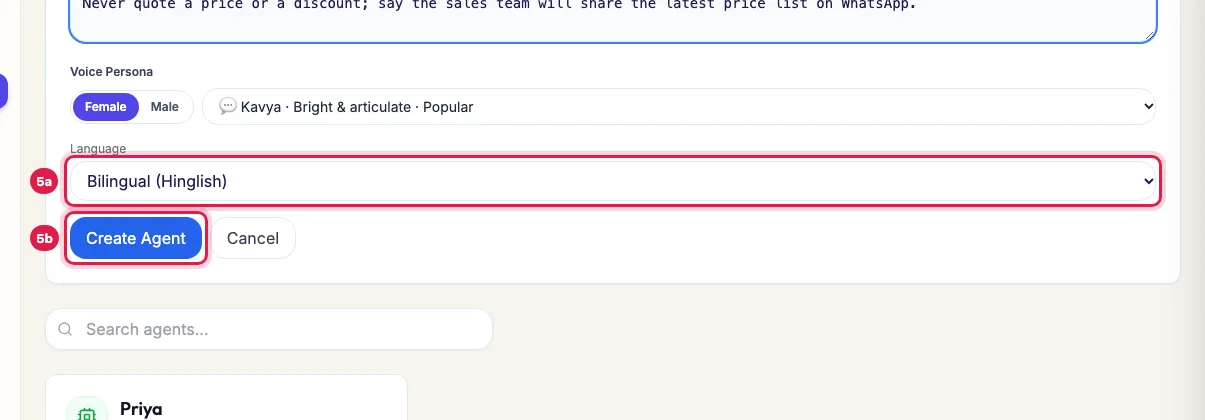
The Language, and the Create Agent button Click Enable on its card to switch it on, then click Edit to choose its Primary DID and tick the Knowledge Base documents it should use.
What each field does
- Agent Name: the name the agent gives on calls, such as Neha. It also shows on campaigns and reports.
- Industry: pick one from the list or type your own. ✨ Generate with AI uses it to draft the prompt, and it labels the agent on its card.
- Greeting Message: said as soon as the call connects, on outgoing and incoming calls. Keep it under 20 words and end with a question.
- System Prompt: how the agent behaves for the rest of the call. See "How to write a system prompt that works".
- Voice Persona and Language: the voice and the language it speaks. You can change both later in the agent's panel.
After you create it
- A new agent is switched off until you click Enable, so it never calls anyone half set up.
- In its panel (Edit), set the Primary DID, the Conversation Rules, linked Knowledge Base documents and Data Catalogs, and the outcomes, fields and stages, then Save Changes.
- Call yourself before it calls customers: Call AI on your own lead in Unified CRM.
Turn it off or delete it
Disable on the card stops the agent from being used; its calls and settings stay. The bin icon deletes the agent after you confirm; its past calls stay in your CRM. If a disabled agent's number is called, the call goes to your primary agent.
Example: A short prompt that works
Sharma Properties creates Neha (Real Estate) with the greeting "Namaste, main Neha bol rahi hoon Sharma Properties se. Aapne Jaipur ke flats ke baare mein enquiry ki thi, kya do minute baat kar sakte hain?" Its prompt: who Neha is, the goal (book a site visit), the four things to ask one at a time (location, budget, 2BHK or 3BHK, a good day), Hinglish in short sentences, and "never quote a price or a discount; the sales team shares the price list on WhatsApp". Rahul clicks Create Agent, then Enable, sets the Primary DID, and calls his own number.
Tips
- Keep the greeting under 20 words and end it with a question.
- Put what the agent must never do in the prompt, in plain words.
- If you only want to try another script, edit your existing agent instead of creating a new one: Prompt Version History keeps the old one.
Frequently asked questions
It asks me to add an agent slot.
Your plan's agent seats are used up. Add a seat (paid from the wallet or online), or edit an agent you already have instead of creating a new one.
I created an agent but it does not call.
A new agent starts switched off. Click Enable on its card, give it a Primary DID in its panel, and choose it in your campaign.
Should I use New Agent or Generate with AI?
Use New Agent when you already have a tested script. Generate with AI writes the prompt, stages and greeting for you from a short description.
Enabling the agent says my plan has N AI agents and N are active.
Your plan's AI agents are all switched on. Switch another agent off, keep this one off, or add an AI agent with New Agent on the AI Agents page (you pay for the extra agent there).
During the free trial, can I make a second agent?
No. The trial has one agent; change its prompt, voice and outcomes to test another script, and add agents after choosing a plan.
Questions this guide answers
- How do I create an AI calling agent manually?
- What settings does an AI voice agent need?
- Why is my new AI agent inactive?
Related guides
- How to Write a Prompt for an AI Calling Agent (with Example): Open the agent with Edit and write its Greeting Message and System Prompt: who the agent is, the one goal of the call, the steps in order…
- How to Create an AI Calling Agent in Minutes (No Code): AI Agents → Generate with AI: describe your business, the call's goal and the voice you want, and the studio writes the call stages…
- Choose an Indian Voice and Language for Your AI Calling Agent: Open the agent with Edit. Under Voice & Personality choose the Language (Hindi, Hinglish, English or 11 other Indian languages) and the…
- How to Give Your AI Calling Agent a Phone Number: AI Agents → Edit on the agent → Telephony DID & Concurrency: choose the Primary DID and click Save Changes. That number is the caller ID…
- How to Add Another AI Agent to Your Plan: Your plan includes a number of AI agents. When you create one more, the portal opens Add-on Agent Activation with the price for the days…