How to Transfer an AI Call to a Human Agent
In short: With the Call Transfer add-on, open the agent and fill Transfer to a person: your team's number, and departments if callers should reach different teams. The agent connects the caller when they ask for a person, or when your prompt says to, and only during office hours if you set them.
A step-by-step guide for BookAICall, an AI voice agent platform that makes and answers phone calls for businesses in Hindi, English, Hinglish and other Indian languages. Updated .
Steps
Add the Call Transfer add-on: open Marketplace and choose Call Transfer Lines.
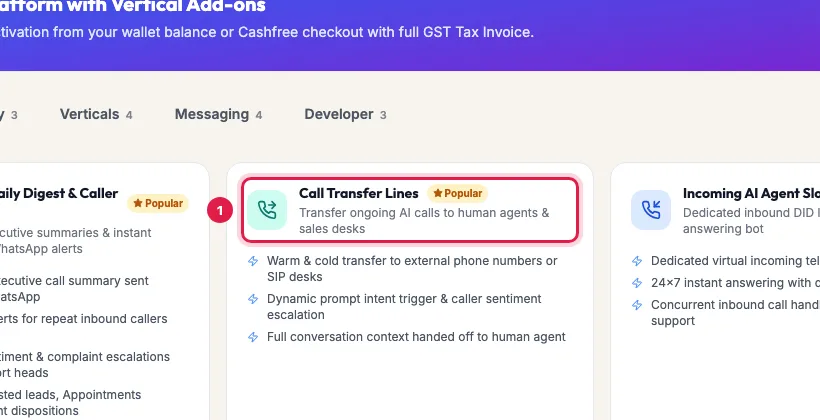
Call Transfer Lines in the Marketplace Open AI Agents, click Edit on the agent, and find Transfer to a person. Enter the Transfer number: a phone number or your office extension.
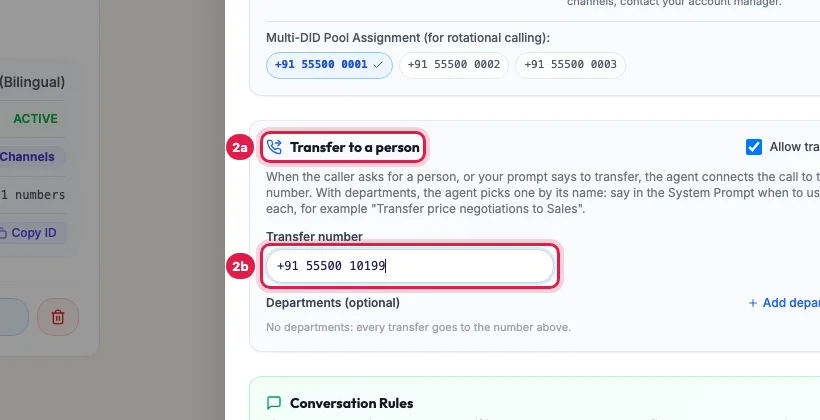
Transfer to a person in the agent's panel: the transfer number To send callers to different teams, click Add department and enter each team's name and number (the note is for your team). Keep Allow transfers ticked.
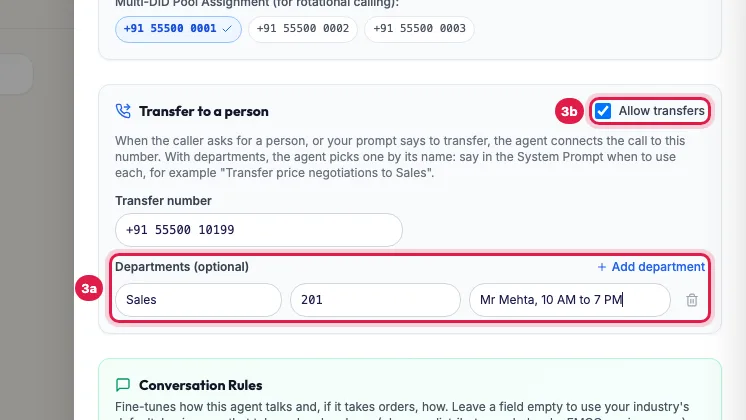
Departments, and Allow transfers In the System Prompt, say when to transfer, using the department's name, for example: "If the caller wants to negotiate the price, transfer to Sales." Click Save Changes, then call the agent and ask for a person.
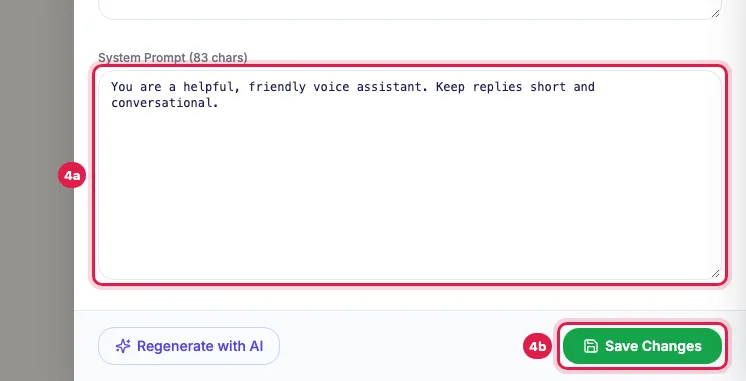
Say in the System Prompt when to transfer, then Save Changes To transfer only while your team is in, tick Transfer only during office hours and choose From and to (IST, every day). Outside those hours the agent tells callers the office is closed and does not transfer. For festivals and days off, use Holiday mode.
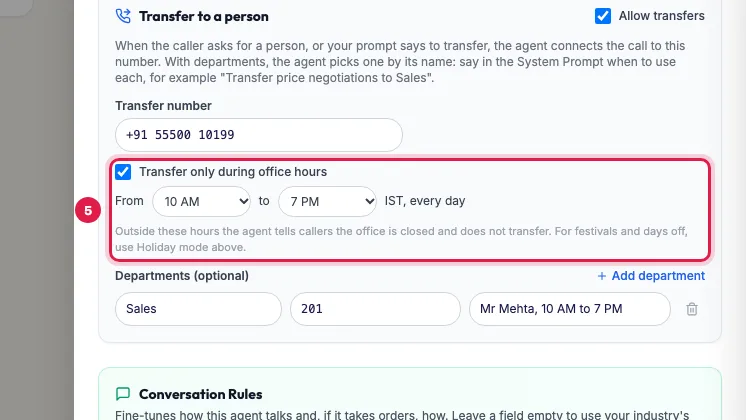
Transfer only during office hours: from and to, IST
How a transfer works on the call
- The agent transfers when the caller asks for a person, a manager or a team, or when your prompt says to in a situation, such as a complaint or a price negotiation.
- With departments, it picks the one whose name fits what the caller wants. If that is not clear, it asks, for example "Sales ya Support, kis team se baat karni hai?"
- It tells the caller it is connecting them, and your number rings. The caller stays on the line while it rings; the AI agent stops talking once the call is handed over.
- A 10-digit mobile number works as it is; you can also enter an office extension or a department code that your office phone system uses.
- Untick Allow transfers to stop all transfers for this agent without deleting the numbers, on incoming and outgoing calls alike.
When the agent does not transfer
- Outside the office hours you set: it says the office is closed and keeps helping the caller itself, for example by noting a call back.
- On days in Holiday mode with No transfers ticked: it says your holiday message instead.
- When Allow transfers is off, or there is no transfer number or department.
- Without the Call Transfer add-on the panel shows where to add it instead of the transfer fields.
Where transfers show up
The call's record keeps the number it was transferred to, and the Dashboard's Executive MIS & Human Transfers tab lists the calls handed to your team.
Example: Price talks go to the sales head
Sharma Properties sets its office number as the transfer number and adds a department Sales (extension 201, note: Mr Mehta, 10 AM to 7 PM) and a department Support for existing buyers. Priya's prompt says: "If the caller wants a discount or to negotiate, transfer to Sales. If a buyer has a complaint about their flat, transfer to Support." Office hours are 10 AM to 7 PM. A buyer who asks for a better price at 4 PM is connected to the sales head on the same call; one who calls at 9 PM is told the office is closed and that the team will call back in the morning.
Tips
- Transfers ring your number; if nobody answers, the caller hears it ringing, so use a number that is staffed, or set office hours.
- Without the add-on the agent cannot transfer; the panel shows where to add it.
- Name departments the way callers speak (Sales, Accounts, Service), so the agent matches them easily.
Frequently asked questions
Can an AI calling agent transfer the call to a human?
Yes, with the Call Transfer add-on: set a transfer number or departments in the agent's panel and say in the prompt when to transfer.
Can transfers stop outside office hours?
Yes: tick Transfer only during office hours and choose the hours. They apply every day; for a holiday or a day off, add it in Holiday mode.
Can office hours differ by weekday?
Not yet: the hours are the same every day. Use Holiday mode for Sundays or days the office is closed.
Customer bole 'manager se baat karao' to kya hoga?
The agent connects them to your transfer number, or asks which team if you have several departments. Outside office hours it says the office is closed.
Can I transfer to a mobile number?
Yes. Enter the 10-digit mobile number as the transfer number or a department's number.
What if nobody answers the transfer?
The caller keeps hearing it ring. Use a number that is always staffed during your office hours, and set those hours.
Can my supervisor take over a call without the agent transferring?
Yes. In Live Monitor a supervisor can Barge into a call or use Transfer to their own extension.
Questions this guide answers
- Can an AI calling agent transfer the call to a human?
- How do I set up call transfer from an AI voice agent?
- Can AI call transfers stop outside office hours?
Related guides
- How to Listen to Live AI Calls: Listen, Whisper and Barge: AI Agents → Live Monitor shows your agents and every call in progress, with a live transcript. Click Hear live to listen to a call in your…
- How to Write a Prompt for an AI Calling Agent (with Example): Open the agent with Edit and write its Greeting Message and System Prompt: who the agent is, the one goal of the call, the steps in order…
- AI Agent Holiday Mode: Festival Greeting and No Transfers: AI Agents → Edit → Holiday mode → Add holiday: choose the days, the greeting, an extra instruction, and No transfers with what the agent…
- Set Up an AI Receptionist to Answer Incoming Calls 24x7: Make your number the agent's Primary DID and every call to it is answered by that agent, day and night. The agent greets the caller…
- Add WhatsApp, Call Transfer and More to Your AI Calling Plan: Marketplace lists the add-ons you can buy for your workspace, each with its monthly price: AI employees such as the WhatsApp agent, Email…