AI Agent Holiday Mode: Festival Greeting and No Transfers
In short: AI Agents → Edit → Holiday mode → Add holiday: choose the days, the greeting, an extra instruction, and No transfers with what the agent says when asked for a person. It starts at midnight IST of the first day, and the usual greeting, instructions and transfers come back by themselves after the last day.
A step-by-step guide for BookAICall, an AI voice agent platform that makes and answers phone calls for businesses in Hindi, English, Hinglish and other Indian languages. Updated .
Steps
Open AI Agents, click Edit on the agent, and find Holiday mode. Click Add holiday.
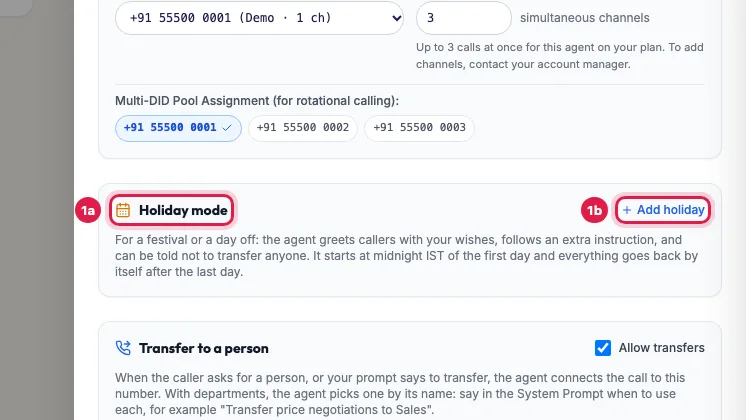
Holiday mode in the agent's panel, with Add holiday Choose the First day and the Last day (one day for a single festival).
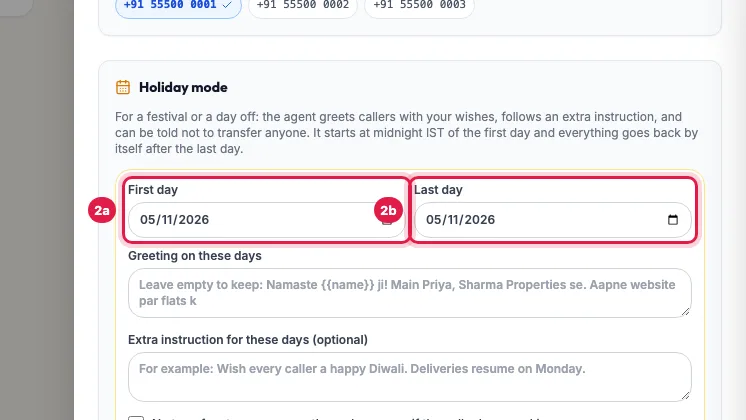
The first and last day of the holiday In Greeting on these days, write the full greeting with your wishes, in the language your callers speak, for example: "Namaste! Wishing you and your family a very happy Diwali from all of us. How can I help you today?" Leave it empty to keep the usual greeting.
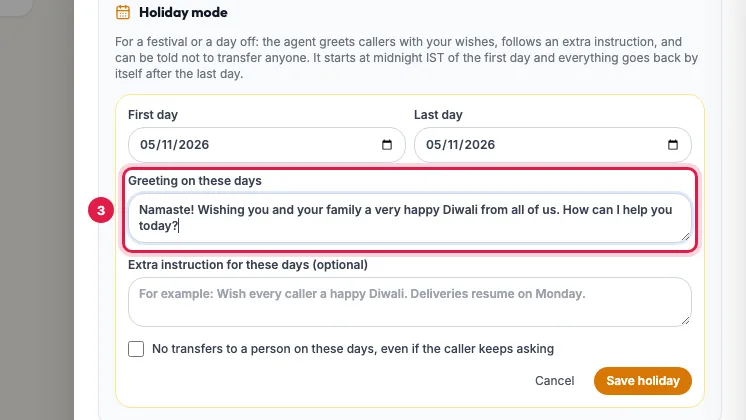
The greeting for the holiday, with your wishes In Extra instruction, add anything the agent should know on these days, for example that deliveries resume on Monday.
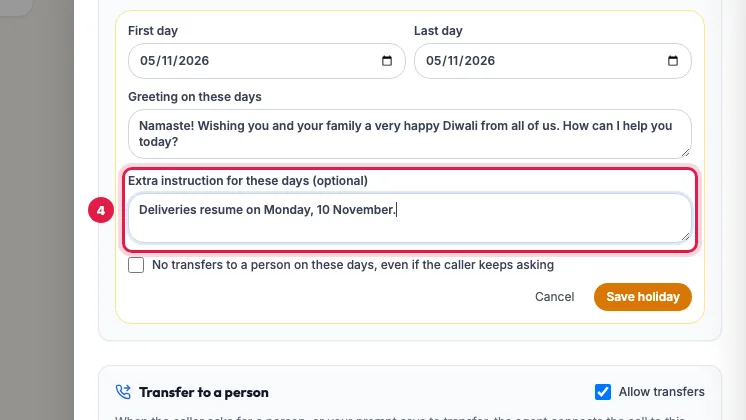
An extra instruction for the holiday To stop transfers, tick No transfers to a person on these days, and write what the agent says when asked for a person, for example: "Our team is on leave today for Diwali, so we cannot connect you to an agent. Please call us on the next working day." The agent says it however often the caller asks, and keeps answering from the knowledge base.
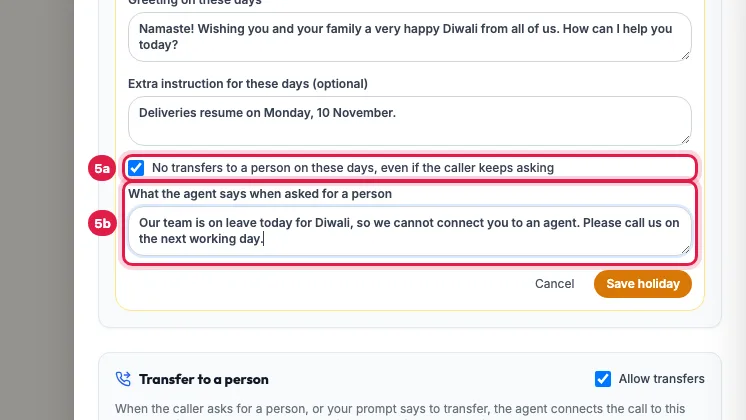
No transfers on these days, and what the agent says instead Click Save holiday. It is listed as Scheduled, On now during the days, and Over afterwards; the cross turns it off at once.
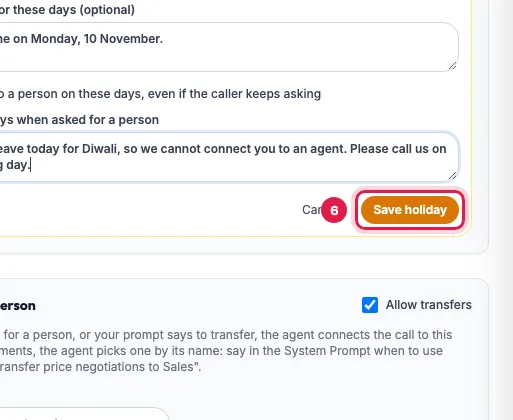
Save holiday: it starts at midnight IST of the first day
How it works
- At midnight IST of the first day the agent's greeting becomes your holiday greeting, your extra instruction and the no-transfer rule are added to its prompt as a marked block, and transfers stop if you chose that.
- At midnight after the last day the usual greeting, prompt and transfer settings come back by themselves.
- It applies to every call the agent has on those days, incoming and outgoing; a campaign running on a holiday uses the holiday greeting too.
- The list in the panel shows each holiday with its dates, its status, "no transfers" and "own greeting" where they apply.
Rules and limits
- A holiday can cover up to 31 days, and its last day cannot be in the past.
- Add at least one of a greeting, an instruction or no transfers.
- The greeting and the reply about transfers can be up to 600 characters each; the instruction up to 1,500.
- Turning off an active holiday (the cross) brings the usual settings back at once; cancelling a scheduled one removes it.
Example: Diwali at a pharma distributor
Shree Ganesh Pharma closes from 31 October to 2 November. On 25 October Sunita adds a holiday for those three days: the greeting "Namaste! Shree Ganesh Pharma ki taraf se aapko Diwali ki shubhkamnayein. Bataiye, main aapki kya madad kar sakti hoon?", the instruction "Orders taken these days are delivered from 3 November", and No transfers with the reply "Hamari team aaj chhutti par hai. Aapka order main le leti hoon, aur team 3 November ko call karegi." The holiday shows Scheduled, then On now on the 31st, and on 3 November the usual greeting and transfers are back without anyone touching the agent.
Tips
- At the end the usual greeting, instructions and transfer number come back by themselves. A greeting or transfer number you change during the holiday is kept.
- Incoming calls pick up the change within about a minute; calls already in progress keep the earlier settings.
- Call the agent yourself on the first day to hear the greeting.
- Leave the marked holiday block in the System Prompt as it is; it is removed by itself after the holiday.
- If the agent also makes outgoing calls, write a greeting that works when you call the customer too, or pause the campaign for those days.
Frequently asked questions
How do I add a Diwali greeting to my AI agent?
In the agent's panel, click Add holiday under Holiday mode, choose the dates, write the greeting and click Save holiday.
How do I stop call transfers on a holiday?
Tick No transfers to a person on these days and write what the agent should say instead.
Do I have to switch it off after the festival?
No. It ends by itself at midnight after the last day and the usual setup comes back.
Can I use it for every Sunday?
Add each Sunday as a one-day holiday, or use Transfer only during office hours if only transfers need to stop.
Will my campaigns stop during holiday mode?
No. Holiday mode changes what the agent says; pause a campaign yourself if you do not want calls on those days.
Can I add holidays for next month already?
Yes. Add them any time; they show as Scheduled until their first day.
Questions this guide answers
- How do I add a Diwali greeting to my AI agent?
- How do I stop call transfers on a holiday?
- Can an AI agent tell callers our office is closed?
Related guides
- How to Transfer an AI Call to a Human Agent: With the Call Transfer add-on, open the agent and fill Transfer to a person: your team's number, and departments if callers should reach…
- How to Write a Prompt for an AI Calling Agent (with Example): Open the agent with Edit and write its Greeting Message and System Prompt: who the agent is, the one goal of the call, the steps in order…
- Set Up an AI Receptionist to Answer Incoming Calls 24x7: Make your number the agent's Primary DID and every call to it is answered by that agent, day and night. The agent greets the caller…
- How to Set Up an AI Calling Agent: Your First Live Call in 10 Minutes: Follow the Dashboard's "Get to your first live call" list: make the agent yours, add yourself as a lead in a test group, and launch a…