How to Listen to Live AI Calls: Listen, Whisper and Barge
In short: AI Agents → Live Monitor shows your agents and every call in progress, with a live transcript. Click Hear live to listen to a call in your browser, with nothing to set up. A supervisor can also Listen on phone, Whisper, Barge in, Transfer or Disconnect; those ring your phone, using a supervisor ID that Support sets up for you.
A step-by-step guide for BookAICall, an AI voice agent platform that makes and answers phone calls for businesses in Hindi, English, Hinglish and other Indian languages. Updated .
Steps
Open AI Agents and click the Live Monitor tab. The cards show your agents, how many are on a call, how many are on standby, and the channels (calls at a time) they have together.
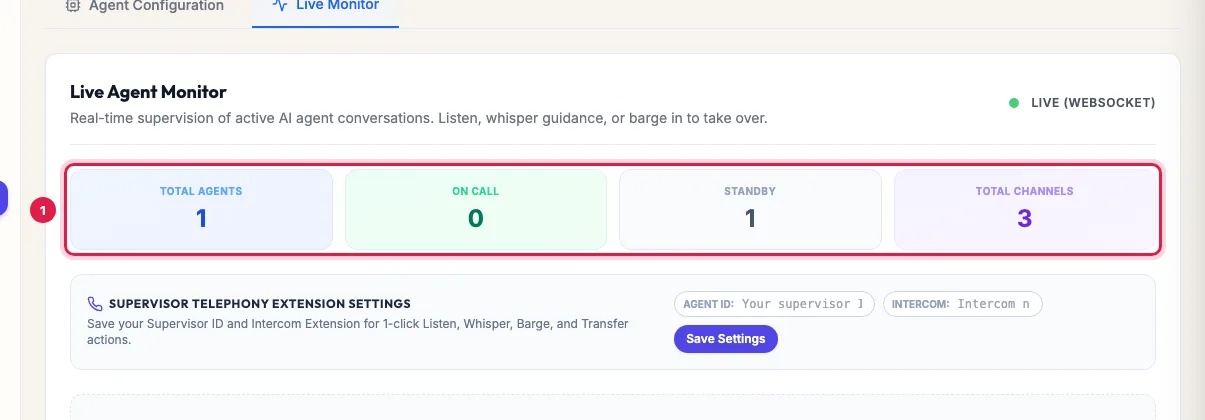
Live Monitor: agents, calls in progress, agents on standby and channels To join calls from your phone, ask Support for your supervisor ID: it is the line we ring when you join a call. Enter it as Agent ID under Supervisor Telephony Extension Settings, enter the extension or number calls should be transferred to as Intercom, and click Save Settings. They are saved in this browser.
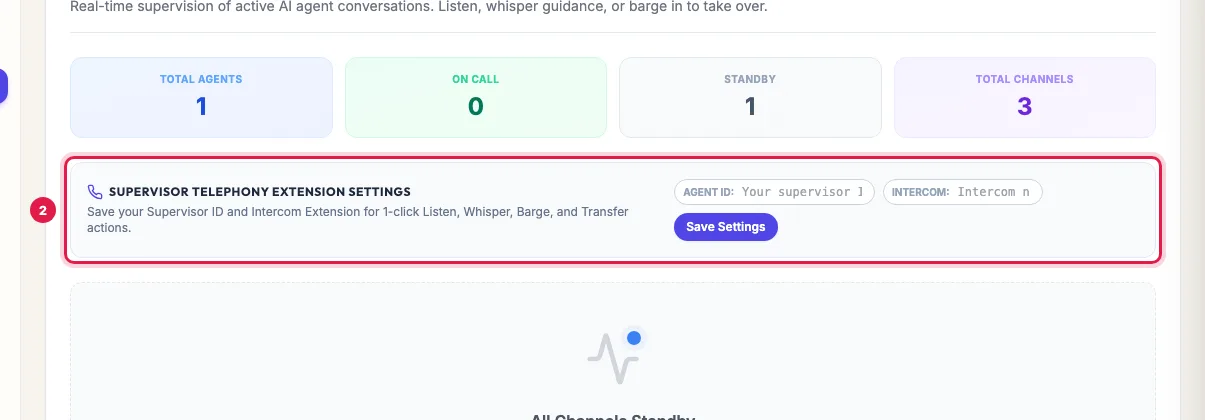
Supervisor settings: your supervisor ID and your extension, saved in this browser When a call is live it appears below, with the agent and the customer's number. Click Hear live to listen in your browser; Stop listening ends it. The customer and the AI agent cannot hear you. Use headphones or turn up your speaker.
From your phone: click Listen on phone to hear it silently, Whisper to speak so that the agent hears you and the customer does not, or Barge to join so that the customer hears you too. Answer your phone when it rings.
Transfer sends the customer to your Intercom number. Disconnect ends the call.
What each live call shows
- The agent's name, ↙ Inbound or ↗ Outbound, the customer's number and, when they are in your CRM, the lead's name.
- The status: Ringing, In call, or Wrap up for a few seconds after it ends; and how long it has been running.
- The live transcript: what the customer and the agent have said so far, as it happens.
- With more than one active agent, Filter by Agent shows only one agent's calls.
The buttons, in short
- Hear live: listen in the browser. Silent; nothing to set up; admins and managers only.
- Listen on phone: your phone rings and you hear the call silently.
- Whisper: your phone rings; the agent hears you, the customer does not.
- Barge: your phone rings and you join the call; the customer hears you.
- Transfer: sends the customer to the Intercom number you saved.
- Disconnect: ends the call after you confirm.
When the monitor is empty
All Channels Standby means no call is in progress right now; the chips list your active agents and their channels. Calls appear as soon as they start ringing: a campaign between 9 AM and 9 PM, a Call AI from the CRM, or an incoming call at any hour.
Example: A sales head checks the first calls of a new campaign
Sharma Properties launches a campaign at 11 AM. Rahul keeps Live Monitor open and clicks Hear live on the first answered call: Priya asks about the budget, but the buyer wants to talk about parking. He reads the live transcript of the next two calls, then adds the parking details to the project FAQ in the Knowledge Base. When a buyer says he is ready to book today, Rahul clicks Barge, answers his phone and joins the call himself.
Tips
- LIVE (WEBSOCKET) at the top right means the monitor updates by itself; otherwise it refreshes every few seconds.
- To hand callers to your team without a supervisor watching, use Transfer to a person in the agent's panel.
- Every call is also recorded: listen afterwards from Unified CRM, Voice Calls, if you missed it live.
Frequently asked questions
Can I listen to an AI agent's call live?
Yes. In AI Agents, Live Monitor, click Hear live on the call to listen in your browser. Neither the caller nor the agent hears you.
Who can use Hear live?
Admins and managers of your workspace. Team members with the User role cannot listen to live calls.
I clicked Listen on phone and nothing rang.
Check that your supervisor ID is saved under Supervisor Telephony Extension Settings. Without it, a window asks for it. If it is saved and still does not ring, raise a ticket with the time of the call.
Can my team members watch calls too?
Yes. Each supervisor needs their own supervisor ID, saved in their own browser.
Hear live button kaam nahi kar raha.
It works once the call is connected (In call); on a ringing call it is greyed out. If it says it could not start, the call may have ended or your role cannot listen.
Can I stop a call the agent is handling badly?
Yes: Barge to take over, Transfer to your Intercom number, or Disconnect to end it.
Questions this guide answers
- Can I listen to an AI agent's call live?
- How do I monitor AI voice agent calls in real time?
- Can a supervisor take over an AI call?
Related guides
- How to Transfer an AI Call to a Human Agent: With the Call Transfer add-on, open the agent and fill Transfer to a person: your team's number, and departments if callers should reach…
- How to Listen to AI Call Recordings and Read Transcripts: Every answered AI call is recorded and transcribed. In Unified CRM → Voice Calls, click Play Recording on any call to listen; click…
- Set Up an AI Receptionist to Answer Incoming Calls 24x7: Make your number the agent's Primary DID and every call to it is answered by that agent, day and night. The agent greets the caller…
- Add Team Members and Set Roles and Sign-in Security: Team is where you invite colleagues, choose what each person can do (Admin, Manager, Member or a custom role with module-by-module rights)…