Add Team Members and Set Roles and Sign-in Security
In short: Team is where you invite colleagues, choose what each person can do (Admin, Manager, Member or a custom role with module-by-module rights) and set sign-in security for the whole workspace: sign-in codes, inactivity sign-out, allowed networks, strong passwords and one session per person.
A step-by-step guide for BookAICall, an AI voice agent platform that makes and answers phone calls for businesses in Hindi, English, Hinglish and other Indian languages. Updated .
Steps
Open Team. The cards count Total Members, Active Members, Pending Invites, Departments and Custom Roles; the Team Members tab lists each person with their role, department and MFA Status. Click Invite Team Member.
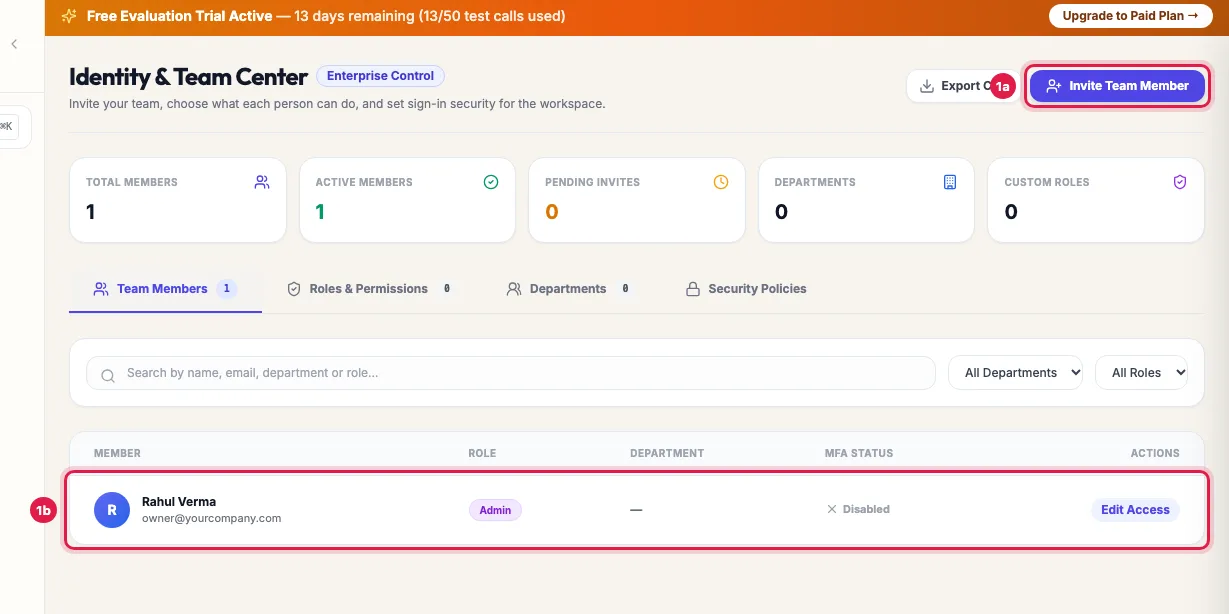
Team: your members with their role and sign-in security, and Invite Team Member Enter the Full Name and Work Email, choose the Role (Member, Manager or Admin), and if you like a Department, a Custom Role and Enforce Email MFA. Click Send Invitation.
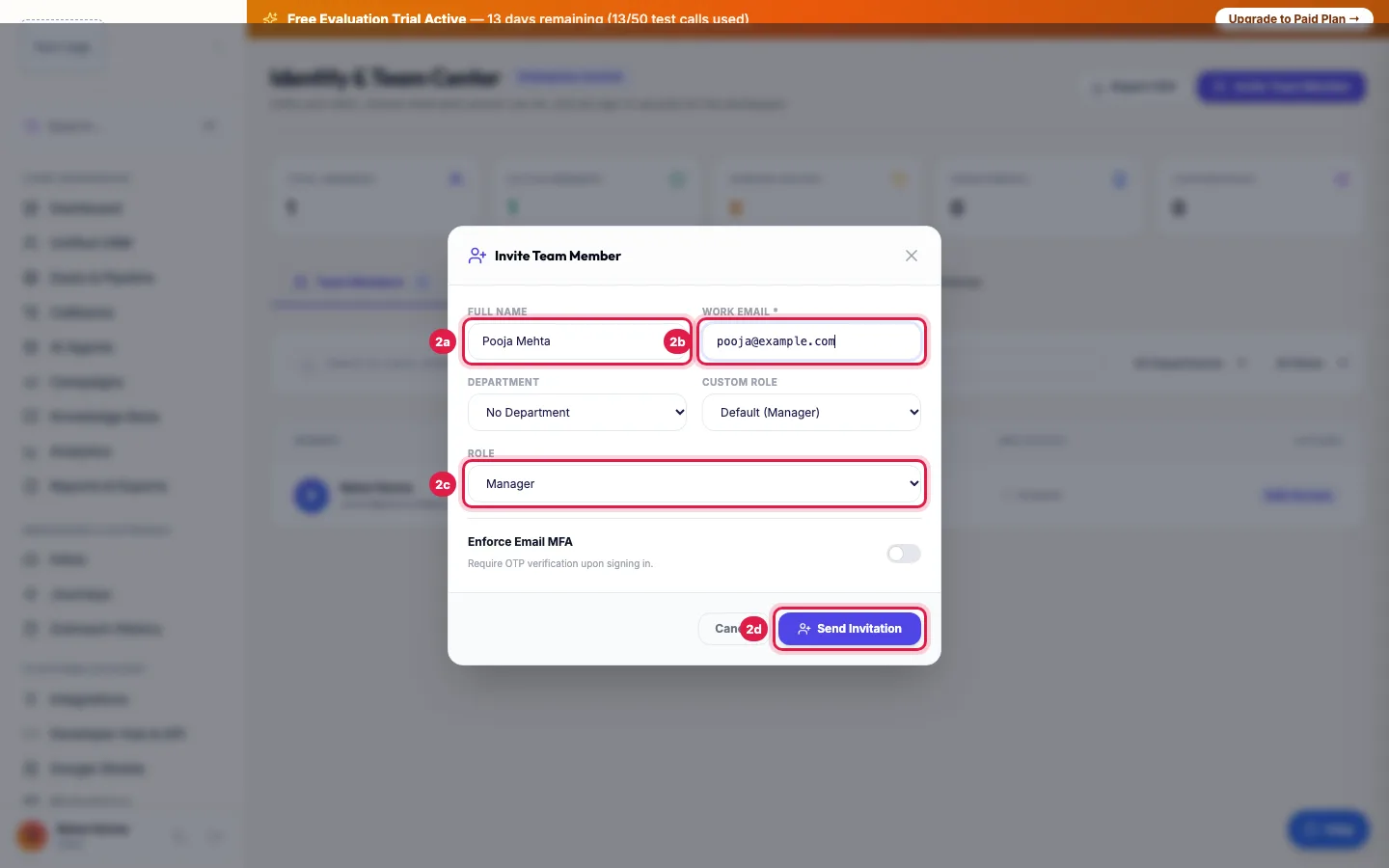
Invite a member: name, work email and role (Admin, Manager or Member) The colleague gets an email with a Set Password & Accept Invitation button and a temporary password. Pending invitations are listed with Resend Invite Email and Cancel Invite; they expire in 7 days.
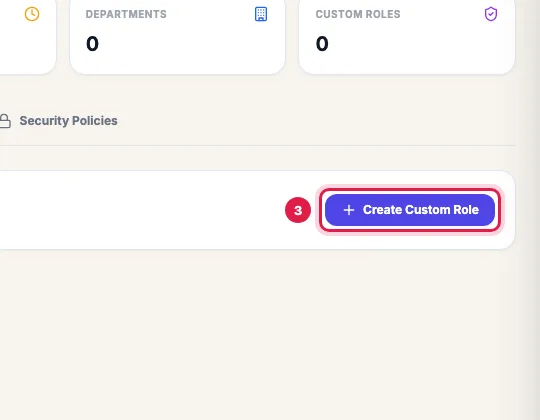
Roles & Permissions: make a custom role with exactly the modules a person may use To decide exactly what someone may do, open Roles & Permissions, click Create Custom Role, give it a Role Title and tick View, Edit, Delete or the special actions for each module. Click Save Role.
Security Policies: sign-in codes for everyone, inactivity timeout, allowed networks and more Give the role to a member: click Edit Access on their row and choose it under Custom Security Role. Here you can also change the Role and Department, switch on Enforce Email MFA, limit them to certain networks, or Remove Member. Changes save as you make them.
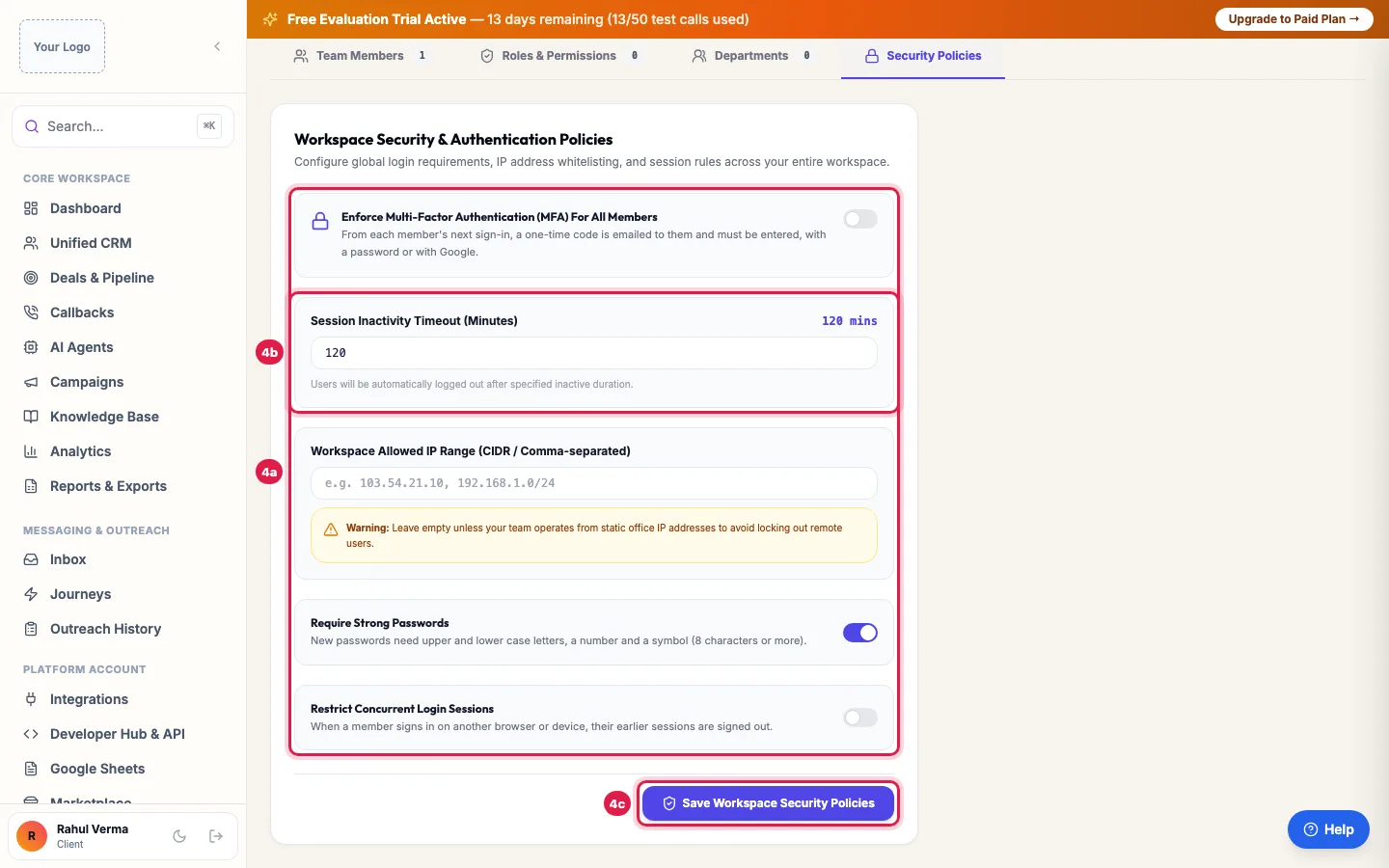
Open Security Policies to set rules for everyone: Enforce Multi-Factor Authentication (MFA) For All Members, Session Inactivity Timeout (Minutes), Workspace Allowed IP Range, Require Strong Passwords and Restrict Concurrent Login Sessions. Click Save Workspace Security Policies.
What each role can do
- Admin: everything, including billing, the wallet, settings and the team.
- Manager and Member: can see the workspace, but cannot change protected work such as editing leads, agents and settings, launching campaigns or managing the team until you give them a custom role with those rights. Without a custom role the two behave the same.
- Custom role: the rights you tick, module by module: CRM & Leads, Voice Campaigns, Billing & Wallets, AI Voice Agents, WhatsApp & Messaging, Phone Numbers (DIDs), Webhooks & API, Analytics & Reports, Team & Security and Knowledge Base (RAG).
Sign-in security
- Enforce MFA: from each member's next sign-in, a one-time code is emailed and must be entered, with a password or with Google. You can also turn it on for one person with Enforce Email MFA.
- Session Inactivity Timeout: people are signed out after that many minutes without activity.
- Workspace Allowed IP Range: sign-in only from the networks you list (single addresses or ranges, comma separated). Your own current network must be in the list when you save.
- Require Strong Passwords: new passwords need upper and lower case letters, a number and a symbol, 8 characters or more. It applies when a password is set: accepting an invitation or resetting a password.
- Restrict Concurrent Login Sessions: when someone signs in on another browser or device, their earlier sessions are signed out.
Good to know
- Only an Admin can make someone an Admin or remove an Admin.
- Nobody can remove themselves or change their own role (the row says This is you), and the workspace always keeps one Admin.
- A removed member is signed out everywhere at once.
- Departments (the Departments tab) group people, for example Sales or Support, and help you filter the list.
- Export CSV downloads the team list with roles and MFA status.
- Team members do not use AI agent seats: agents and people are counted separately.
Example: A real estate office with a sales head and four callers
Sharma Properties invites its sales head as Admin and four tele-sales staff as Members in a Sales department. It creates a custom role "Sales Caller" with View and Edit on CRM & Leads and View on Voice Campaigns and Analytics & Reports, and gives it to the four. In Security Policies it turns on MFA for all, a 60-minute inactivity sign-out and the office network only. The callers update leads and listen to calls; only the sales head launches campaigns and sees billing.
Tips
- Give people the least they need: a custom role per job (caller, supervisor, accountant) is easier to manage than many Admins.
- Before you save an allowed network list, check your office's address with your network provider; a wrong list can lock your team out.
- When someone leaves, click Remove Member the same day.
Frequently asked questions
How do I give my team access to the AI calling dashboard?
Team → Invite Team Member: enter their name and work email, choose a role and click Send Invitation. They set their own password from the email.
Team member add karna hai, kaise kare?
Open Team, click Invite Team Member, fill Full Name and Work Email, choose the Role and click Send Invitation.
The invitation email did not arrive.
Check spam, then click Resend Invite Email on the pending invitation. Invitations expire in 7 days.
Can I require two-factor sign-in for my team?
Yes: Security Policies → Enforce Multi-Factor Authentication (MFA) For All Members, or Enforce Email MFA for one person in Edit Access.
My member cannot edit leads or start a campaign.
Managers and Members can only view protected work until you give them a custom role. Create one in Roles & Permissions with Edit on CRM & Leads (and the campaign rights) and choose it in Edit Access.
Can I reset a member's password?
No. Each person resets their own with Forgot Password? on the sign-in page. For someone who never accepted the invitation, click Resend Invite Email.
Can a member see billing?
Give billing only to Admins, or to a custom role with Billing & Wallets ticked.
Questions this guide answers
- How do I give my team access to the AI calling dashboard?
- Can I require two-factor sign-in for my team?
- How do I limit what a team member can see or change?
- Can I restrict logins to my office network?
Related guides
- Account Settings: Company, GST, Data Retention and Alerts: Settings holds your company details, industry and GSTIN, the GST rate and terms on invoices you send, how long call recordings are kept…
- Cannot Log In or Not Getting the Code? Every Sign-in Message Explained: The sign-in page says what is wrong: a wrong password (5 tries, then a 15-minute lock), a sign-in code that lasts 5 minutes, a network…
- Forgot Password? How to Reset It (and Fix a Missing Reset Email): On the sign-in page click Forgot Password?, enter the email you sign in with and click Send Reset Link. Open the email "Reset your ……