How to Train an AI Voice Agent on Your Business Documents
In short: Upload a PDF, DOCX, TXT, CSV or JSON file (up to 10MB) or paste text in Knowledge Base, then tick the document for the agent under Linked Knowledge Base Documents. During calls the agent searches the documents linked to it and answers callers' questions from them instead of guessing.
A step-by-step guide for BookAICall, an AI voice agent platform that makes and answers phone calls for businesses in Hindi, English, Hinglish and other Indian languages. Updated .
Steps
Open Knowledge Base and click Add Document.
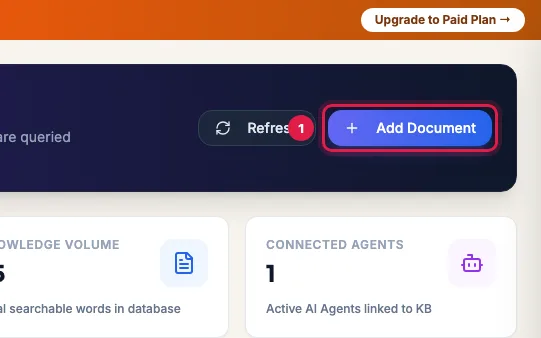
Add Document on the Knowledge Base page Choose Upload Document File for a PDF, DOCX, TXT, CSV or JSON file of up to 10MB, or Paste / Type Content.
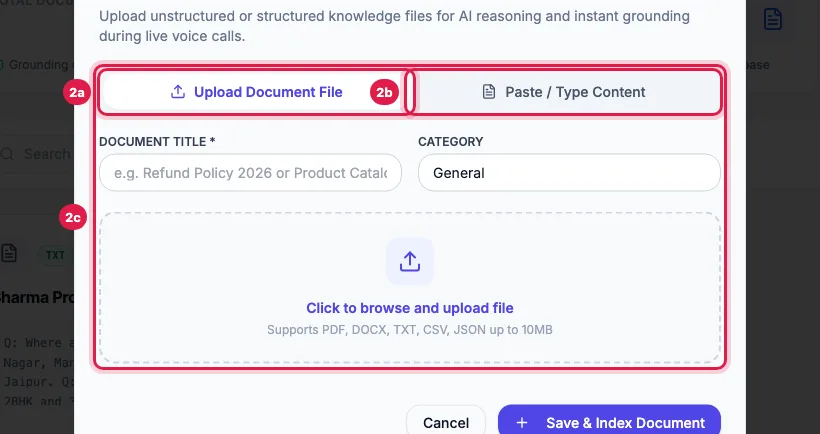
Upload a PDF, DOCX, TXT, CSV or JSON file, or paste text Enter the Document Title (and a Category if you like), paste or upload the content, and click Save & Index Document.
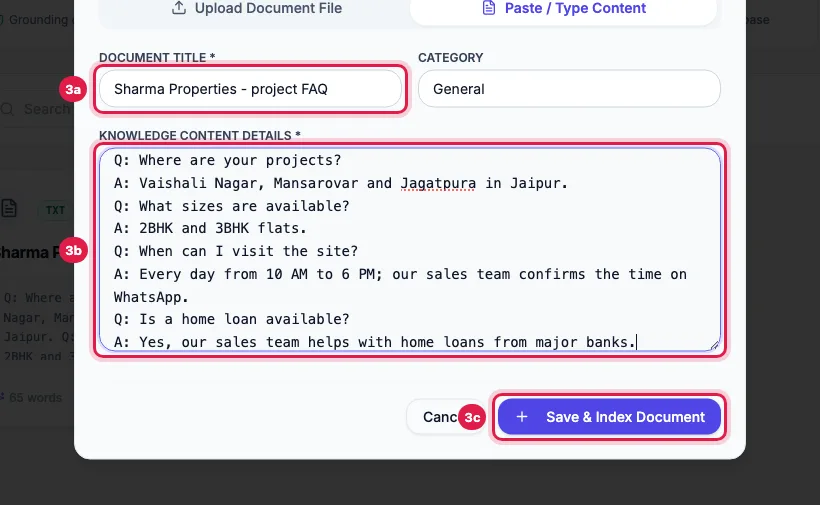
Document Title, the content as questions and answers, and Save & Index Document The document appears with its status. Ready means its text has been read; a PDF or Word file shows Processing for about two minutes first; Failed means no text was found in it. The card also shows how many agents use it.
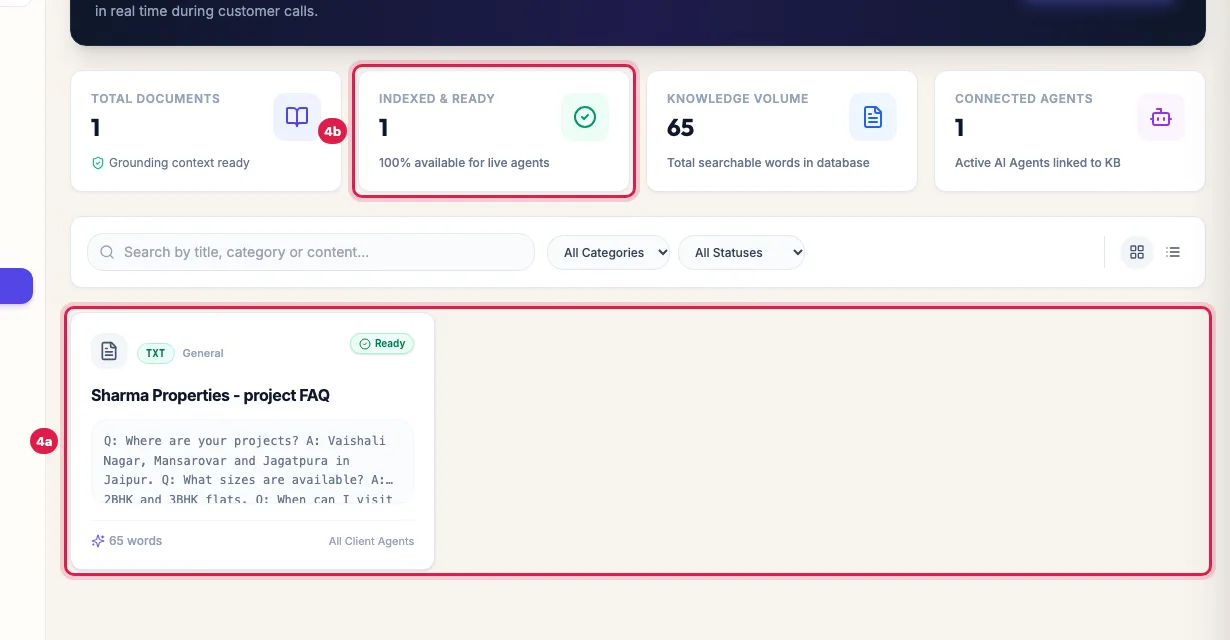
The document, Ready to use, and which agents use it Link it to the agent: open the agent with Edit, tick the document under Linked Knowledge Base Documents and click Save Changes. Then call the agent and ask a question the document answers.
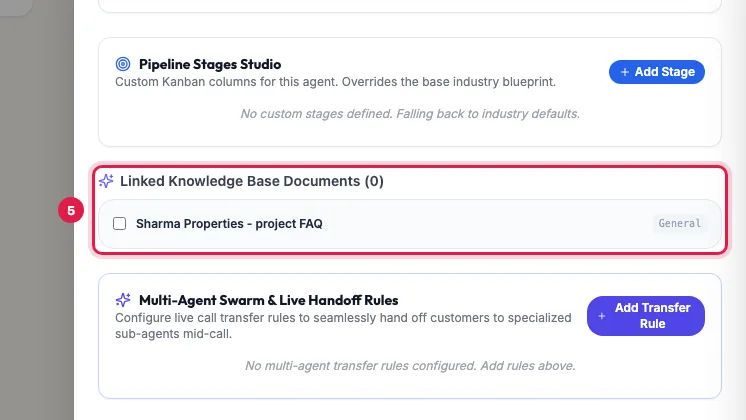
In the agent's panel, tick the documents this agent should use
How the agent uses it on a call
When a caller asks something factual, such as a timing, a location, a policy or what a product includes, the agent searches the documents linked to it and answers from what it finds, in its own words and in the language of the call. It does not read documents aloud. It is told never to guess; say in your prompt what it should say when the answer is not in your documents, for example that the team will call back.
Which documents an agent uses
- On calls, an agent uses the documents ticked for it under Linked Knowledge Base Documents. A document with no agent linked is not used on calls, so link every document you add.
- You can also link from the document: click it, then tick agents under Linked AI Agents.
- An agent made with Generate with AI already has one document, such as "AI KB — Priya", holding what you told the studio. Tick your own documents as well.
What the statuses mean
- Ready: the text is read and agents linked to it can use it.
- Processing: we are reading the text of a PDF or Word file. It turns Ready in about two minutes.
- Failed: no text was found, usually because the PDF is a scanned image. Click the document, click Edit, paste the text into Content Text and click Save: it turns Ready.
Edit, replace or remove a document
Click a document to see its text, word count and linked agents. Click Edit to change the Title, Category or Content Text, then Save. To replace a file, delete the old document (the bin icon) and upload the new one, then link it again. A deleted document is no longer used by any agent. Calls already in progress keep what they loaded.
What to put where
- Knowledge Base: answers that rarely change, such as FAQs, policies, timings, addresses, project or course details.
- Data Catalogs: lists that change, such as stock, rates, available units or orders.
- System Prompt: how the agent behaves: its goal, steps, tone and what it must never say.
Example: The questions buyers always ask
Sharma Properties pastes its project FAQ as questions and answers: where the projects are, which flat sizes, site-visit hours, parking, and home-loan help. Rahul titles it "Project FAQ", puts it in the category FAQs & Answers, and ticks it for Priya under Linked Knowledge Base Documents. On the next call, a buyer asks "Is a home loan available?" and Priya answers from the FAQ instead of guessing. When a scanned brochure shows Failed, Rahul opens it, clicks Edit and pastes the brochure's text.
Tips
- Write it as questions and answers, in the words your customers use.
- Keep one topic per document with a clear title; it is easier to update and to link.
- Update the document the day something changes, such as timings or a new branch, and test with one call.
- Live data such as stock or prices belongs in Data Catalogs, not the Knowledge Base.
Frequently asked questions
How do I train my AI calling agent on my company information?
Add your FAQs, policies and product details as documents in Knowledge Base and tick them for the agent under Linked Knowledge Base Documents.
Which file types can I upload?
PDF, DOCX, TXT, CSV and JSON, up to 10MB each. For an old .doc file, save it as DOCX first or paste its text.
PDF upload kiya, Failed dikha raha hai. Kya karein?
The PDF is probably a scanned image with no text. Open the document, click Edit, paste the text into Content Text and Save.
I uploaded a document but the agent does not use it.
Check that it shows Ready and that it is ticked under Linked Knowledge Base Documents in that agent's panel, then click Save Changes.
Does the agent read the whole document to the caller?
No. It searches the document for the part that answers the question and replies in a sentence or two.
Can different agents use different documents?
Yes. Each agent uses the documents ticked in its own panel.
How do I stop the agent from guessing answers?
Put the facts in a linked document and write in the prompt: answer only from the knowledge base, and say the team will call back when the answer is not there.
Questions this guide answers
- How do I train an AI calling agent on my company information?
- Can an AI voice agent answer questions from a PDF?
- How do I stop an AI agent from guessing answers?
- Why does my AI agent not use my uploaded document?
Related guides
- Give an AI Calling Agent Live Product, Stock or Order Data: A catalog is a table the agent searches during a call: products, stock, rate lists, available flats or orders. Create it in Data Catalogs…
- How to Write a Prompt for an AI Calling Agent (with Example): Open the agent with Edit and write its Greeting Message and System Prompt: who the agent is, the one goal of the call, the steps in order…
- AI Voice Agent Saying Wrong Things? Fixes for Each Problem: Open the call's transcript, find the moment it went wrong and change the one setting behind it: the Language for the wrong language, the…
- How to Create an AI Calling Agent in Minutes (No Code): AI Agents → Generate with AI: describe your business, the call's goal and the voice you want, and the studio writes the call stages…