Give an AI Calling Agent Live Product, Stock or Order Data
In short: A catalog is a table the agent searches during a call: products, stock, rate lists, available flats or orders. Create it in Data Catalogs, fill it by importing Excel or CSV, pasting rows or connecting your order platform, and tick it under Connected Data Catalogs in the agent's panel. The agent then looks items up on calls and on WhatsApp instead of guessing.
A step-by-step guide for BookAICall, an AI voice agent platform that makes and answers phone calls for businesses in Hindi, English, Hinglish and other Indian languages. Updated .
Steps
Open Data Catalogs in the menu. Your account starts with one empty catalog. Click Create Catalog for a new one, or Import on a catalog to fill it.
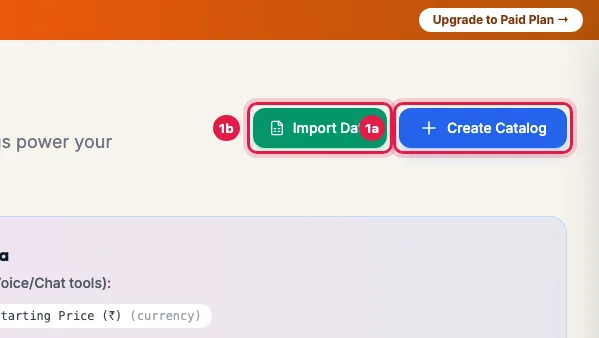
Data Catalogs, with Create Catalog and Import Data Create Catalog: enter the Catalog Name. System Name (used by AI) follows it, in lowercase letters, numbers and underscores. Describe what the rows are, and click Create.
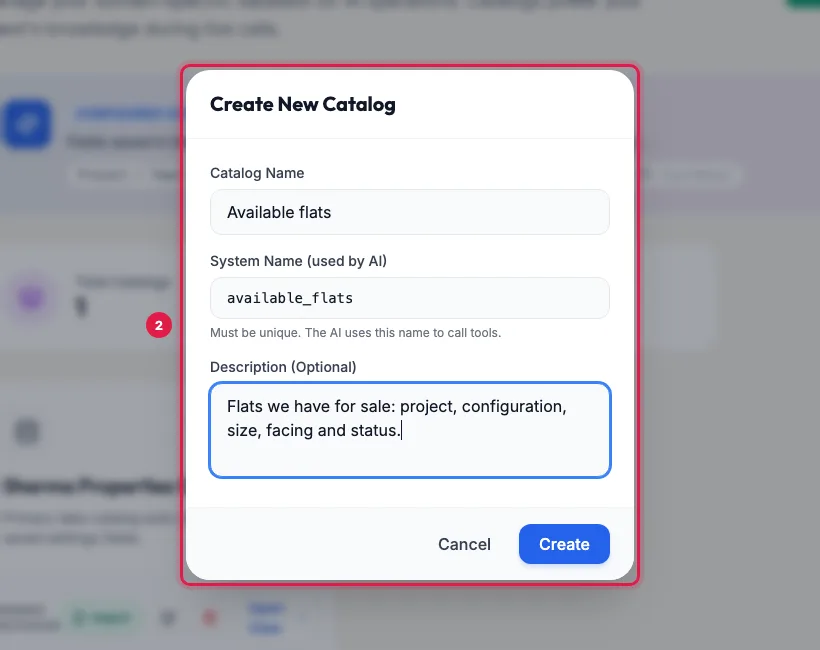
Create New Catalog: the name, the system name the agent uses, and a description Click Import on the catalog. Choose Upload File (.xlsx, .xls, .csv), or Paste from Clipboard: paste rows copied from Excel or Google Sheets, with the header row, and click Parse Pasted Data.
Map Columns: check which column fills each field. Item Name / Title is required; SKU, price, category, stock and description are optional, and your own catalog fields are listed below them. Choose how repeated items are handled (by default an item with the same SKU is updated), then click Preview Data.
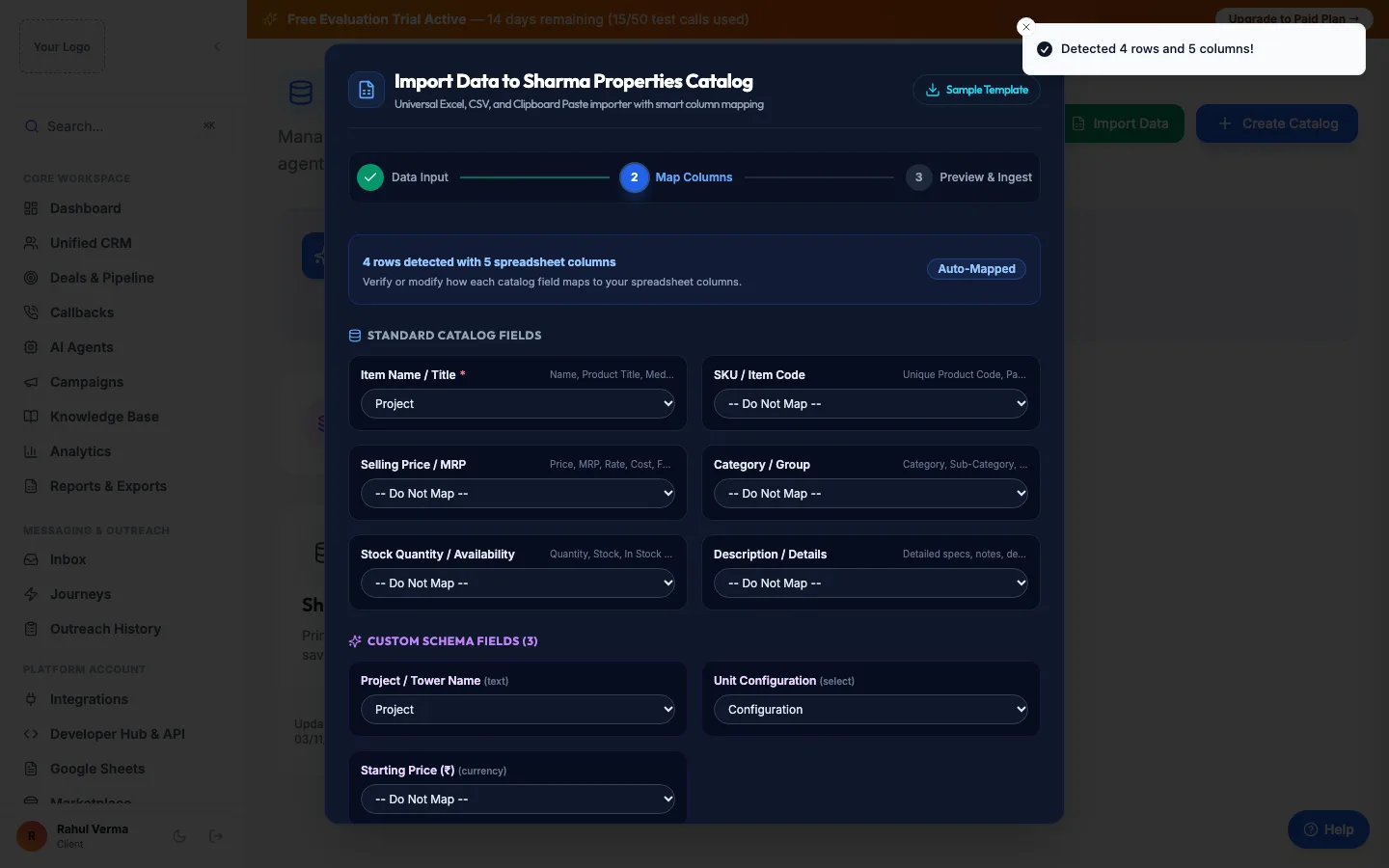
Import: the columns of your sheet matched to the catalog's fields Preview & Ingest shows the rows as they will be saved. Click Start Ingestion.
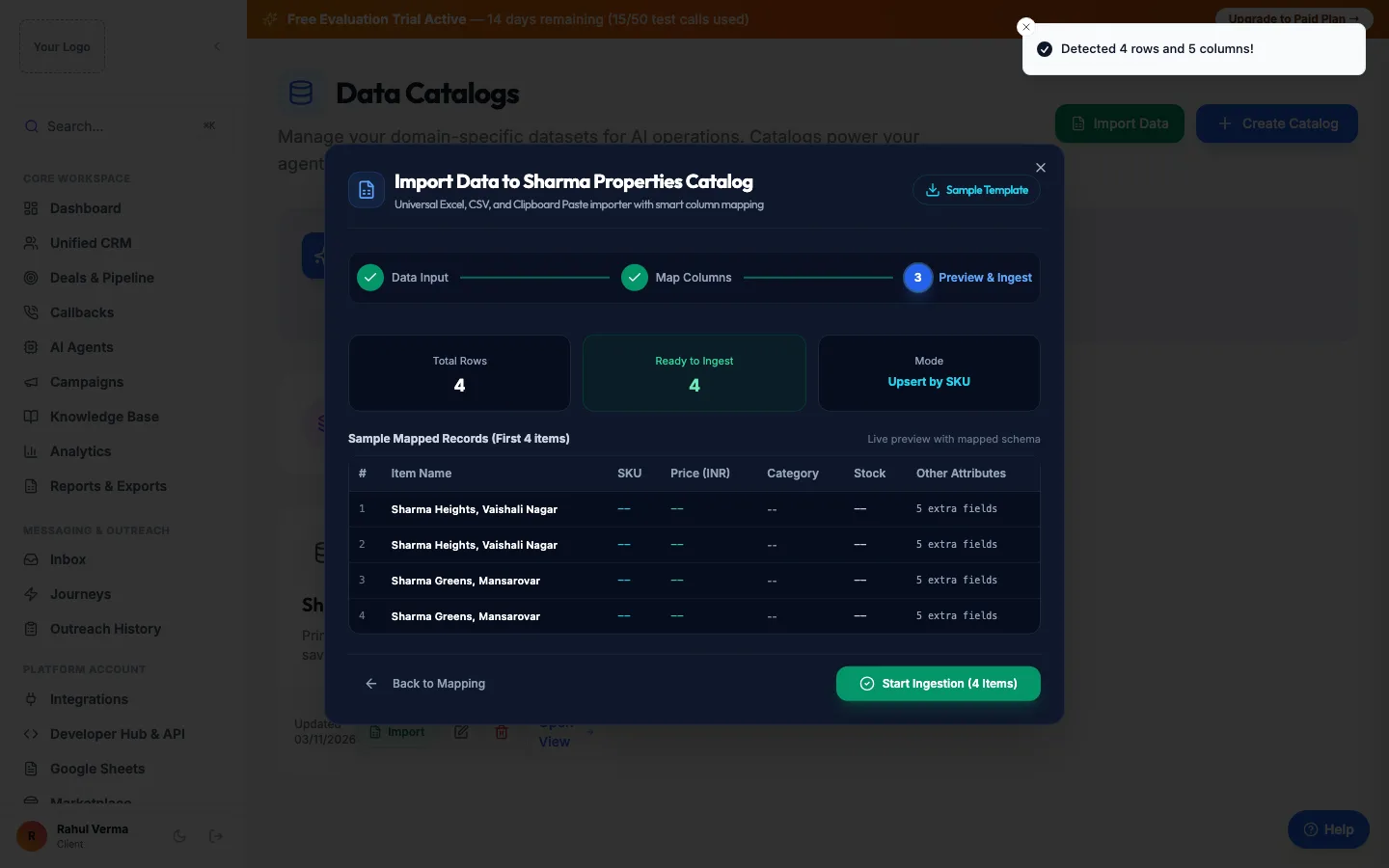
Import: a preview of the rows before they are saved Open AI Agents, click Edit on the agent and tick the catalog under Connected Data Catalogs, then Save Changes. Test with a call: ask about an item in your list.
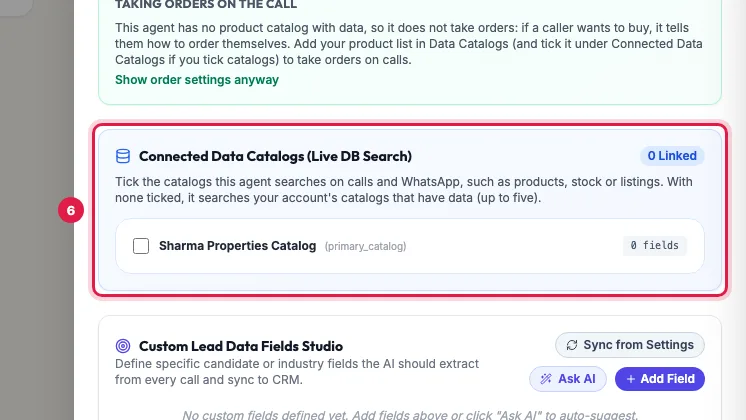
The agent panel: which catalogs the agent uses
How the agent uses a catalog on a call
- When a caller asks about an item, the agent searches by name, code (SKU) or category and answers with what the row says: availability, stock, size, rate or details.
- Catalogs whose name says what they hold, such as orders, shipments, tracking or invoices, answer "where is my order?". They are not used for stock or rates.
- To protect your customers, order details are given only for the caller's own number, or when the caller gives the order number together with the phone number on the order.
- If a row carries the caller's phone number (their order, booking or enquiry), the agent has it from the start of the call.
- The agent searches the catalogs ticked in its panel. With none ticked, it searches your catalogs that have rows, up to five. A catalog with no rows is skipped.
- A catalog of things callers buy also lets the agent take orders on the call; see "Conversation rules". For lists that are not orderable, such as flats, set Order taking to No ordering on calls.
Repeated items when you import again
- Update existing items if SKU matches (the default): rows with a known SKU are updated, new ones are added.
- Update existing items if Item Name matches: for lists without codes.
- Always create new items (No deduplication): every row is added, even if it is already there.
- When the import finishes, it shows Total Inserted, Total Updated and Skipped (Empty).
Work with the rows
Click Open View on a catalog to see its rows, search them, and page through them. Add Row adds one item by hand; the pencil on a row edits it and the bin deletes it. Edit Catalog changes the name and description and, under Column roles, tells the agent which column is the product name, the code, the rate, the MRP, the stock, the scheme, the GST rate, the packing and the units per box, so orders such as "2 box" become the right quantity.
Connect your order or logistics platform
On a catalog's page, click Connect Platform and choose Unicommerce OMS, Shipway Logistics or Procman RFQs. Enter the login details the form asks for, click Test Connection, then Save & Start Sync. The catalog then fills itself from that platform and stays updated: every few minutes during the day and every half hour at night. The button then shows the connector and its status.
Your own database
To fill a catalog from your own database or a Google Sheet on a schedule, use the Database Catalog Sync add-on.
Example: Which flats are still available?
Sharma Properties keeps a sheet of flats: project, configuration, size, facing and status. Rahul creates a catalog called Available flats, pastes the sheet with its header row, maps Project to Item Name / Title, and starts the import. He ticks the catalog for Priya under Connected Data Catalogs and sets Order taking to No ordering on calls. When a caller asks whether a 3 BHK east-facing flat is left in Vaishali Nagar, Priya looks it up and answers. Each Monday Rahul pastes the updated sheet again; flats already in the list are updated, not added twice.
Tips
- Use the Knowledge Base for answers that rarely change, and a catalog for lists that change: stock, rates, availability, orders.
- Give every item a code (SKU) if you can; imports then update rows instead of adding them twice.
- Keep the column names plain (Product, Rate, Stock); they are what the agent reads.
- Import again whenever the sheet changes, or connect your platform so it updates by itself.
Frequently asked questions
Can an AI calling agent check stock or rates during a call?
Yes. Put the list in a Data Catalog and tick it for the agent; it searches the list while the caller waits about a second.
Excel se product list kaise upload karein?
Open Data Catalogs, click Import on a catalog, choose Upload File (.xlsx, .xls, .csv), map the columns and click Start Ingestion.
How is a catalog different from the Knowledge Base?
A catalog is a table of rows the agent searches by name or code; the Knowledge Base is documents with answers. Use a catalog for lists that change.
Can the agent tell a customer their order status?
Yes, from a catalog of orders: for the caller's own number, or when the caller gives the order number and the phone number on the order.
Can I connect Unicommerce or Shipway?
Yes. On the catalog's page click Connect Platform, choose the platform, test the connection and click Save & Start Sync.
The agent gave an old stock figure.
The catalog still has the old row. Import the new sheet (the same SKUs are updated) or edit the row, then call again.
Questions this guide answers
- Can an AI calling agent check stock or prices during a call?
- How do I connect my product list to an AI voice agent?
- Can an AI agent tell customers their order status?
Related guides
- How to Train an AI Voice Agent on Your Business Documents: Upload a PDF, DOCX, TXT, CSV or JSON file (up to 10MB) or paste text in Knowledge Base, then tick the document for the agent under Linked…
- How to Make an AI Agent Take Orders over the Phone: Every agent has Conversation Rules in its panel. How the agent speaks (reply length, the pause that ends the caller's turn, the inbound…
- How to Write a Prompt for an AI Calling Agent (with Example): Open the agent with Edit and write its Greeting Message and System Prompt: who the agent is, the one goal of the call, the steps in order…
- AI Order Taking Calls for Pharma Distributors and Wholesalers: Every BookAICall account can take orders on calls: link a product catalog to your agent and it notes each item as the caller says it, checks…
- Sync PostgreSQL, MySQL or Google Sheets Data to an AI Calling Agent: With the Database Catalog Sync add-on, open a catalog in Data Catalogs and click Connect Platform. Choose PostgreSQL, MySQL or Google…
- Connect Shopify, WooCommerce, Unicommerce or Shipway to an AI Agent: Open Integrations, click the E-commerce Marketplaces tab and then Add Store Connection. Select the platform, keep Create New Dedicated…