How to Design Email Templates for Automated Follow-ups
In short: Email Templates lets you design branded emails without code: start from a ready design or Create Custom Template, set the subject, header, body and button with a live desktop and mobile preview, or let AI write it, then Save Template. Your templates are offered in email campaigns, and your AI agent uses them when it emails a customer.
A step-by-step guide for BookAICall, an AI voice agent platform that makes and answers phone calls for businesses in Hindi, English, Hinglish and other Indian languages. Updated .
Steps
Open Email Templates. Click one of the ready designs under Start from a ready design, such as Welcome (Indigo) or After the Call (Emerald), or click Create Custom Template.
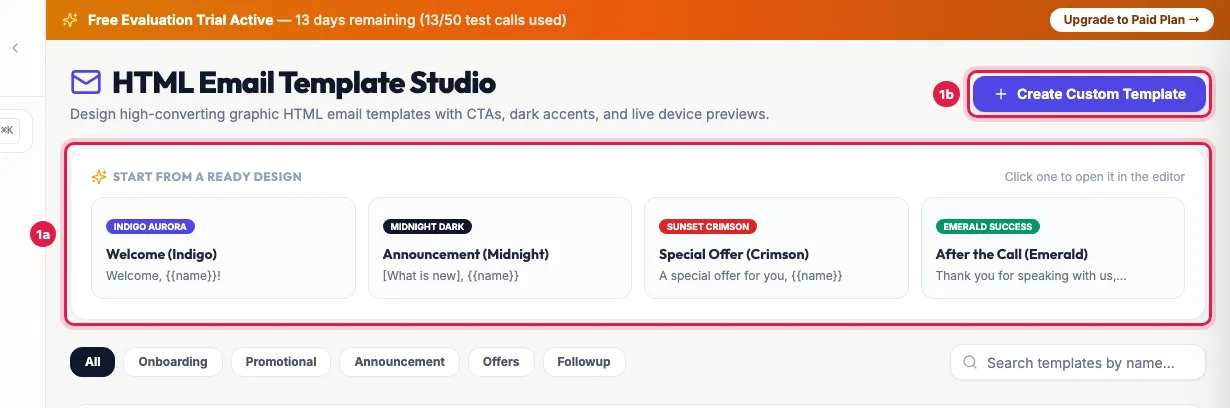
Email Templates: start from a ready design, or create your own In the editor, give the template a name and set the Category, the Header Accent Theme and the Email Subject Line. The preview on the right updates as you type; switch between Desktop (600px) and Mobile Phone (375px) to check both.
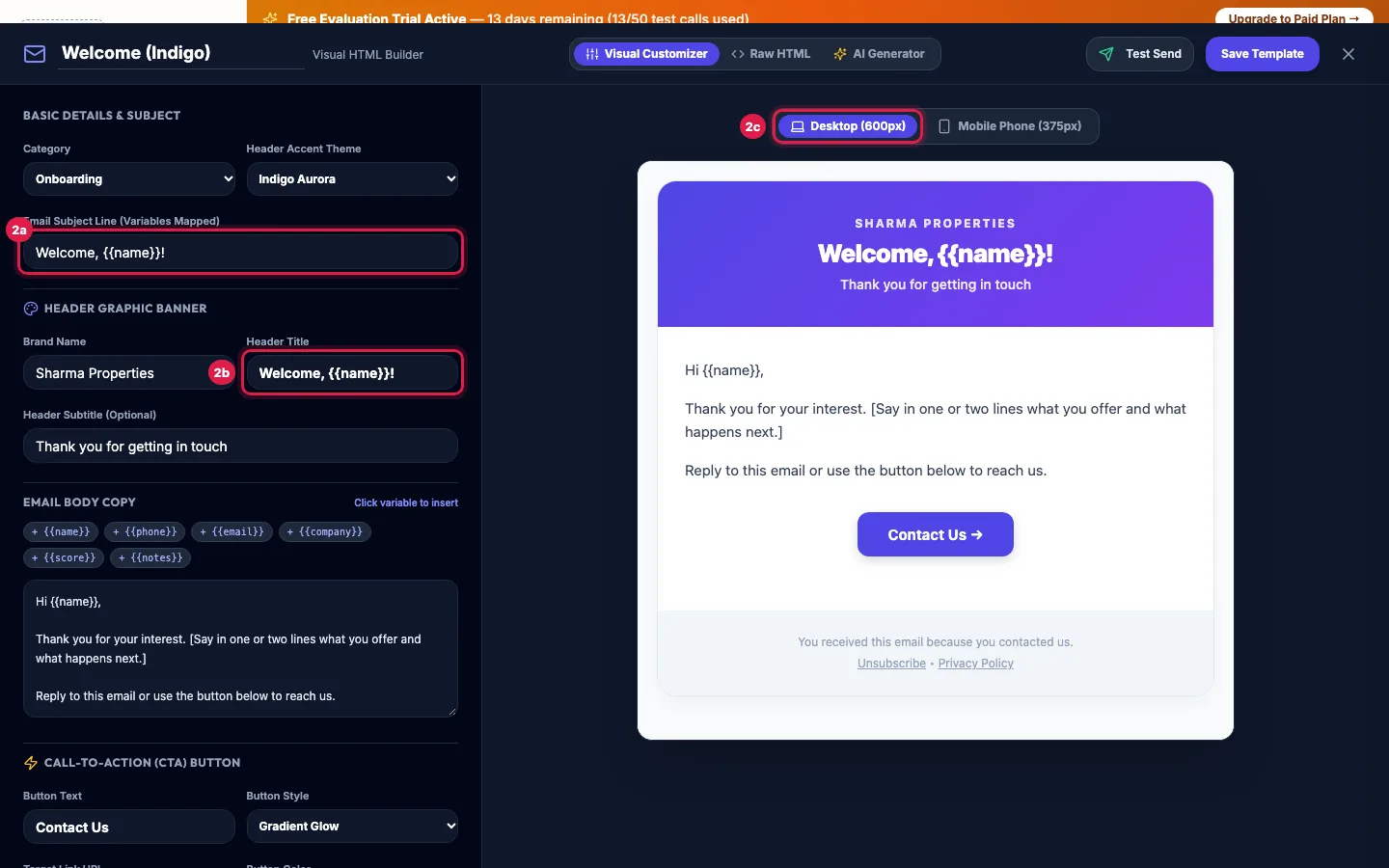
The editor: subject, header and body on the left, a live preview on the right Under Email Body Copy, write the text. Click a variable such as {{name}} or {{company}} to insert it: each customer sees their own details.
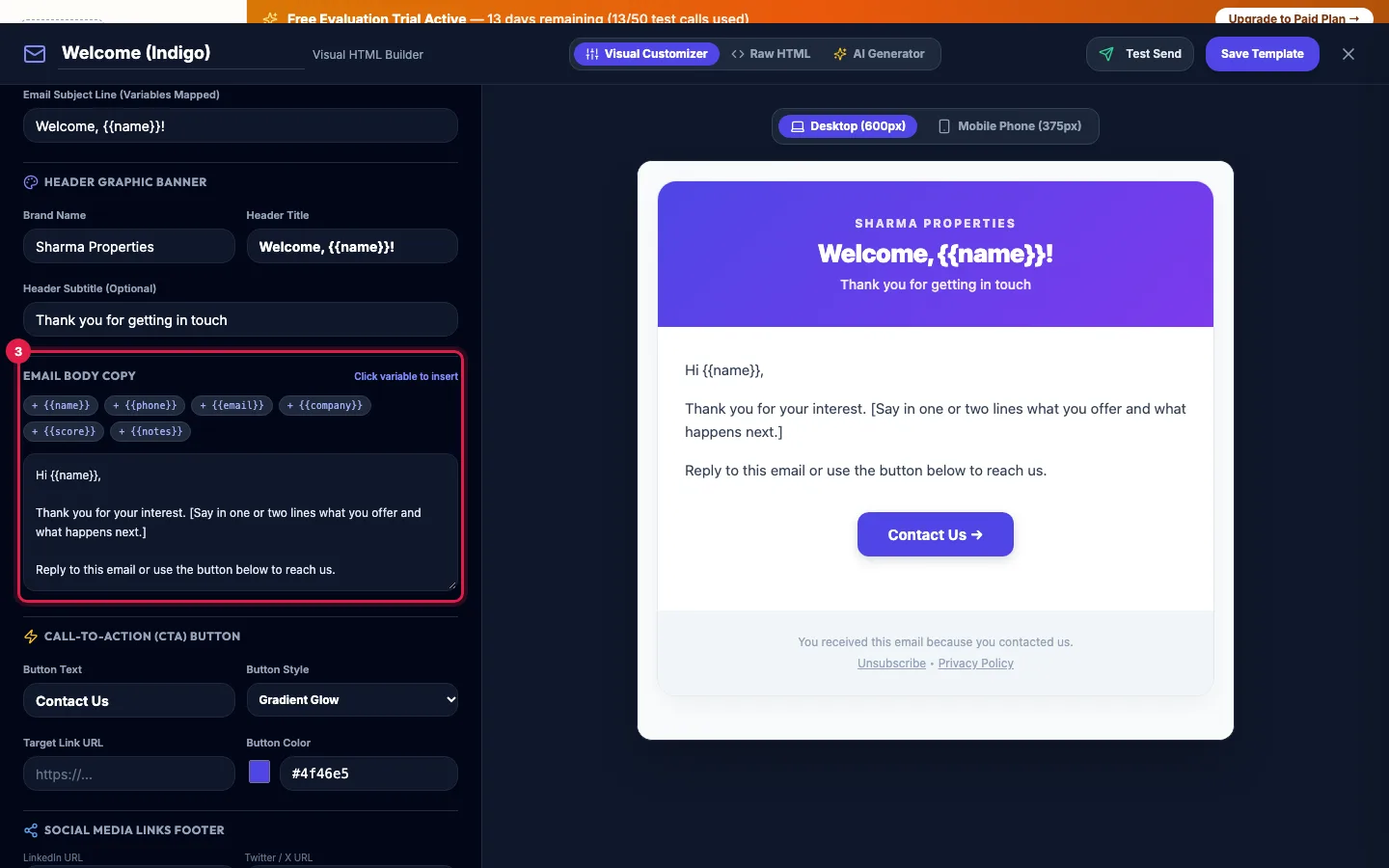
Write the body and click a variable such as {{name}} to fill in each customer's details Set the button: Button Text, Button Style, Target Link URL and Button Color. Add your LinkedIn, website or WhatsApp links below if you like.
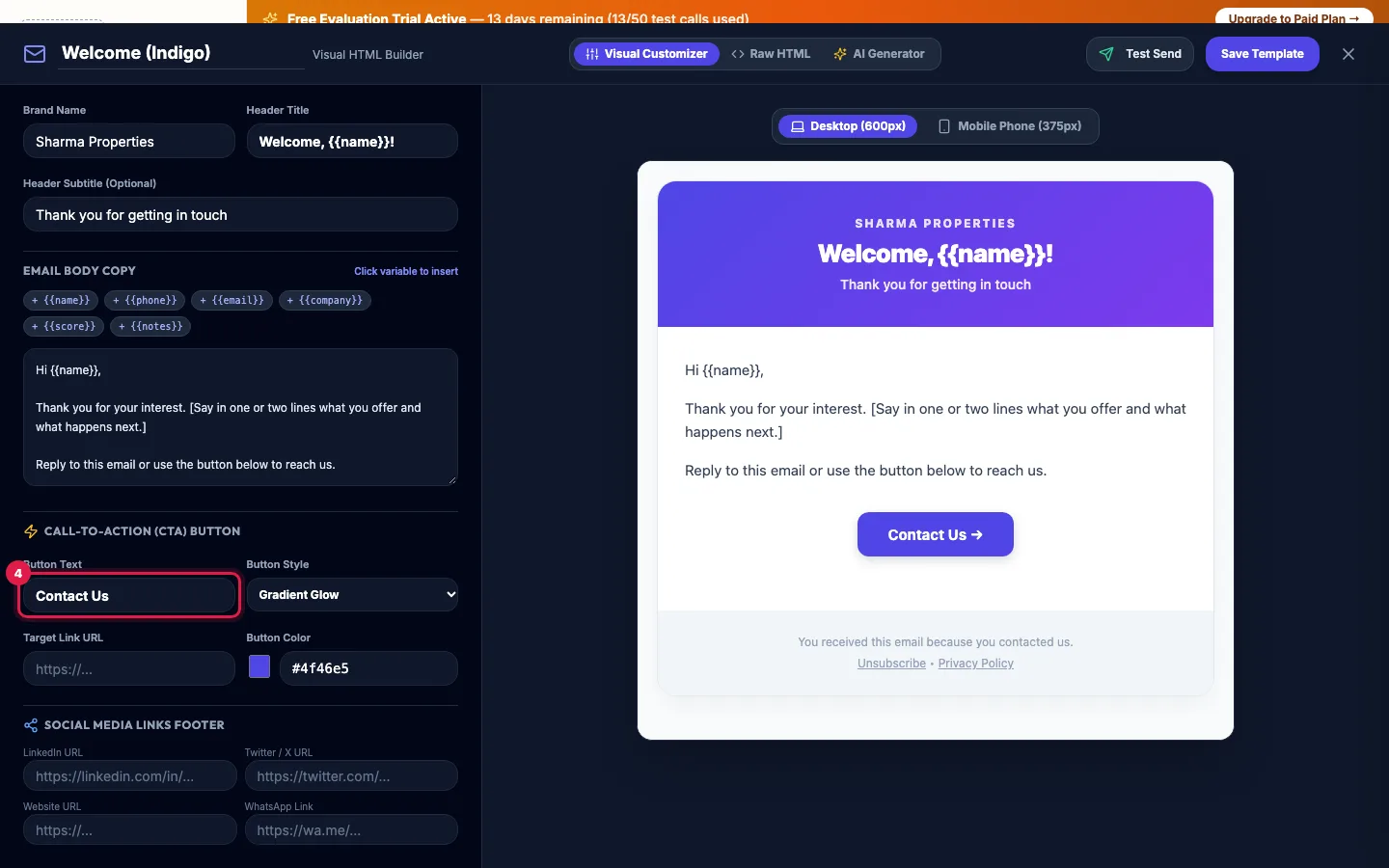
Call-to-action button: its text, style and link Or open AI Generator, describe the email in a sentence or two under Prompt Instructions, and click Generate Template with AI. Check every detail in the preview and change anything you like.
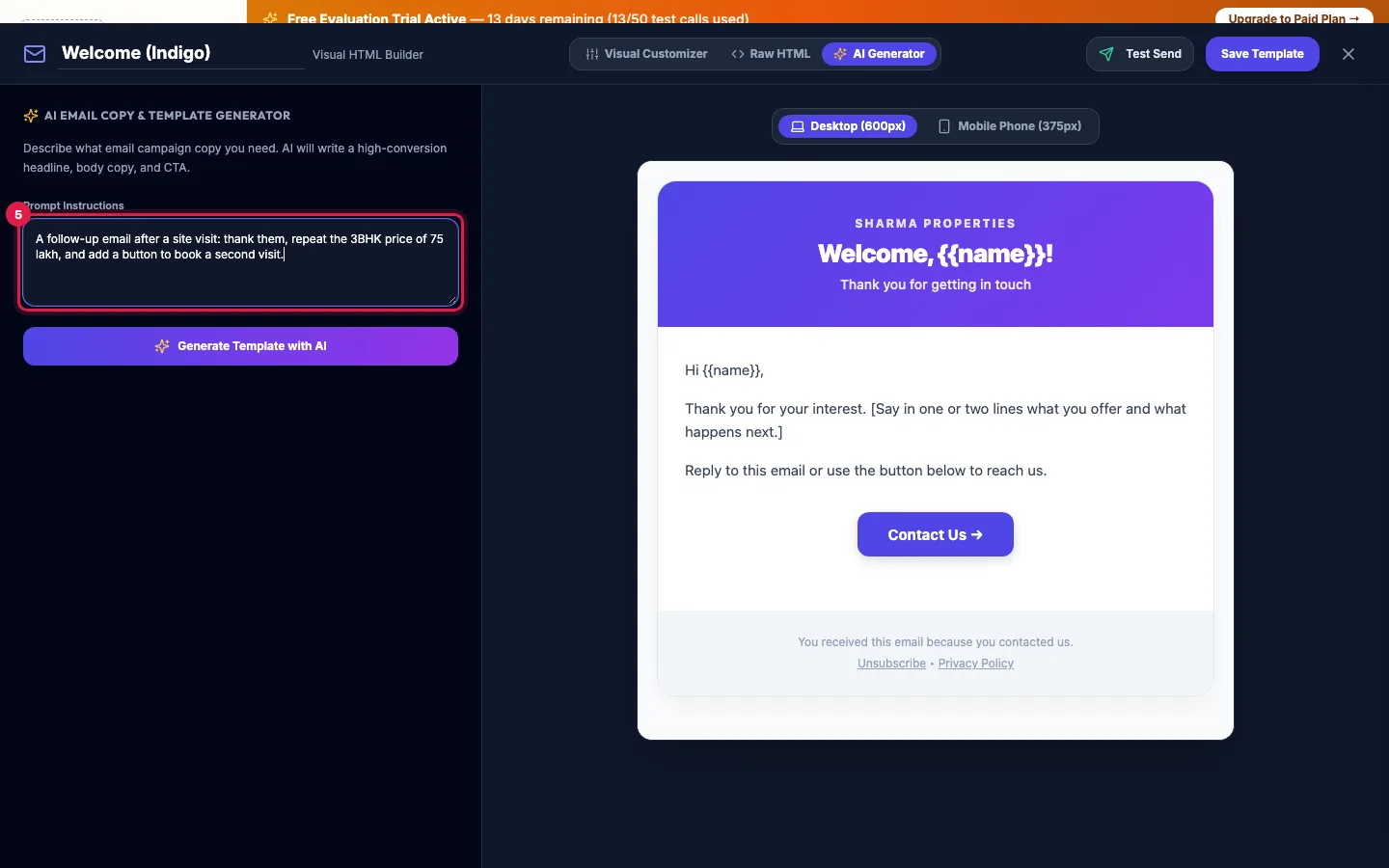
AI Generator: describe the email and let AI write it Click Test Send to send yourself a copy (it needs your own mailbox connected), then click Save Template.
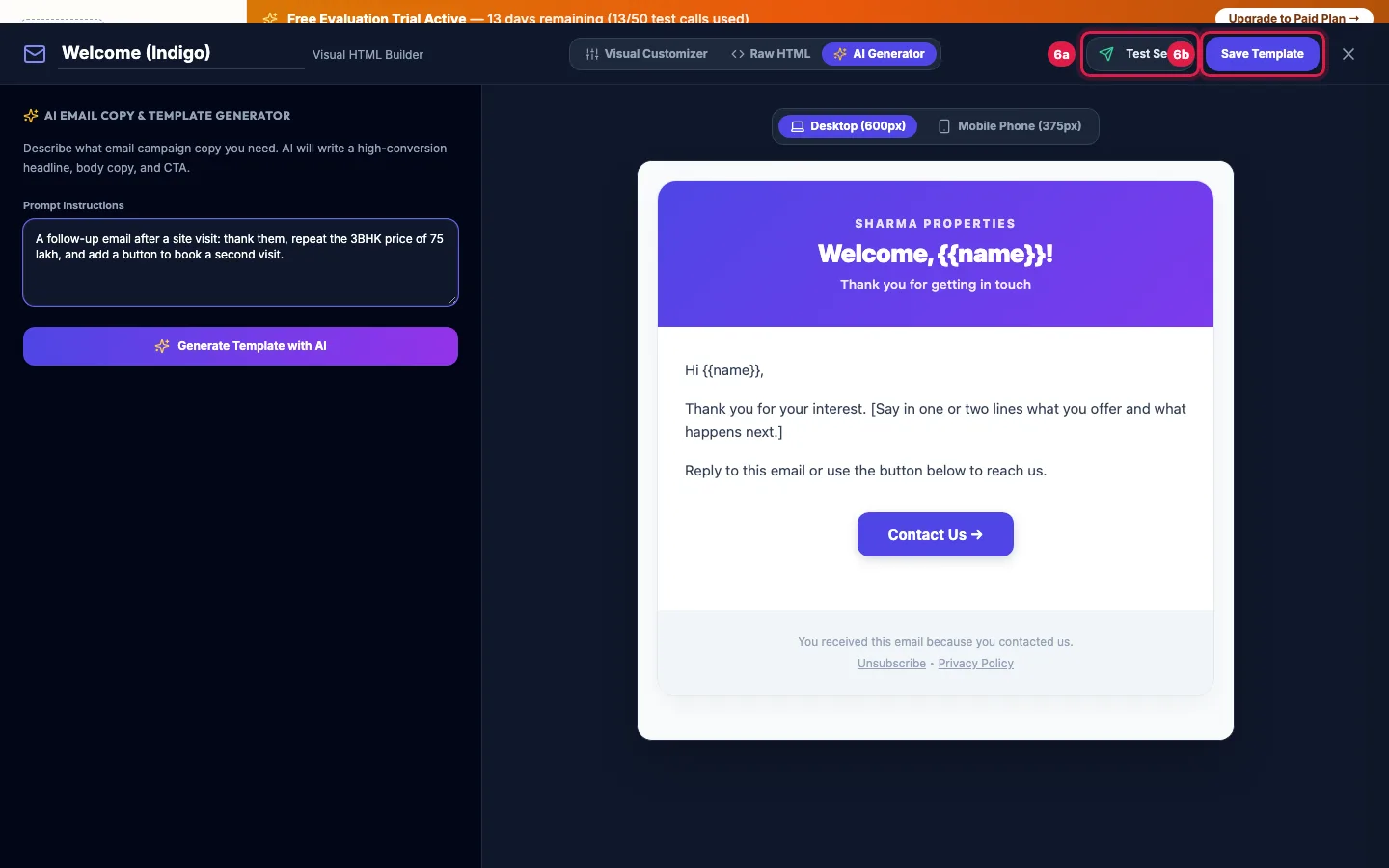
Send yourself a test, then Save Template
The editor's three tabs
- Visual Customizer: the subject, header (Brand Name, Header Title, Header Subtitle), body, button and social links, with no code.
- Raw HTML: the email's HTML, for a design made elsewhere.
- AI Generator: a first draft from your own brief. It uses only the facts you give it, so put in the real offer, dates and links.
Variables
- {{name}}, {{company}}, {{email}} and {{phone}} are filled from the lead in email campaigns and in emails your agent sends.
- {{notes}} (what was noted on the call) is filled only in emails your agent sends during a call; leave it out of email campaigns.
- Test Send fills {{name}} with Test Recipient so you can check the layout.
Where templates are used
- Email campaigns: step 2 lists them under Your Custom Saved Templates.
- Your AI agent: when it emails a customer during a call, it uses the template named in its prompt (write the template's name in quotes), otherwise your newest template in the Follow-Up category, otherwise a plain email.
- Categories (Onboarding, Promotional, Announcement, Special Offers, Follow-Up, Transactional) keep the list tidy, and Follow-Up tells the agent which one to use after calls.
Example: A follow-up after a site visit
Sharma Properties opens After the Call (Emerald), names it Site visit follow-up, sets the category to Follow-Up and the subject to "{{name}}, thank you for visiting Green Meadows". The body thanks the buyer and lists the next steps; the button Book a second visit links to the booking page. Test Send arrives looking right on the phone, so the manager clicks Save Template. From the next call, Priya sends this email when a buyer asks for details.
Tips
- Keep the subject short and personal, for example "{{name}}, your site visit is confirmed".
- One button with one clear action works better than many links.
- Emails go from your own address once you connect it in Integrations → Messaging Channels → Email Gateway.
Frequently asked questions
Email template kaise banaye?
Open Email Templates, start from a ready design or Create Custom Template, set the subject, body and button with the live preview, and click Save Template.
Test Send says it needs my own mailbox.
Test emails go only through your own mailbox. Connect it in Integrations → Messaging Channels → Email Gateway, then try again.
Can AI write the email for me?
Yes: open AI Generator, describe the email and click Generate Template with AI. Check the draft before you save; it uses only the facts you gave.
How do I make my agent send a particular template?
Write the template's name in quotes in the agent's prompt, for example: send the "Site visit follow-up" email when a buyer asks for details. Otherwise it uses your newest Follow-Up template.
Can I paste my own HTML?
Yes, in the Raw HTML tab. Check it on Mobile Phone (375px) before saving.
Questions this guide answers
- How do I create an email template for lead follow-up?
- Can AI write my follow-up emails?
- Can my AI calling agent send an email template after a call?
Related guides
- Email Campaigns That Trigger an AI Call When a Lead Clicks: Email Campaigns → Create Campaign takes four steps: details, the email, the recipients, and what your AI agent does when someone opens or…
- Send CRM Emails From Your Own Address: Zoho, Gmail or SMTP: Integrations → Messaging Channels → Email Gateway Config: choose your Email Provider (Zoho Mail, your own SMTP server such as Gmail or…
- How to Automate Lead Follow-ups with AI Calls, WhatsApp and Email: A journey is a follow-up you set up once. When something happens (a new lead, a call outcome, a reply, a webhook or a set time), it calls…
- How to Write a Prompt for an AI Calling Agent (with Example): Open the agent with Edit and write its Greeting Message and System Prompt: who the agent is, the one goal of the call, the steps in order…